

There is a purely biological reason as to why blue light hurts us. Sleep is one of the most important components of our circadian rhythm, which is a chain of processes that are determined by how much light or darkness we are exposed to.
In natural environments, where you are only exposed to sunlight, your retinas will sense the setting of the sun, which will induce your hypothalamus to command your body to produce melatonin and other hormones associated with sleep to lower your body's temperature.
However, by using artificial lighting to make the working day longer, our bodies become confused, resulting in the disruption of the various sleep signals. What's more, the emission of blue light from computer screens and other sources causes us to become more alert, to produce less melatonin, and thus significantly decrease our chances of getting a good night's sleep.
Windows 10 has had a blue light limiting feature ever since the April 2017 Creators Update called Night Light, which shifts the display to only show warmer colors. Here's how to activate it:
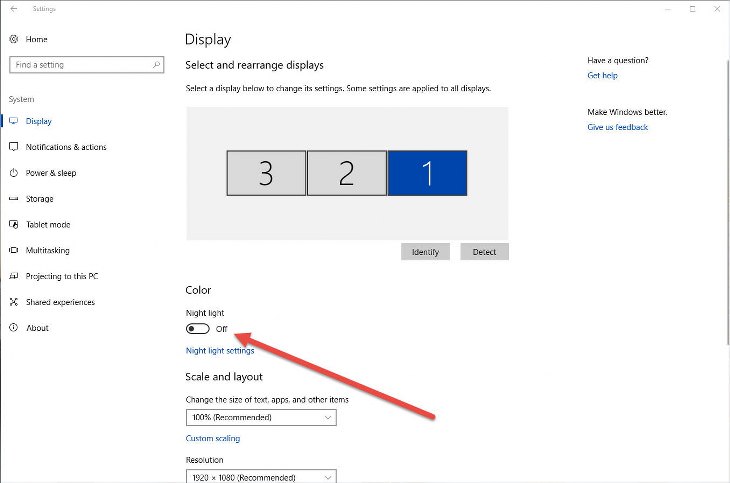
Step 1: Go to the settings menu by searching in the search box.
Step 2: From the menu, choose "System".
Step 3: Click on “Display” from the left-hand menu if it hasn't been automatically selected.
Step 4: From here, you'll be able to toggle the "Night Light" feature on.
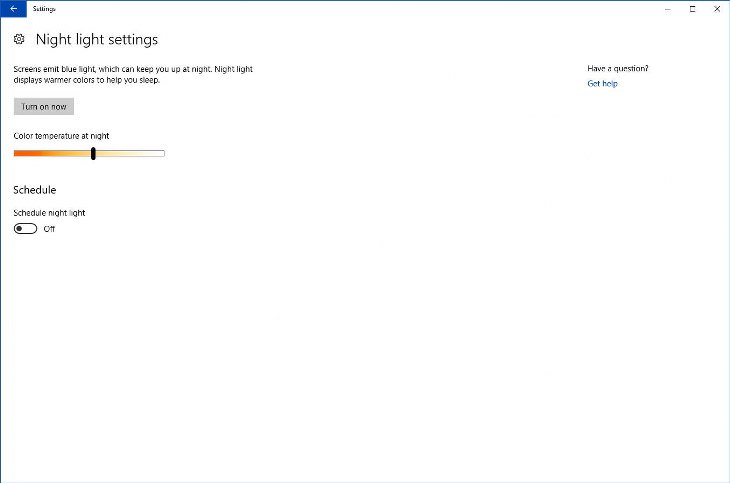
To customize the Night Light's functionality, click on “Night light settings.” You'll be able to schedule a time for this feature to turn on by itself, as well as adjust the range of colors which will be displayed when it is active.
Apple users have the chance to limit their blue light exposure through the use of a feature called "Night Shift", which was introduced to MacOS systems in the March 2017 MacOS Sierra update. Here's how to activate this great feature:
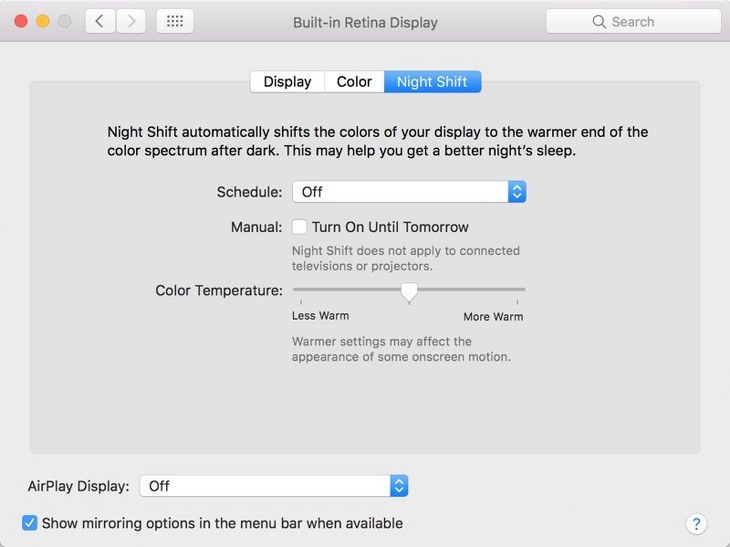
Step 1: Open up the “System Preferences” page.
Step 2: Choose “Displays,” and then click on the “Night Shift” button.
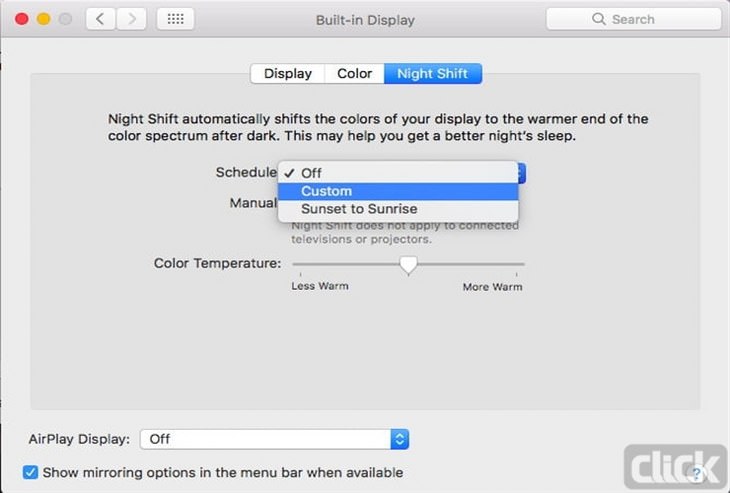
If you click on the "Settings" page, you'll be able to configure practically the same features that you can on Windows 10, such as the color temperature and when it will automatically activate and deactivate.
If the inbuilt Windows or MacOS blue light filters aren't quite what you're looking for, then there is a whole range of third-party alternatives you can try out instead. Here are the two we found to be the most superior:
Iris Mini - This simple blue light filter is the best for people who want results without lots of extra confusing options. You simply need to turn it on and it will do the rest by itself.
F.lux - This great app is free for MacOS, Windows and even Linux operating systems. By tracking the sun in your local area, it will adjust your monitor's color scheme to the appropriate level. What's really great about this app is the ability for it to turn itself off when you are doing certain tasks, such as watching a movie or playing a video game, so that your experience isn't hindered.
Related Articles:
How to Use Windows' Built-In Accessories
This is What is Slowing Your Computer Down

If Your Windows PC Is Slowing Down, You Should Read This
NO - a slowing Windows PC isn't a fact of life. You simply need to know a few tips and tricks that you can apply to yours in order to speed it up! Read on...
Make Everyday Computer Use Easier with These 7 Tools
Windows have many built-in tools that make everyday tasks a lot easier. However, they are difficult to find and use. This guide reveals 7 of them.
Read Our Beginner's Guide to Microsoft Word Here
Get the most out of the most widely-used word-processing application in the world, with our simple beginner's guide to Microsoft Word.
Apple or Windows: Does It Really Make a Difference?
I can't fully understand the differences between Apple and Windows, so I really appreciate this handy breakdown guide. Now I know what I want to buy!
3:32
The Easy Way to Clean Your Computer's Keyboard
Cleaning a dirty keyboard is quite a straightforward task, as you're about to find out.
14:29
How to Make Your Windows the Most Safe & Secure
Take advantage of the following video tutorial to gain comprehensive knowledge about all the crucial security and privacy settings available within Windows software.
6 Reliable Ways to Save YouTube Videos in 2024
Want to download your favorite YouTube videos for offline viewing? Read this now!
Not Sure What to Watch Next? Try These 8 Helpful Sites
Not sure what to watch next? Try these helpful sites.
3:32
The Easy Way to Clean Your Computer's Keyboard
Cleaning a dirty keyboard is quite a straightforward task, as you're about to find out.
9:43
Tired of Google Photos Storage Limits? Try These Solutions
Get more space in your Google Photos account with these useful hacks.
5:02
How to Transfer Data From Your Old iPhone to The New One
Got a new iPhone? Here's how you can move all your data from your old iPhone to the new one.
Do You Know How to Act in a Medical Emergency?
Don't feel powerless in a medical emergency, learn what actions to take in these 10 serious medical emergencies and how to save lives
Who Traces Your Emails? Learn How to Detect Email-Tracking
40% of emails are being tracked by somebody without people's consent or notification, which means you'd better learn how to protect your privacy...
Your Computer Mouse Can Do Much More Than You Think...
Knowing how to use your mouse can make computing so much easier than you ever realized. Here are some great tips on how to maximize the use of your mouse, which will increase your overall productivity on the computer.
Skype Is Shutting Down โ Try These Alternatives Now

With Skype officially retiring, here are some handy alternatives you should try.
The Most Reliable Cloud Storage Services for 2025
Hereโs a closer look at some of the best cloud storage services to consider in 2025.
If You Arenโt Doing these Things, Your PC WILL Wear Out...
All the basics of computer maintenance.
Guide: How to Sign a PDF Without Printing it First
This guide will teach you how to sign PDF files digitally without having to print them.
Best ChatGPT Prompts for 2024
Let's explore some great prompts you can start with on your AI adventure, either for fun or for productivity or knowledge.
4:28
Update Now or Wait? Comparing iOS 17.7 and iOS 18
If you are wary of updating to iOS 18, watch this video.
We Found These Awesome Sites for Reading Short Stories!
These are the best places to read short stories online.
Making These Email Mistakes Comes Off As Rude or Annoying
When sending an email, the last thing you want is to come off as impolite or annoying. Here are 5 common email mistakes to avoid.
9:42
Here's How to Make Your iPhone Run Like New Again - 9 Tips
Save space on your iPhone with these simple hacks.
Do This to Your Router to Increase Internet Speed
Want a faster and safer internet connection? Then do this to your router...
This One Computer Key Is Used for a Myriad of Shortcuts!
The 'Win' key is usally thought to only bring up the start menu. It actually does a whole lot more. Get a load of these dozens of shortcuts!
7 Tips to Follow When a Computer Hangs or Freezes
Take note of these steps that will help you unfreeze a computer that freezes or hangs regularly.
How to Tell If a Virus Warning Is Real or Fake - 12 Tips
If you see a barrage of security alerts popping up on your computer, then it might be sign of a virus attack.
Why Fake Info is Best for These 6 Types of Sites
Always avoid giving your real information on these kinds of websites.
Turn Off These 9 Android Settings. They Pose a Risk
Here are some Android settings that you should consider turning off to enhance your deviceโs performance.
These 5 Free Tools Can Help You Save Money Today!
These free apps and sites make saving money a breeze.
Gboard Secrets: 7 Handy Features You're Not Using Yet
Make the most out of Gboard with these awesome tips and tricls.
Make Google Maps Better with These Handy Tools
These add-ons make Google Maps so much better!
9:16
Unlock iOS 18 Early: Your Installation Guide
Follow this guide to install iOS 18 Beta on your device easily.
43:39
AI News: What's Going On With AI This Week?
This week's AI news covers major releases and impressive demos.
17:20
Discover a Feature of Windows That's Super Helpful
Learn how to use some advanced new features of Windows 10 that you probably weren't aware of.
8:31
20 Terrifically Helpful Chrome Keyboard Shortcuts
Welcome to the ultimate guide to mastering 20 essential keyboard shortcuts for the Google Chrome browser!
15:24
15 Tech Hacks That Will Make Your Life Way Easier
These practical tips are designed to improve your daily tech experience.
1:56
No More Clutter! Free Up WhatsApp Storage in Minutes
Running out of storage on your phone because of WhatsApp? Try these hacks now.
USB Drives Can Do More Than You Think โ 10 Hacks You Need
Letโs explore some of the most practical yet overlooked ways to use USB drives.
These Websites ONLY Share Positivity and Good Stories!
Say goodbye to negativity with these positive news platforms.
2:35
6 Simple Tips for Taking Screenshots on Windows
Taking screenshots on Windows is now super easy. Just note these tips.
Your Easy Guide to OpenAI's Amazing Video and Photo Tools
OpenAI has created tools that anyone can use to make videos and photos, even if you're not a computer expert. Let me walk you through them step by step.
10 Free Ancestry Sites for Tracing Your Family History
Here are 10 of the best free ancestry sites that can help you uncover your familyโs story.
10 Warning Signs Youโre About to Fall for a Fake Ad
Thse are 10 red flags that should make you pause before clicking on a social media ad.
Did You Know These Cell Phone Facts Are All Totally False?
People just love to give you advice about smart phones, but it turns out that a lot of this information is false. Never believe these 9 smart phone myths.
5 DIY Solutions to Better Organize Your Cords and Cables
Computer cables have an annoying tendency to tangle and create an unseemly mess. Here are some easy ways to prevent that.
4:08
Guide: Download All Google Photos in a Few Clicks!
Want to download all your Google your photos and videos in a few clicks? Watch thisโฆ
To enable your Ad-Free Subscription, please fill the fields below
Your subscription was successful, now you can enjoy an ad-free experience!! Note: To make sure you get no ads, please make sure to log in to your account. If you are logged in already, then refresh the page. The subscription can be cancelled at any time.