
Smartphones have quietly become the most important device most of us own. They hold our photos, our banking, our medical appointments and our conversations with the grandchildren. So when something goes wrong, it rarely feels like a minor inconvenience.
The good news is that the great majority of everyday phone problems have simple fixes that you can carry out yourself in a few minutes, without paying a technician and without buying a new phone. The trick is knowing which button to press, and which pieces of popular advice to ignore, because quite a few of the "tips" floating around the internet are either outdated or flatly untrue.
Here are 13 of the most common smartphone problems, with clear instructions for both iPhone and Android.
1. Your Phone Has Become Painfully Slow

A phone that used to feel instant and now takes several seconds to open a photo is usually suffering from one of three things: a storage drive that is nearly full, a battery that has aged past its useful life, or software that simply outgrew the hardware.
Start with storage, since it is the easiest to check and the most common culprit. On iPhone, go to Settings, then General, then iPhone Storage. On Android, go to Settings, then Storage. If you are using more than about 90 percent of your capacity, the phone has very little room to work in and everything slows down. Clearing space often produces an immediate improvement.
Next, check the battery. On iPhone, go to Settings, then Battery, then Battery Health and Charging. If Maximum Capacity has fallen below roughly 80 percent, the phone may be deliberately slowing itself down to avoid unexpected shutdowns, and a battery replacement will make it feel new again for a fraction of the price of a new phone. Many Android phones show similar information under Settings, then Battery, or through the manufacturer's own diagnostics app such as Samsung Members.
Finally, restart the phone. Genuinely. Most people go months without ever switching their phone off, and a full restart clears out an enormous amount of accumulated clutter in memory.
A factory reset is the last resort, not the first. It cerases everything on the device and it cannot repair a worn battery or a failing storage chip, so only consider it once you have backed everything up and tried everything else.
2. Your Phone Will Not Charge, or Charges Only Sometimes
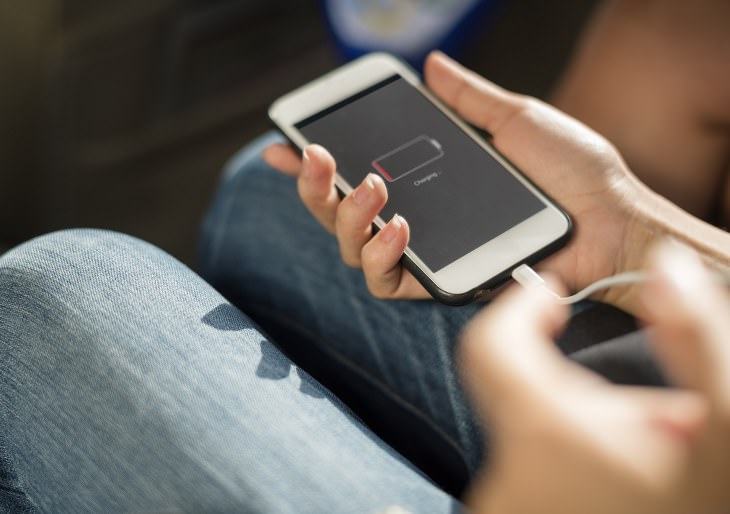
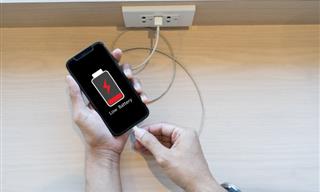
This is the single most satisfying fix on the list, because the cause is almost always the same and almost nobody knows it: pocket lint.
Every time your phone goes into a pocket or a handbag, a little fabric fluff gets pushed into the charging port. Over the years it compacts into a dense plug at the bottom of the port, and eventually the cable can no longer seat properly. The phone charges intermittently, then not at all, and it looks for all the world like a dead battery.
To fix it, switch the phone off completely, shine a bright light into the port, and gently scrape the debris out with a wooden or plastic toothpick. Work from the sides toward the middle and be patient. You will often be startled by how much comes out. Never use a metal pin, a paperclip or a needle, since these can bend the delicate contacts or short them out. Compressed air is also best avoided, as it can drive debris deeper.
If the port is clean and the problem persists, try a different cable and a different wall adapter before assuming the phone is at fault. Cables fail far more often than phones do.
3. The Battery Drains Far Too Quickly
Before anything else, let us retire a myth that has been repeated for over a decade. Closing your background apps does not save battery life. Both Apple and Google have said so publicly. When you swipe an app away, the phone has to load it again from scratch the next time you open it, and that costs more power than simply letting it sit dormant in memory. Habitually clearing your app switcher is, if anything, mildly counterproductive.
What actually drains a battery is the screen, location tracking, and background refreshing. Here is where to look:
Find the real culprit first. On iPhone, go to Settings, then Battery, and scroll down to see exactly which apps consumed your power over the last 24 hours or 10 days. On Android, go to Settings, then Battery, then Battery usage. The offender is usually obvious once you look.
Turn down the screen. Brightness is the largest single power consumer on any modern phone. Enable automatic brightness and shorten your screen timeout to 30 seconds or one minute.
Rein in location services. On iPhone, Settings, then Privacy and Security, then Location Services. On Android, Settings, then Location, then App permissions. Set almost everything to "While Using the App" rather than "Always." Very few apps have any legitimate reason to track you around the clock.
Limit background activity. On iPhone this is Settings, then General, then Background App Refresh. On Android, open Settings, then Apps, choose the app, then Battery, and set it to restricted or optimized.
As for slow charging, using a low powered adapter will charge your phone slowly but it will not damage it. What you should avoid is cheap, uncertified chargers and cables from unknown brands, which genuinely can cause harm. Look for the MFi mark on iPhone accessories and for USB certified cables on Android.
4. You Have Cracked the Screen
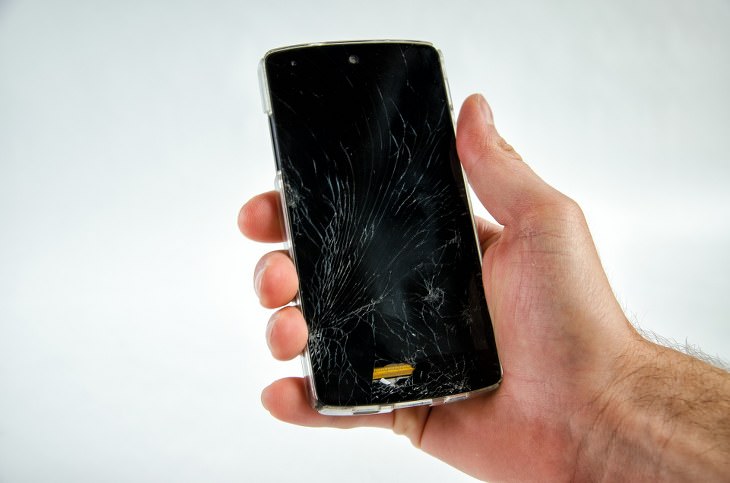
You may have read that a cracked screen means the end of the phone. That has not been true for years. Screen replacement is now one of the most routine repairs there is.
Apple offers screen repair through its stores and authorized providers, and both Apple and Samsung run self service repair programs that sell genuine parts and tools directly to customers. Independent repair shops are everywhere and typically charge considerably less. It is also worth checking whether your phone insurance, your carrier plan or even the credit card you bought the phone with includes accidental damage cover, since a surprising number of people are covered without realizing it.
Do not simply live with a cracked screen. Beyond the risk of cutting your finger, the broken glass lets in dust and moisture, which can turn a modest repair into an expensive one.
To prevent a repeat, a good case matters far more than a screen protector. Look specifically for a case with a raised lip around the edge of the screen, so that when the phone lands face down, the case takes the impact instead of the glass. Screen protectors are excellent against keys and sand in your pocket, but they do relatively little against a drop onto pavement.
5. Bluetooth Will Not Connect
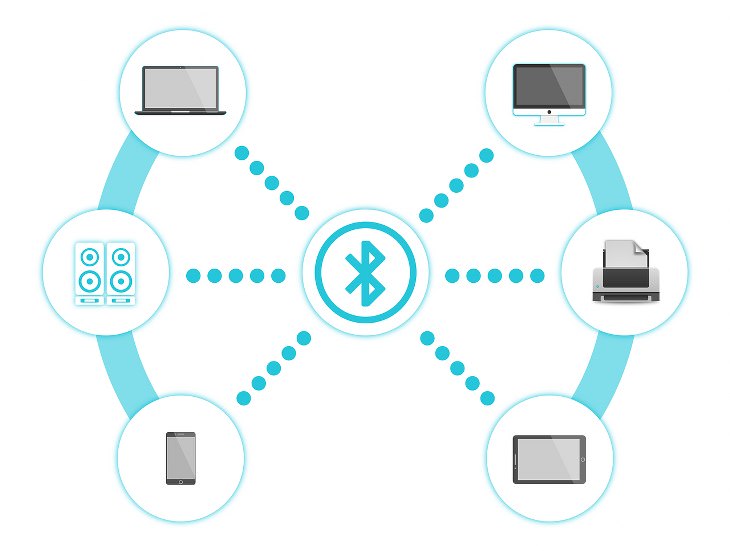
Bluetooth trouble is nearly always a pairing problem rather than an interference problem, and there is one fix that resolves it far more often than any other: forget the device and pair it again from scratch.
On iPhone, go to Settings, then Bluetooth, tap the small letter i beside the device name, and choose Forget This Device. On Android, go to Settings, then Connected devices, tap the gear icon beside the device, and choose Forget or Unpair. Then put your headphones or speaker back into pairing mode and connect again as though it were brand new.
If that does not work, switch Bluetooth off and on, then restart the phone. On Android only, you can also clear the Bluetooth cache by going to Settings, then Apps, tapping the menu to show system apps, selecting Bluetooth, then Storage, then Clear cache. There is no equivalent step on iPhone, so do not go looking for one.
One point worth correcting: "discoverable mode" only affects pairing with a brand new device. Both iPhone and Android make themselves discoverable automatically whenever the Bluetooth settings screen is open, and devices you have already paired will connect regardless. Your phone is not permanently hidden.
Genuine interference does exist, mostly from microwave ovens and crowded Wi-Fi environments, but it is a much rarer cause than people assume.
6. Apps Keep Crashing
When a single app repeatedly closes itself, the fault is usually in that app rather than in your phone.
Work through these in order. First, update the app, since crashes are frequently fixed within days by the developer. Second, update the phone's operating system, as apps are often built for the newest version. Third, restart the phone. Fourth, on Android, go to Settings, then Apps, select the app, then Storage, and tap Clear cache. Do not tap Clear data unless you are willing to lose your settings and log in again. On iPhone there is no cache clearing option, so the equivalent step is to delete the app and reinstall it, which achieves the same thing.
If several unrelated apps are crashing at once, the problem is more likely to be low storage. Free up some space and see whether it settles.
7. The Phone Freezes or Will Not Turn On

A phone that appears completely dead is very often just frozen, and a forced restart brings it straight back. This is worth memorizing, because it resolves a great many moments of genuine panic.
On an iPhone 8 or newer, press and release the Volume Up button, press and release the Volume Down button, then press and hold the Side button until the Apple logo appears. Keep holding even though the screen stays black, as it can take 15 to 20 seconds.
On most Android phones, press and hold the Power button together with Volume Down for around 10 to 20 seconds until the phone restarts. On some Samsung models the combination is Power and Volume Down held together for about 7 seconds.
If nothing happens at all, plug the phone into a charger and leave it for at least half an hour before trying again. A deeply drained battery can take some time before the phone will respond to anything.
8. Your Storage Is Always Full
Photos and videos are nearly always responsible. A few minutes of video can occupy as much space as hundreds of documents.
On iPhone, go to Settings, then General, then iPhone Storage, where the phone will offer specific recommendations, including Offload Unused Apps, which removes the app but keeps your data so nothing is lost. Also check Settings, then Photos, and turn on Optimize iPhone Storage, which keeps full quality versions in iCloud and lighter copies on the device.
On Android, open the Google Photos app, tap your profile picture, and look for Free up space, which deletes local copies of anything already backed up. Then go to Settings, then Storage, and use the cleanup tool to clear junk files and old downloads.
On both platforms, do not forget your messaging apps. Years of photos and videos sent in group chats can quietly occupy many gigabytes.
9. The Phone Gets Uncomfortably Hot
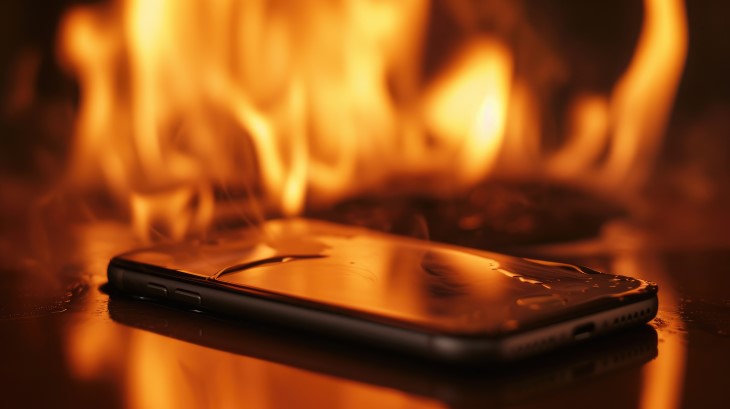
Some warmth during charging, video calls, navigation or gaming is entirely normal. Real overheating usually comes from charging in direct sunlight, using the phone heavily while it charges, or leaving it on a car dashboard.
If it happens, take the case off, stop whatever you are doing, and let it cool in the shade at room temperature. Never put a phone in the refrigerator or freezer, since rapid cooling causes condensation inside the device, and moisture is far more damaging than heat. Do not charge a phone under a pillow or under bedding, where the heat has nowhere to escape.
A phone that runs hot while doing nothing at all usually has a rogue app running in the background, so check the battery usage screens described earlier.
10. Wi-Fi Connects but Nothing Loads
If the Wi-Fi icon is showing but no page will open, work outward from the phone.
Start with Airplane mode on for 10 seconds, then off, which forces the phone to rebuild every connection. If that fails, forget the network and rejoin it: on iPhone, Settings, then Wi-Fi, tap the letter i, then Forget This Network. On Android, Settings, then Network and internet, then Internet, tap the gear beside the network, then Forget.
Next, unplug your router at the wall, wait a full 30 seconds, and plug it back in. Give it two or three minutes to come back to life. This resolves an astonishing proportion of home internet problems.
As a final step, reset the network settings on the phone. On iPhone this is Settings, then General, then Transfer or Reset iPhone, then Reset, then Reset Network Settings. On Android, Settings, then System, then Reset options, then Reset Wi-Fi, mobile and Bluetooth. This erases your saved Wi-Fi passwords, so have them to hand before you begin.
11. Your Phone Got Wet
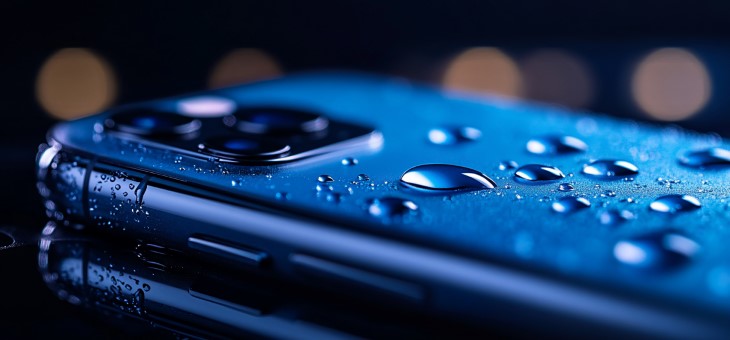
First, the myth. Do not put your phone in rice. Apple explicitly advises against it, because rice particles can find their way into the ports and cause damage, and it does very little to draw moisture out of a sealed device in any case.
Instead, switch the phone off, remove the case, and gently tap it against your palm with the charging port facing downward to encourage water out. Then stand it upright in a dry, well ventilated spot at room temperature and leave it alone. Half an hour may be enough for a splash, but a proper soaking may need a full day.
Crucially, do not charge it through the cable while it is still wet, since the pins can corrode and cause permanent damage. Modern iPhones will actually block charging and show a liquid detection warning for exactly this reason, and that warning is a protection rather than a fault. Wireless charging is safe to use in the meantime. Also avoid hairdryers, radiators and compressed air, all of which either warp internal adhesives or push moisture deeper inside.
12. The Screen Responds Erratically or Taps by Itself
Before assuming hardware failure, check the obvious. A wet or greasy screen will misbehave, so wipe it with a dry microfiber cloth. A cheap or badly fitted screen protector, especially one with bubbles or lifted edges, is another very common cause, and simply removing it often solves the problem instantly.
Certain charging setups can also cause phantom touches, so if it only happens while charging, try a different charger. If none of that helps, restart the phone. Persistent ghost touching on a clean, unprotected screen does point to a digitizer fault and is worth having looked at professionally.
13. People Say They Cannot Hear You Properly

Your phone has several tiny microphone openings, typically at the bottom edge, at the top near the front camera, and beside the rear camera. Any one of them can be blocked by lint, dust or a case that does not line up correctly with the openings.
Take the case off entirely and make a test call. If the problem disappears, the case was the issue. If not, clean the microphone and speaker openings gently with a soft dry toothbrush. It is also worth checking whether the trouble only occurs on speakerphone or only with Bluetooth headsets, since that narrows down which component is at fault.
A Few Habits That Prevent Most of This
Restart your phone once a week. Keep at least 10 percent of your storage free. Install operating system updates rather than postponing them indefinitely, since they contain security fixes as well as bug fixes. Clean out the charging port twice a year before it becomes a problem. Back everything up automatically, whether to iCloud, Google One or a computer, so that a lost or broken phone costs you money rather than memories.
And when something does go wrong, remember that the least dramatic solutions are usually the right ones. A restart, a clean port and a bit of free storage will solve more phone problems than any app you can download.