
You know Ctrl+C and Ctrl+V. You've mastered Ctrl+Z. But your keyboard is hiding faster ways to work that most people never discover. These aren't shortcuts to save five seconds here and there. They're tricks that change how you interact with your computer once you start using them.
The Windows Switcher That Works Like Magic
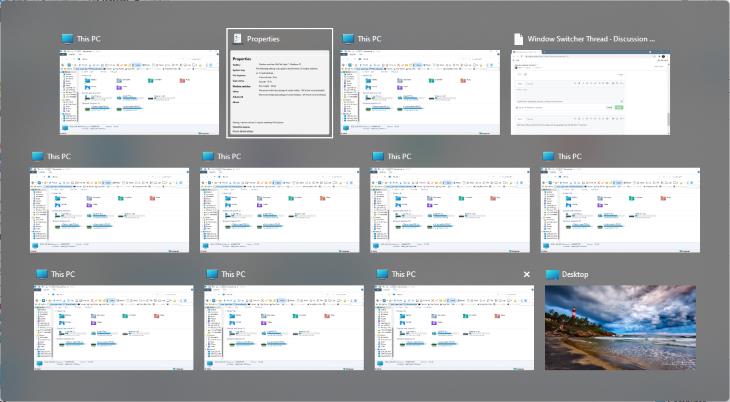
You probably know Alt+Tab to switch between windows. What you might not know: hold Alt and press Tab once, then let go of Alt. The window switcher stays open. Now you can tap Tab repeatedly to cycle through open apps without holding anything. This is especially helpful if you have ten things open at once and need to flip between two apps multiple times in a row.
Even better, Alt+Tab+Shift cycles backward through your open windows if you overshoot.
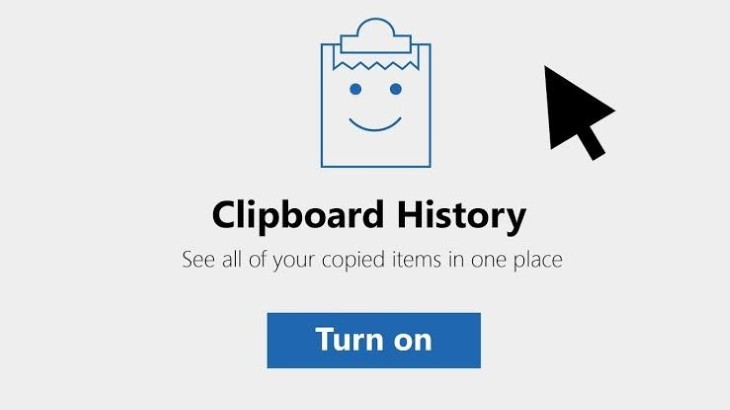
Windows 10 and 11 have a feature almost nobody uses: clipboard history. Press Windows key+V and a panel opens showing your last 25 copied items. Click any one to paste it instantly.
Why this matters: Instead of copying, pasting, then copying something else and going back to find the first thing again, just keep your last 25 clips stored and accessible. You can even pin your most-used items so they stay permanent.
Open any document or email and place your cursor. Now hold Shift and use arrow keys to select text. Hold Shift+Ctrl+Right Arrow to select word by word. Shift+Ctrl+Left Arrow goes backward one word at a time. Hold Shift and press End to select everything to the end of the line, or Home to select to the beginning.
This changes how you edit. You can delete, replace, or format text without ever touching your mouse.
Print Screen used to just copy a full screenshot. Now in Windows 10 and 11, a small toolbar appears in the corner. Click it (or press Windows+Shift+S) and you get a dedicated screenshot tool that lets you draw, add text, crop, and annotate before saving. You can send it instantly to OneNote or save it as a file.
This is faster than taking a screenshot, opening Paint, and marking it up yourself.
Deleted a folder by accident in File Explorer? Ctrl+Z works there too. You can undo the last few actions in Windows File Explorer. This has saved countless people from thinking a file was gone forever.
In Chrome, Edge, or Firefox, if you type a word in the address bar, you can press Tab or Ctrl+A to search that term using your default search engine without ever leaving the bar. Some people type the word, wait, and watch the dropdown appear. Just press Tab and it searches.
The hidden part: You can also search within a specific site by typing the site name, then Tab. For example, type "amazon.com" then Tab and type what you want to find. It searches Amazon directly without going to Google first.
Close a tab by accident? Ctrl+Shift+T reopens your last closed tab. Press it multiple times to reopen your last several tabs in reverse order. This has prevented more panic than almost any other shortcut.
Ctrl+A selects all text in Word. But if you want Word to read your document aloud and highlight errors as it goes, press F7. This opens the Spelling and Grammar panel. For people who catch their own mistakes better by listening than reading, this is invaluable. You can hear the error in context and decide right there whether to fix it.
In Gmail, when you're done with an email, press Tab+Z to archive it instantly. Or if you accidentally sent something, Ctrl+Z within a few seconds takes it back. Gmail's undo window gives you a brief moment to catch mistakes, and this shortcut lets you use it without clicking a button.
Windows has multiple virtual desktops built in. Press Windows+Tab and you see your "Timeline" view. But press Windows+Ctrl+D to create a new, blank desktop instantly. You now have a separate workspace. Press Windows+Ctrl+Right Arrow to move to the next desktop, Windows+Ctrl+Left Arrow to go back.
Some people use this to separate work and personal browsing. Others use it to keep research and writing separated. Desktop 1 is email and chat. Desktop 2 is writing. Desktop 3 is research. You can jump between them instantly without closing apps.
Bonus: To close a virtual desktop, simply go to that desktop and press Windows+Ctrl+F4.
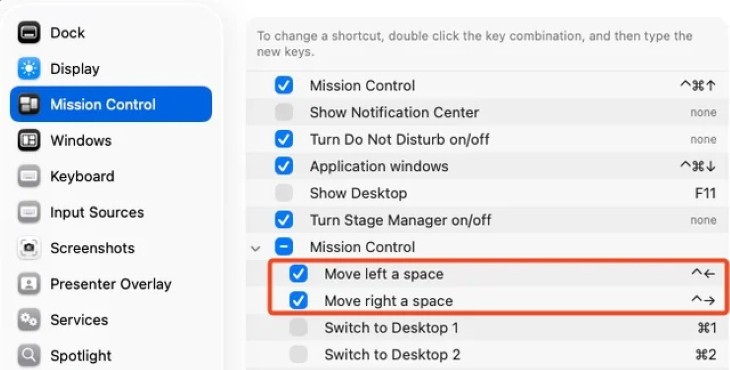
If you use a Mac, F3 (or Fn+Up Arrow on newer Macs) opens Mission Control, which shows all your open windows at once. From there you can click any window to jump to it, or swipe up to create a new desktop. It's the Mac equivalent of the virtual desktops feature on Windows.
Whether you use Gmail or Outlook, both have powerful search operators almost nobody uses. In Gmail, type "from:mom" to find emails only from your mom. Type "after:2024/1/1" to find messages only after a certain date. Type "has:attachment" to find emails with files.
In Outlook, type "from:mom" the same way. The advanced search is built into the search bar in both programs.
If you open a PDF in Chrome or Edge, press Ctrl+F to search within it. But also look for the highlighter tool in the toolbar. You can highlight, draw, and add text notes directly to PDFs before saving them. No special software needed. This works for most PDFs you download.
Facebook's search bar is powerful but confusing. Type someone's name and you get suggestions, but if you type their name and add a detail (like their workplace or school), the search narrows down correctly. You can also type "photos of me" to find all photos you're tagged in, or "posts by me" to find your own posts from years ago without scrolling forever.
Press J to rewind 10 seconds. Press L to jump forward 10 seconds. Press K to pause and play. Press M to mute. Press < to slow playback, and > to speed it up. These shortcuts work on YouTube and most video platforms now. If you watch videos regularly, these change everything. You can adjust playback speed, skip ads, and rewind all without reaching for the mouse.
Press F for fullscreen. Press C to toggle captions on and off.
Keyboard shortcuts aren't about saving seconds. They're about maintaining focus. Every time you reach for the mouse, you're interrupting your thought. Every time you hunt for a button, you lose your place in what you're doing. These shortcuts keep your hands on the keyboard and your mind on the task.
Start with one. Try Windows+V if you copy things frequently, or Alt+Tab if you switch between apps all day. Once one becomes automatic, your muscle memory takes over and you stop thinking about it. Add another. Within a month, you'll wonder how you ever worked without them.