
Type this into an AI video tool: "A golden retriever puppy chasing a red ball across a sunny backyard, filmed low to the ground, slow motion, soft afternoon light." About a minute later you'll have an eight-second clip that looks like it came from a pet food commercial. You didn't need a camera or a dog, and you didn't need to know anything about filmmaking.
That's where AI video is today. This guide explains how it works, what it costs, which tools are easiest to start with, and how to use a regular chatbot to write the instructions for you when you don't know the filmmaking vocabulary.
AI video generators make short clips from a written description. That's called "text-to-video." Most can also animate a still photo, which is called "image-to-video." You could bring an old family photo to life this way, or show a product slowly turning.
It helps to know their limits before you start. These tools make clips, not movies. A typical clip runs 5 to 15 seconds. To make a longer video, you generate several clips and join them together, which is covered below. Many newer models also add sound, such as background noise, music, or even speech.
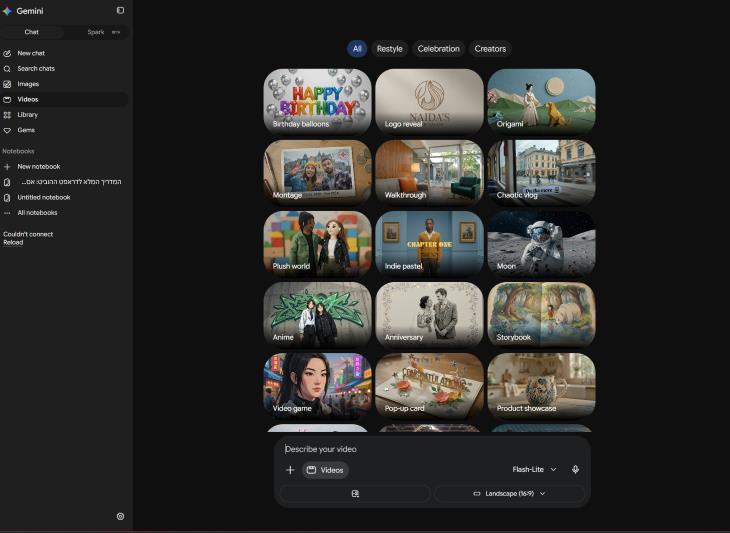
1. Through a chatbot you may already use. Google's Gemini connects to Google's video model, Veo. Paid Google plans start at $4.99 a month (AI Plus), then $19.99 (AI Pro) and $99.99 (AI Ultra), and the free tier has only limited video access. The Pro plan includes a limited trial of Veo 3.1 Lite, a faster and more efficient version of the model, while the full version sits in the top plan. Google's allowances change often, so check the current terms before you pay.
2. Through an all-in-one website such as DaVinci AI or OpenArt. Sites like these act as a front desk for many models at once.
DaVinci AI (davinci.ai) gives you access to the latest AI video models, including Veo 3.1, Kling, and Seedance, in one workspace, on the web and in phone apps. The advantage is simplicity: one account and one screen, with lots of engines to try. On cost, DaVinci says the first three generation requests are free, and continued use requires a paid subscription. One review lists the Pro plan at $39.99 a month, with 2,500 images and 125 videos, billed annually. Look at the total charge at checkout, not only the monthly figure.
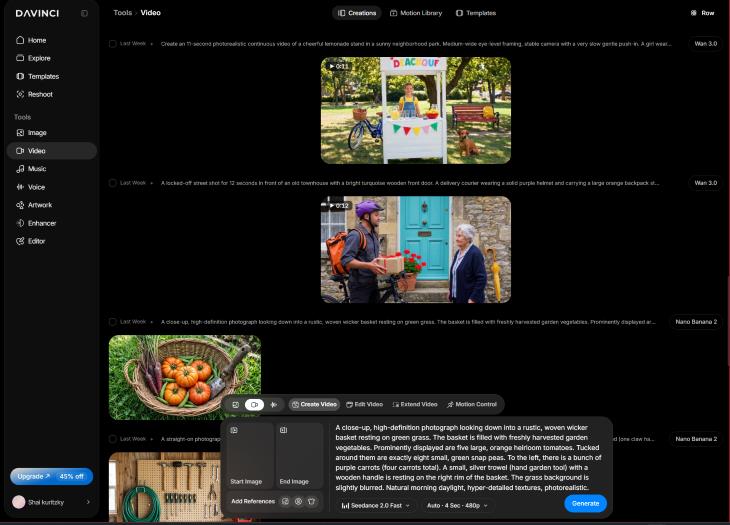
Don't mix this up with DaVinci Resolve, which has a similar name. DaVinci AI is a generative image and video platform, while DaVinci Resolve is Blackmagic Design's video editing and colour-grading suite, and the two are unrelated. Resolve is useful too, but for a different job, as you'll see below.
OpenArt (openart.ai) works on the same idea. It puts more than 100 image, video, and audio models in one workspace. What makes it especially friendly for beginners are two features. The first is "consistent characters," which keeps the same person or pet looking the same from clip to clip. That's one of the hardest things to get right with AI video. The second is One-Click Story, which turns a single idea into a short video with several scenes. There's also a tool called Director for longer videos.
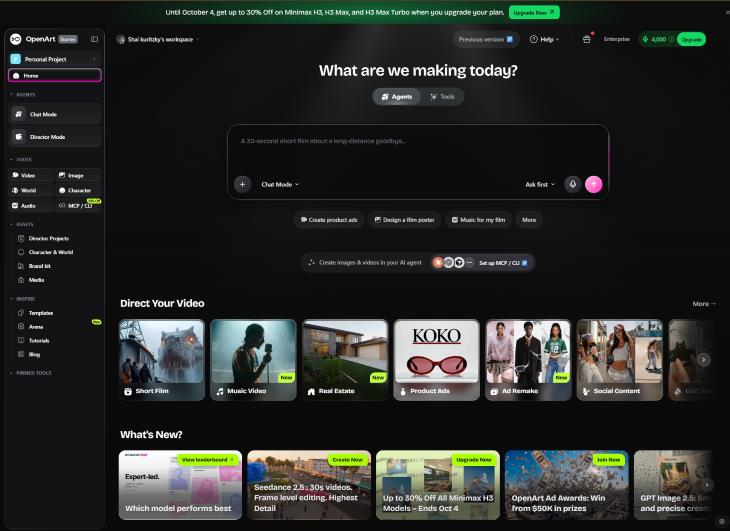
On cost, OpenArt uses credits. You buy a monthly balance of credits and spend it on whatever you create. As a rough guide, one credit buys about one image, and videos cost a lot more. One breakdown estimates that a 4,000-credit plan gets you about 4,000 images or around 50 videos, not both. The entry plan, Starter, costs $14 a month for 4,000 credits, or about $13 a month if you pay for a year. The free trial is about 40 credits over 7 days, with no card required. That's enough to see whether you like the site, but not enough to finish a project. Two more things to check before you pay. Unused credits don't carry over from month to month. And commercial rights have only been included from certain plan levels up, so look at the current terms if you plan to use the videos for a business.
3. Directly on a dedicated video site. Kling, Runway, Pika and others each have their own websites and apps. Going direct usually gets you better prices and the newest features first.
| If you want... | Try | Why |
|---|---|---|
| The cheapest good results | Kling | Around $0.10 per second, and roughly 6 free videos a day, the most generous ongoing free allowance |
| Realistic scenes with sound | Google Veo 3.1 | The safest, most accessible Western pick |
| Precise control over camera moves | Runway | For occasional users, the Standard plan ($12–$15/month) is sufficient |
| Many models in one place | DaVinci AI | Simple interface, but you pay for the convenience |
| The same character across several scenes, or a quick multi-scene story | OpenArt | Consistent characters and One-Click Story, many models under one credit balance |
For a complete beginner, the easiest path is to start free, with Kling's daily allowance or the free tries on DaVinci AI and OpenArt. Once you know you'll keep using it, pay for one tool.
The advertised price isn't the whole story. You will throw away a lot of clips. A hand might have six fingers, or the dog might walk through a fence. Assume that for every clip you keep, you'll delete two or three. Budget with that in mind.
As a rough guide, one ten-second clip on a value model costs well under a dollar. Kling 3.0 Standard is the cheapest credible per-clip price at roughly $0.84 for ten seconds with audio. A one-minute video made of six clips, including the ones you throw away, can realistically cost $10–20 when you pay per clip. A $10–20 monthly subscription is enough for a hobbyist. On credit-based sites like OpenArt, keep an eye on your balance, because video uses up credits much faster than images.
The main reason beginners get poor results is vague instructions. "A beach at sunset" gives the AI too little to work with. Professional filmmakers think about the camera angle, how the camera moves, the lighting, the lens, and the mood. You don't need to learn any of that. A regular chatbot like ChatGPT, Claude or Gemini already knows it, and you can ask it to translate for you.
Here's a message you can copy and adapt:
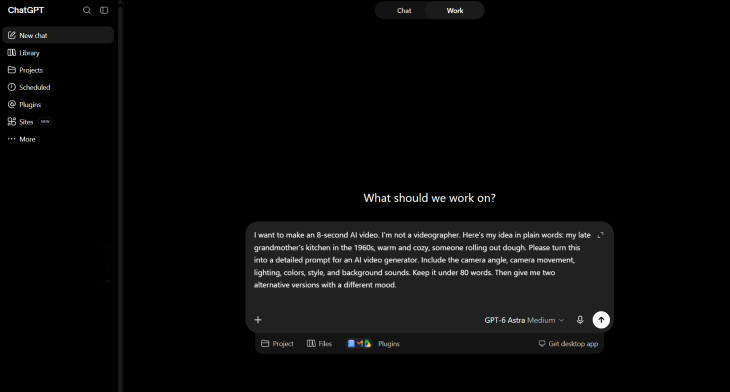
"I want to make an 8-second AI video. I'm not a videographer. Here's my idea in plain words: my late grandmother's kitchen in the 1960s, warm and cozy, someone rolling out dough. Please turn this into a detailed prompt for an AI video generator. Include the camera angle, camera movement, lighting, colors, style, and background sounds. Keep it under 80 words. Then give me two alternative versions with a different mood."
The chatbot will return something like this:
"Close-up of weathered hands rolling dough on a floured wooden table in a 1960s kitchen. Camera slowly pushes in. Warm late-afternoon sunlight through lace curtains, soft dust in the air. Muted pastel colors, gentle film grain, nostalgic home-movie feel. Sounds: rolling pin creaking, a distant radio playing, a kettle starting to whistle."
That prompt has all the elements a filmmaker would think about: the subject, the action, the setting, the camera, the light, the style, and the sound. You didn't need to know any of those terms.
When the result isn't right, describe the problem in everyday words. Go back to the chatbot and say something like: "The video looked too modern and the camera moved too fast. Fix the prompt." It will adjust the wording. Two or three rounds of this usually get you a good clip.
A few more tips help:
To turn several clips into one video, use a free editing app. CapCut is the easiest one for phones. DaVinci Resolve (the editing program, not DaVinci AI) is more powerful on a computer. DaVinci Resolve is free, and the standard Studio desktop license costs $295 as a one-time purchase, but beginners never need the paid version. In either app, you drag the clips onto a timeline, trim them, add music and a title, and export.
If joining clips yourself sounds like too much work, OpenArt's One-Click Story does much of it for you. You describe the story, and it plans and generates the scenes. You'll have less control over each shot, but it's the quickest way to get from an idea to a finished short video.