
A fall is one of those things we would all rather not think about, yet for those of us past a certain age it is worth a few minutes of quiet preparation. The real worry is not just the fall itself, but the thought of being hurt and alone, unable to reach the phone to call for help. The reassuring news is that the phone already in your pocket has powerful, free tools built in for exactly this moment. Set them up once, in about five minutes, and they will be ready to summon help and speak for you when you need it most. Here is how, on both iPhone and Android.
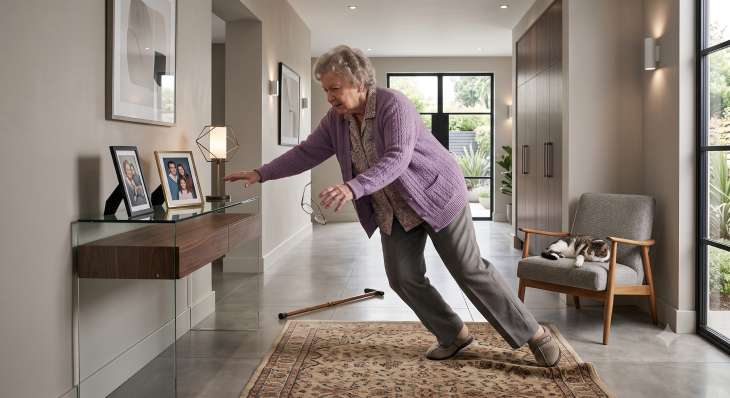
It helps to understand what your phone can and cannot do, so you are never caught by a false assumption. There are really two layers of protection here.
Your phone can do two valuable things: it can call emergency services very quickly with a simple button press, and it can store your medical details and emergency contacts so they are available even on a locked screen. What a phone generally cannot do, sitting in your pocket, is sense a fall on its own.
That automatic ability, where a device detects a hard fall and calls for help by itself even if you are unconscious, comes from a smartwatch, such as an Apple Watch or one of the Android smartwatches. We will cover both the phone setup, which everyone should do, and the automatic watch feature, in case you have one or are considering it.
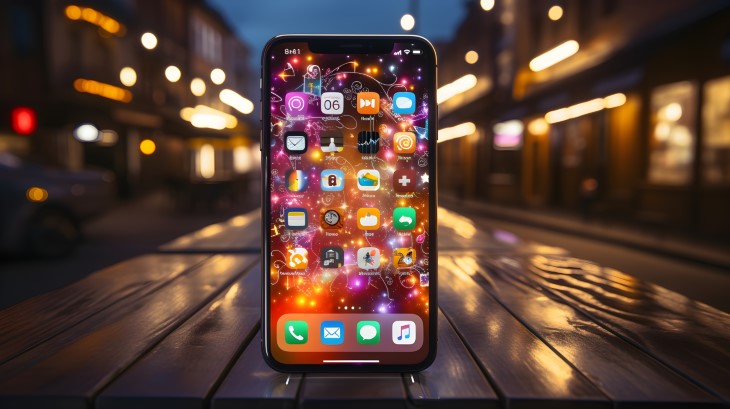
Every modern iPhone has a feature called Emergency SOS that calls emergency services for you. There are two simple ways to set it off, and it is worth practicing the motion (without completing the call) so it feels familiar:
The wonderful part is what happens next. After the emergency call ends, your iPhone automatically sends a text message to your chosen emergency contacts, along with your location, so your loved ones know something has happened and where to find you. To check the settings, open Settings and tap "Emergency SOS."
This is the step that lets your phone speak for you if you cannot. It stores your key medical information and the people to call, and makes them visible from the locked screen so a passerby or paramedic can reach your family without your passcode.
If you own an Apple Watch, you have the prize feature: true automatic fall detection. If the watch senses a hard fall, it taps your wrist, sounds an alarm, and shows an alert. If you are moving, it waits for you to respond. But if it senses you have been still for about a minute, it automatically calls emergency services for you, then sends your location to your emergency contacts. It can do this even when you cannot lift a finger.
On many watches this turns on by itself once your age is listed as 55 or older, so first make sure your correct age is in your Medical ID. To check or turn it on, open the Watch app on your iPhone, tap "Emergency SOS," and switch on "Fall Detection." You can choose to have it on always, or only during workouts. For everyday safety, "always on" is the setting you want.
Android phones from different makers vary a little in their wording, but they all live in the same place: open Settings and look for "Safety & emergency" (on a Samsung, it is "Safety and emergency"). Everything below is found there.
Android's Emergency SOS works much like the iPhone's. In Settings, under "Safety & emergency," tap "Emergency SOS" and switch it on. You can set it to call emergency services and to share your location and an alert with your emergency contacts. To set it off:
Because the exact motion can differ by model, it is worth opening that Emergency SOS screen to see and adjust how yours is set, and to practice the press without completing a call.
Just like the iPhone, your Android phone can hold your health details and contacts and show them on the locked screen.
Once set, anyone can find it by tapping "Emergency" on your locked screen and then "Emergency information."
As with Apple, automatic fall detection on the Android side comes from a smartwatch, such as a Google Pixel Watch or a Samsung Galaxy Watch. These can sense a hard fall and, if you do not respond, automatically call emergency services and alert your contacts. If you have one, open its companion app or its own settings, look for the safety or emergency section, and switch on fall detection. The watch will guide you through the rest.
Setting up the features is most of the battle. These small habits make sure they actually help when the moment comes: