
We have all done it. You are reading something useful, your finger slips, and the tab vanishes. Or you find yourself reaching for the mouse again and again to do the same small thing, when there is a quicker way sitting right under your fingertips. Your web browser is full of little keyboard shortcuts that can save you time and frustration, and the best part is you only need to learn a handful to feel the difference.
Below are the most useful ones, written in plain language. They work in all the popular browsers, so whether you use Google Chrome, Microsoft Edge, or Apple's Safari, you are covered.
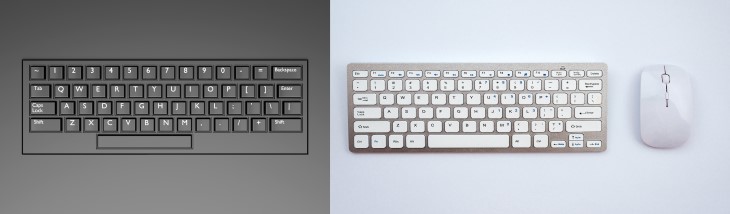
Let's start with the shortcut everyone wishes they had known sooner. If you accidentally close a tab, you do not have to hunt for the website all over again. Just press these two keys together and it pops right back:
Here is the magic part. Keep pressing it, and the browser keeps reopening tabs you closed, one after another, working backward through them. Closed five tabs by mistake? Press it five times and they all come back. It will even restore an entire window full of tabs if you closed the whole thing by accident. This single trick has rescued many a lost recipe, news article, and half-finished form.
Before the full list, here is the one thing that makes all of this easy to remember. Windows computers and Apple computers use slightly different keys for shortcuts, but they line up neatly:
So nearly every shortcut is the same idea, just swapping Ctrl for Command. And good news for Apple users: on a Mac, Chrome, Edge, and Safari all use the very same shortcuts, so you never have to learn different ones for different browsers.
Here are the everyday shortcuts that genuinely make browsing easier. You do not need to memorize them all at once. Pick two or three that sound useful, try them this week, and add more as you go. (On a Mac, remember that Chrome, Edge, and Safari all use these very same keys.)
Windows: Ctrl + Shift + T
Mac: Command + Shift + T
Windows: Ctrl + T
Mac: Command + T
Windows: Ctrl + W
Mac: Command + W
Windows: Ctrl + L
Mac: Command + L
Windows: Ctrl + F
Mac: Command + F
Windows: Ctrl + plus sign
Mac: Command + plus sign
Windows: Ctrl + minus sign
Mac: Command + minus sign
Windows: Ctrl + 0 (zero)
Mac: Command + 0 (zero)
Windows: Ctrl + Tab
Mac: Control + Tab
Windows: Ctrl + D
Mac: Command + D
Windows: Ctrl + R
Mac: Command + R
Windows: Ctrl + P
Mac: Command + P
Windows: Ctrl + Shift + N
Mac: Command + Shift + N
Some of the shortcuts above are so handy they deserve a closer look:
This last one is not a keyboard shortcut on its own, but it pairs beautifully with them and is wonderfully useful. When you see a link you want to open without leaving the page you are on, hold down the Ctrl key (or the Command key on a Mac) while you click the link. It will quietly open in a new tab in the background, leaving your current page right where it is. This is perfect for opening several articles or search results at once, then reading them one by one.