
Your computer's mouse is a fine thing, but reaching for it again and again, hunting through menus for the same few tasks, quietly eats up your time and your patience. Tucked into every computer are keyboard shortcuts: quick key combinations that do in an instant what would otherwise take several clicks. You do not need to learn dozens of them to feel the benefit. A handful of the right ones will make everyday tasks noticeably smoother. Here are the most useful, in plain language, for both Windows 11 computers and Apple Mac computers.
Here is the one idea that makes all of this simple to remember. Windows computers and Apple computers use slightly different keys for shortcuts, but they line up neatly:

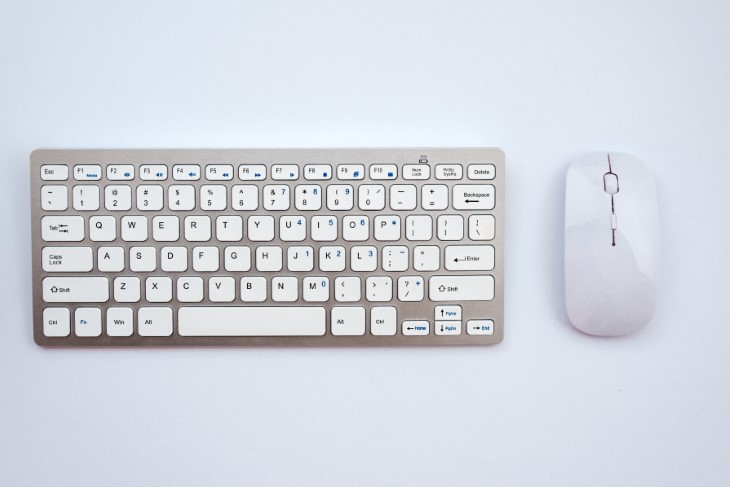
So for most shortcuts, the idea is identical on both machines. You simply swap Ctrl for Command. Keep that in mind and the list below almost remembers itself.

You do not need to memorize all of these at once. Pick two or three that sound useful, try them this week, and add more as they become second nature.
1. Copy something (text, a photo, a file)
Windows: Ctrl + C
Mac: Command + C
2. Paste what you copied
Windows: Ctrl + V
Mac: Command + V
3. Cut something (copy and remove it at once)
Windows: Ctrl + X
Mac: Command + X
4. Paste as plain text, without messy formatting
Windows: Ctrl + Shift + V
Mac: Command + Shift + V (in most apps)
5. Undo your last action (a true lifesaver)
Windows: Ctrl + Z
Mac: Command + Z
6. Redo what you just undid
Windows: Ctrl + Y
Mac: Command + Shift + Z
7. Select everything on the page or in the folder
Windows: Ctrl + A
Mac: Command + A
8. Find a word on the page or in a document
Windows: Ctrl + F
Mac: Command + F
9. Save your work
Windows: Ctrl + S
Mac: Command + S

10. Print
Windows: Ctrl + P
Mac: Command + P
11. Switch between your open programs
Windows: Alt + Tab
Mac: Command + Tab
12. Close the window you are in
Windows: Ctrl + W
Mac: Command + W
13. Minimize the window you are in (tuck it out of the way)
Windows: Windows key + Down arrow
Mac: Command + M
14. Lock your screen when you step away
Windows: Windows key + L
Mac: Control + Command + Q
15. Take a screenshot (a picture of your screen)
Windows: Windows key + Shift + S
Mac: Command + Shift + 4
16. Move the cursor one whole word at a time
Windows: Ctrl + Left or Right arrow
Mac: Option + Left or Right arrow
17. Select text one whole word at a time
Windows: Ctrl + Shift + Left or Right arrow
Mac: Option + Shift + Left or Right arrow
18. Delete the whole word before the cursor
Windows: Ctrl + Backspace
Mac: Option + Delete
19. Jump to the very top or bottom of a long document
Windows: Ctrl + Home (top) or Ctrl + End (bottom)
Mac: Command + Up arrow (top) or Command + Down arrow (bottom)

20. Make the text bigger or smaller in the current window
Windows: Ctrl + plus sign or minus sign
Mac: Command + plus sign or minus sign
21. Make text bold, italic, or underlined as you write
Windows: Ctrl + B, Ctrl + I, or Ctrl + U
Mac: Command + B, Command + I, or Command + U
22. Search your whole computer for a file, app, or setting
Windows: tap the Windows key, or Windows key + S
Mac: Command + Spacebar
23. Create a new folder for your files
Windows: Ctrl + Shift + N
Mac: Command + Shift + N
24. Rename a file you have selected
Windows: F2
Mac: press the Return key
25. Force a frozen program to close
Windows: Ctrl + Shift + Esc, then choose the program and click "End task"
Mac: Command + Option + Esc, then choose the program and click "Force Quit"

Some of the shortcuts above are so handy they deserve a closer look:

These last few are not quite the same on both machines, but they are worth knowing: