
|
In this day and age, almost all of our information is saved either in our computer or on an external drive, allowing us to access and transfer many photos instantly. However, despite the improved availability and speed of access to our files, deleting them by mistake can also be easy.

Imagine sending your computer to get repaired, and when you get it back, it’s without your precious photos from your kid’s wedding. All of those precious memories gone in an instant. Luckily for you, not all is lost – you can restore most (if not all) of your lost data by using a simple, free program called Recuva. |
![]() |
| Source |
|
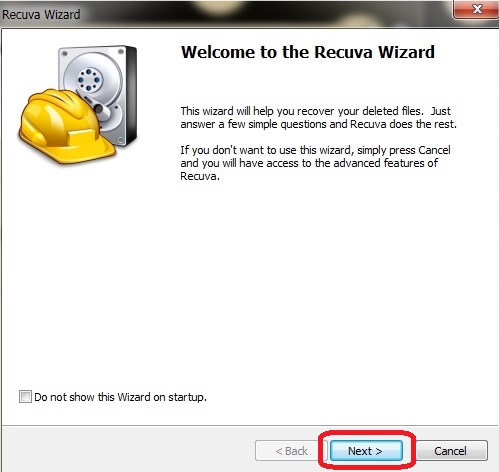
How does this work? When a file on your computer is deleted, only the link to it has been removed, making the file invisible. What that means is that the data is still on your hard drive or external drive, and programs like Recuva can search and recover the data (unless it has been overwritten – then you need to take it to a lab). If you recently deleted a file by accident, Recuva will be able to find it and restore it. How do I use it? First, download the program HERE and install it. After the installation, the Recuva window will open, displaying the “Recuva Wizard”, meant to simplify your use of the program. Click on “Next” when you’re ready. |
![]() |
|
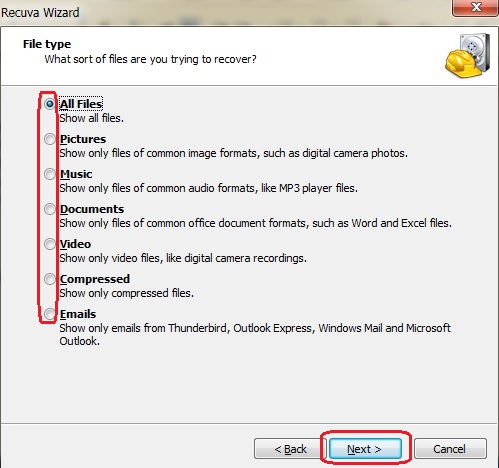
The next window will ask you what type of file(s) you’re looking for, so select the appropriate kind. If you’re unsure, select “All Files” instead and hit “Next”. |
![]() |
|
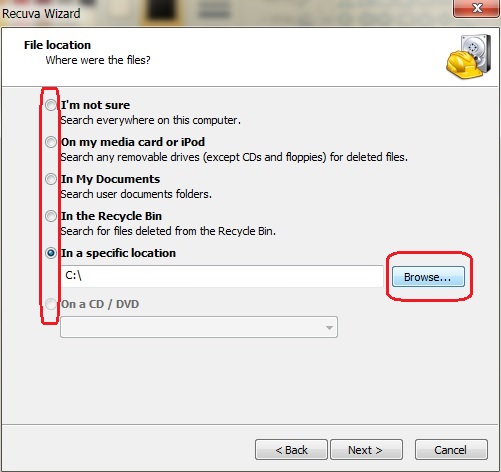
In the next window, you’ll be asked where the missing file was. If you don’t know, select “I’m not sure”, prompting the program to search the entire computer. If you know exactly where it is, click on “Browse” to find the directory it is in and then on “Next” to proceed. |
![]() |
|
In the next window, click on “Start” – this will begin a scan of your computer for any recoverable files. |

![]() |
![]() |
| Scan window |
|
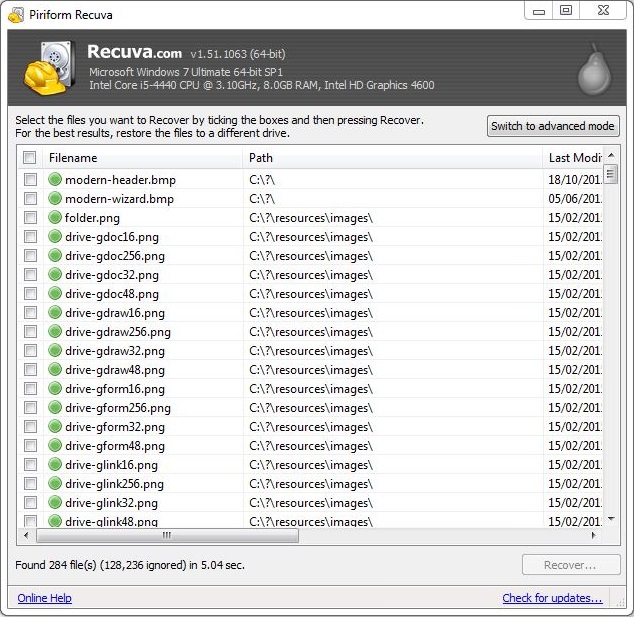
At the end of the scan, a new window will open up with a list of all the recoverable files that the program found. The files will have a circle on the left-hand side in either green, yellow or red. Green indicates that the file can be recovered, yellow indicates that the file may or may not be recoverable, and red indicates unrecoverable files. |
![]() |
|
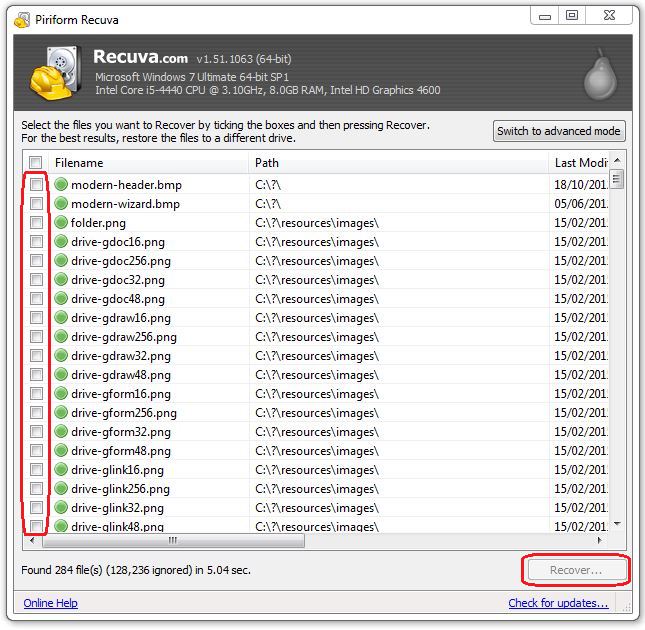
Locate the files you want to recover and check the box next to it. When you’re done, click on the “Recover” button at the bottom right of the window. |
![]() |
|
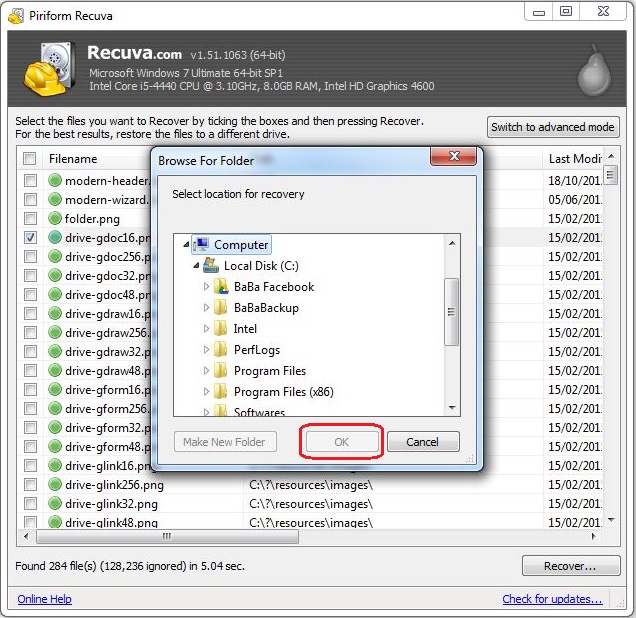
After clicking “Recover”, a new window will prompt you to select a folder you would like to recover the files into, and once selected, click “OK” to restore the file to that folder. |
![]() |
|
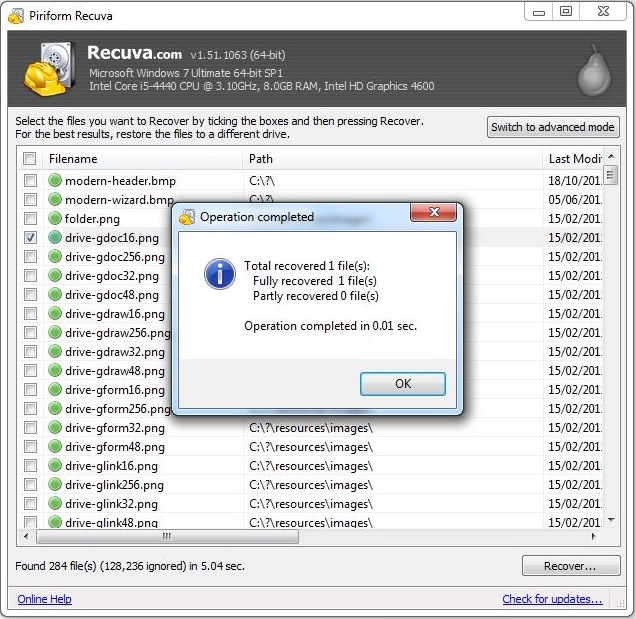
Once the process is complete, you will see this notification, containing information on all the files that were successfully (or unsuccessfully) recovered. |
![]() |
|
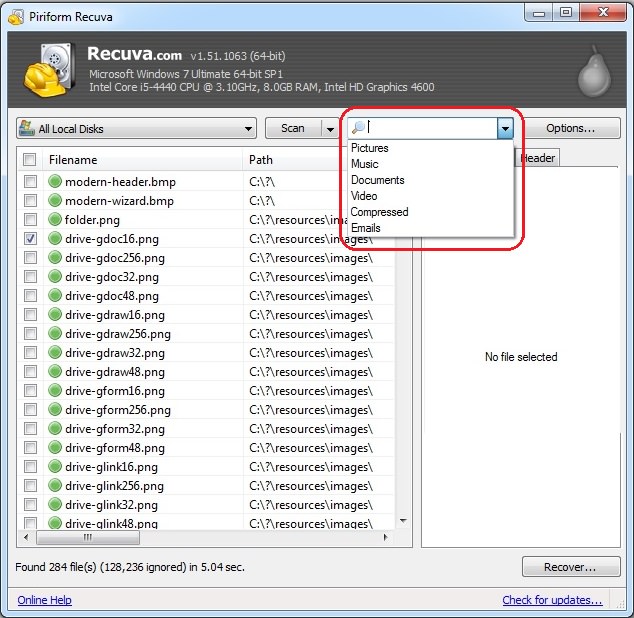
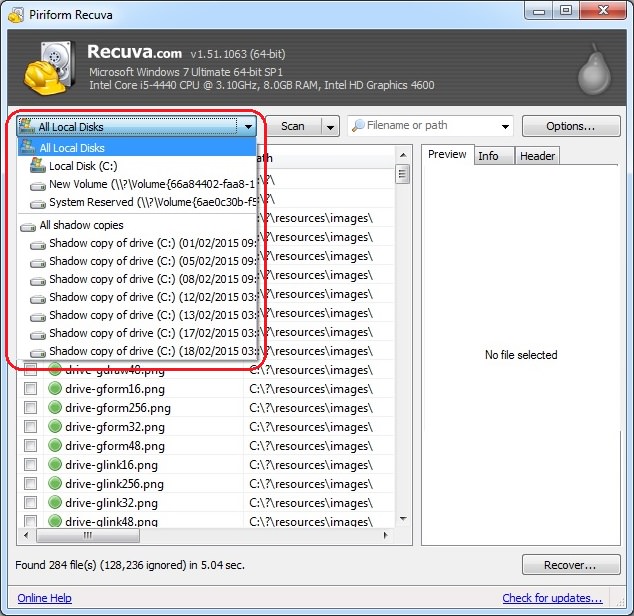
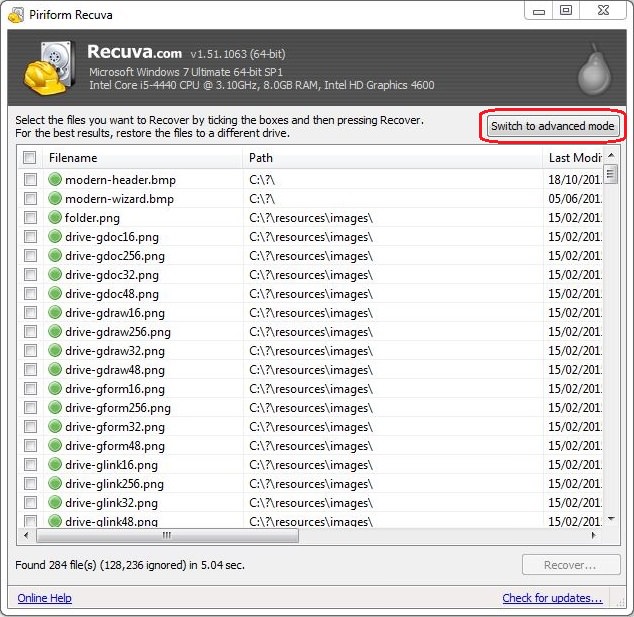
If you feel confident, you can use the advanced mode, which will allow you to search for specific file types, file name, or location. |
![]() |
![]() |
| Search by file name or type |
![]() |
| Search by location |
|
Please note – as time passes and with regular use, the quality of deleted files deteriorates, eventually making them unrecoverable. The sooner you perform the scan – the more likely it will be that the file will be salvageable. |

Become a Windows Computer Wiz by Using These 11 Tricks
These simple tips and tricks for using a Windows PC will help you use your computer and turn you into a Windows PC master!
What To Do When Windows Will NOT Boot
There's nothing more frustrating than your computer refusing to boot. Here is what you can do to fix it when the system won't even initialize.
This Free Program Means You'll Never Lose a File Again
We all hate losing files and photos on our computers. Luckily, a free program called Recuva exists to help you get your deleted files back.
If Your Windows PC Is Slowing Down, You Should Read This
NO - a slowing Windows PC isn't a fact of life. You simply need to know a few tips and tricks that you can apply to yours in order to speed it up! Read on...
Make Everyday Computer Use Easier with These 7 Tools
Windows have many built-in tools that make everyday tasks a lot easier. However, they are difficult to find and use. This guide reveals 7 of them.
These Apps Are All You Need on Your Next Vacation
Having these handy apps on your phone will see you taking your next trip abroad to the next level. Learn about these 6 essential travel apps.
Hereโs Where You Can Watch Classic Movies for Free!
Want to watch free classic movies? Check out these sites and apps.
Firefox Just Got Better: 10 Handy Extensions Youโll Love
With the right add-ons, Firefox can become an indispensable browser that you'll rely on every day.
Gboard Secrets: 7 Handy Features You're Not Using Yet
Make the most out of Gboard with these awesome tips and tricls.
Master AliExpress Shopping with These Expert Tips
Hereโs how to shop smart and save on AliExpress.
3:35
Want to Increase Your iPad Keyboard Size? Watch This Guide
Want to increase the size of your iPad? Watch this tutorial nowโฆ
4:28
Update Now or Wait? Comparing iOS 17.7 and iOS 18
If you are wary of updating to iOS 18, watch this video.
This One Computer Key Is Used for a Myriad of Shortcuts!
The 'Win' key is usally thought to only bring up the start menu. It actually does a whole lot more. Get a load of these dozens of shortcuts!
21:27
It's Finally Here! iOS 18's Game-Changing New Features
Here's what's new and exciting in iOS 18!
2025's Online Threats Will Be More Sophisticated Than Ever
A look at the cyber scams that you need to be wary of this year.
15:24
15 Tech Hacks That Will Make Your Life Way Easier
These practical tips are designed to improve your daily tech experience.
9:43
Tired of Google Photos Storage Limits? Try These Solutions
Get more space in your Google Photos account with these useful hacks.
5 Best Antiviruses in 2025 for Both PC and Mac
Below, we highlight five popular antivirus solutions for Windows PCs and five for Macs, featuring a mix of free and paid options.
11 Free AI Tools That Actually Help You Get Stuff Done
Have you tried any of these useful free AI apps?
Is DeepSeek Worth the Hype? A Closer Look at Its Features
DeepSeek is the new AI chatbot in town. But is worth the hype?
How to Identify an Online Scam Email
Phishing emails are a common way of stealing information, but you can avoid them if you follow these tips that'll help you identify them
Why Fake Info is Best for These 6 Types of Sites
Always avoid giving your real information on these kinds of websites.
How to Tell If a Virus Warning Is Real or Fake - 12 Tips
If you see a barrage of security alerts popping up on your computer, then it might be sign of a virus attack.
12 USEFUL Chrome Extensions That Save Time
Improve your browsing experience with these free Google Chrome extensions.
5 Best Online Platforms for Couples' Counselling
We've researched the options and returned with the 5 best platforms for online couples' therapy.
Simplify Finances With These Budget Apps for Families
Try these money mangement tools to simplify your finances in 2025
3:28
Easy Tips for Connecting Your Laptop to an External Screen
Watch this helpful tutorial to learn how to connect your laptop to a monitor.
Selling Used Stuff? Try These Amazing Apps
You can now sell your used household clothes and other items through some amazing apps.
8 Smart Safari Customizations Every Mac User Should Know
Here are some of the most effective ways to fine-tune Safari on your Mac.
What Do Those 12 'F' Keys on Your Keyboard Do?
Find out what those 12 curious F keys on your keyboard mean.
Secure Your Data: 5 Must-Have Privacy Apps
A look at five apps that help you take back control of your digital footprint, including their strengths, trade-offs, and where to download them safely.
Canโt Connect to the Internet? Hereโs What To Do
Not being able to connect to the internet is one of the most pestering things. This is why it might be happening and easy solution to fix it.
We Found These Awesome Sites for Reading Short Stories!
These are the best places to read short stories online.
7 Websites With Free Useful Apps for Your Computer
we've gathered 7 recommended repositories where you can find almost any software you might need for Windows โ and at no cost!
You Should Bookmark These Incredibly Useful Sites
Make sure that you bookmark these handy websites!
5:02
How to Transfer Data From Your Old iPhone to The New One
Got a new iPhone? Here's how you can move all your data from your old iPhone to the new one.
Your Computer Mouse Can Do Much More Than You Think...
Knowing how to use your mouse can make computing so much easier than you ever realized. Here are some great tips on how to maximize the use of your mouse, which will increase your overall productivity on the computer.
You Didnโt Realize it, But AI Is Making Your Life Better!
Here are thirteen unique ways AI can simplify daily life.
Turn Off These 9 Android Settings. They Pose a Risk
Here are some Android settings that you should consider turning off to enhance your deviceโs performance.
PowerToys: The Best Free Microsoft App for Windows Users
In this article, we'll introduce you to this toolbox and show you which 23 useful tools are waiting for you there.
Do This to Your Router to Increase Internet Speed
Want a faster and safer internet connection? Then do this to your router...
Your Easy Guide to OpenAI's Amazing Video and Photo Tools
OpenAI has created tools that anyone can use to make videos and photos, even if you're not a computer expert. Let me walk you through them step by step.
7:09
Struggling with Slow iPhone Internet? Try These Tips
iPhone running slow again? Hereโs how you boost your speedโฆ
Don't Charge Your Phone Over 80%, Here's Why
There is truth to the no-overnight-charging rule, and there is also some science to back it up.
Busting 12 Password Myths to Safeguard Your Online Life
Donโt fall for these common password myths.
Top 5 Apps for Checking on Your Petโs Health
These apps were selected based on their functionality, user reviews, and relevance to health monitoring, as highlighted by pet care and technology sources.
Do You Eat Out Often? These 7 Apps Will Save You Money!
If youโre struggling to keep up with your monthly food budget, youโre not alone. Here are 7 dinning apps that will save you money every time you eat.
To enable your Ad-Free Subscription, please fill the fields below
Your subscription was successful, now you can enjoy an ad-free experience!! Note: To make sure you get no ads, please make sure to log in to your account. If you are logged in already, then refresh the page. The subscription can be cancelled at any time.