
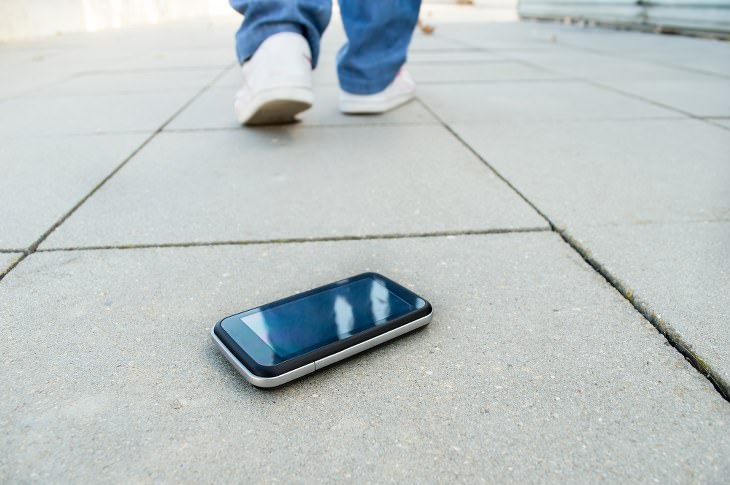
If you tend to lose your phone more often than you'd like to admit, then you might want to activate Android's built-in tracking system. To do so, go into Settings, tap Security & Location, and then tap Find My Device. Once that's done, if you ever lose your phone again, simply head to this page in any browser and log into your Google account. You'll then be shown a map, that will help you easily find your phone again.
2. Increase Font Size
If looking at your phone's screen is straining your eyes, then head straight to the Settings app. From there, tap Display, and then tap Font Size. Then, simply drag the slider to the left or right to get to your desired font size. You can even open a preview window to check what it'll look like before you save any changes.
3. Project Your Phone Onto a Larger Screen
Android products are now equipped with a casting feature, which will allow you to mirror your phone's screen on any TV that's got a Chromecast device set up. To do this, simply go into the Settings app. Then, go to Connected Devices and tap Cast.

If you want to check how much of your information a certain app has access to, simply go to Settings. Then, tap Apps & Notifications, and select which app's permissions you'd like to view. Then, simply tap Permissions to view and edit that app's access. For example, you might be fine with an app having access to your contact list, but not your personal photos.
5. Adjust Lock Screen Timing
By reducing the time it takes for your phone to lock its screen, you'll save your battery life, and make it less likely that someone will snatch your phone and use it while it's still unlocked. To pick a time-out period that works for you, go to Settings, tap Display, then Tap advance, and finally tap Sleep.
6. Show Emergency Info
If you ever get into a serious accident, having your key medical information easily accessible on your phone could mean the difference between life and death. To get it to show up on your lock screen, go to Settings, tap Users & Accounts, and then tap Emergency Information. From here, you can add details like emergency contacts, organ donor status, and allergies.
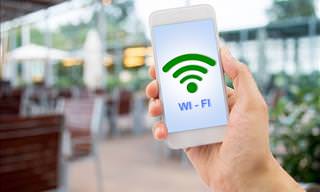
To save yourself time, you can set your smartphone to automatically connect to strong and trusted Wi-Fi networks that you've used in the past, even when your WiFi is turned off. To do this, go to Settings. Then, tap Network & Internet, then WiFi, and then tap WiFi Preferences. Finally, tap on the 'Turn on WiFi Automatically' switch, and you're good to go.
8. Automatically Free Up Storage Space
If your device is running low on storage space, you can take advantage of Android's Smart Storage, which will automatically delete copies of videos and photos which have already been safely transferred to Google Photos. To turn this feature on, go to Settings, tap Storage, and then tap on the Smart Storage toggle switch to activate it.
9. Activate Your Phone With Your Voice
If your phone has access to Google Assistant, then there's no need to even touch your phone to use this feature. To set up touchless features, open up the Google app, tap the menu button (the three horizontal lines on the bottom right), then tap Settings. Next, tap Voice, and finally select Voice Match. Now, you'll be able to use the phrase "OK Google" to communicate with your phone, even if it's locked.
10. Reduce Data Usage
Most Android devices contain a system that can place a limit on how much data background apps are allowed to use when you're not connected to WiFi, which can save you a lot of money in the long-run. To turn this feature on, go to Settings, tap Network & Internet, then Data Usage, and then on Data Saver.
Source: popsci
Images: depositphotos, pixabay

5 Things to Never Store on Your Smartphone
Stop using your smartphone as a master repository for saving all kinds of information. It may be dangerous...

This Guide Could Potentially Fix Your Wet and Broken Phone

This guide might just save your phone should you ever accidentally drop it in water!
Read Our Beginner's Guide to Microsoft Word Here
Get the most out of the most widely-used word-processing application in the world, with our simple beginner's guide to Microsoft Word.
17 Really Useful Android Tips and Tricks for Beginners
Android is a great addition to the modern cell phone, but it can be a little daunting and complex to the newcomer. Therefore, here are 20 really useful Android tips.
3:29
Former NSA Hacker Reveals How to Keep Yourself Safe Online
If you want to keep yourself safe online, then make sure that you heed these tips from a former hacker.
These Overlooked Apps Really Deserve Your Attention!
It's a shame that certain apps get overlooked, because most of them are available for free. Check out 5 Android + 5 iOS apps you should take notice of.
Customize Your Computer to Your Own Needs
Let the computer adjust itself to you! Here are 7 tricks that focus on ease of access and readability you can use to alter your computer experience for the better.
The Most Reliable Cloud Storage Services for 2025
Hereโs a closer look at some of the best cloud storage services to consider in 2025.
The 11 Best Meal Planning Apps to Help You Lose Weight
Fortunately, numerous apps can make meal planningโand potentially weight lossโmuch more achievable.
Your Easy Guide to OpenAI's Amazing Video and Photo Tools
OpenAI has created tools that anyone can use to make videos and photos, even if you're not a computer expert. Let me walk you through them step by step.
7 Reasons Why Your Computer is Running Abnormally Slow
There are many things that could be slowing your computer down and you'll find 7 of them in this article. Take a look!
What Causes Laptop Batteries to Bulge Over Time?
These early warning signs can save your laptop's battery and prevent potentially dangerous situations.
Computer Guide: Comparing Skype and Microsoft Teams
This article will explain why Skype is going away, how Teams fills its shoes, and guide you through using Teams for your personal video calls, screen shares, and chats.
12:58
25 iPhone Tips and Tricks Everyone Should Know
If you've never tried these before, prepare to be amazed by what your phone can actually do. Let's get started!
17:20
Discover a Feature of Windows That's Super Helpful
Learn how to use some advanced new features of Windows 10 that you probably weren't aware of.
How to Tell If a Virus Warning Is Real or Fake - 12 Tips
If you see a barrage of security alerts popping up on your computer, then it might be sign of a virus attack.
Top 5 Apps for Checking on Your Petโs Health
These apps were selected based on their functionality, user reviews, and relevance to health monitoring, as highlighted by pet care and technology sources.
Forget ChromeโZen Browser Is the Upgrade You Need
If youโre tired of slow load times, constant battery drain, or a cluttered interface, Zen might be the browser youโve been waiting for.
What To Do When Windows Will NOT Boot
There's nothing more frustrating than your computer refusing to boot. Here is what you can do to fix it when the system won't even initialize.
Take Your Computer Back to New with These Helpful Tips!
If your computer has become slow and is starting to lag, itโs probably about time you serviced it. Here's how to do it yourself, free of charge.
All You Need to Know About Your Computer
It's that age of computers, and we should all educate ourselves so we all save ourselves time and anxiety when using a computer, a tablet or a phone. This collection of posts will give you insight into many computer-related issues.
5 Things to Never Store on Your Smartphone
Stop using your smartphone as a master repository for saving all kinds of information. It may be dangerous...
Privacy Settings You Should Change in Chrome Right Now
These Chrome settings should always be disabled.
5 Hidden Google Chrome Games (And a Bonus)
Tired of Backgammon online? Try Google Chrome's online in-browser collection of games for an easy-to-reach entertainment break. Tic-tac-toe, snake, and more!
Gemini 3: An AI Upgrade or a Warning of Things to Come?
A new AI version hitting the market is always the most successful, most surprising, and always overshadows its predecessors in every comparison metric - until the next version arrives and surpasses it.
5:02
How to Transfer Data From Your Old iPhone to The New One
Got a new iPhone? Here's how you can move all your data from your old iPhone to the new one.
These 10 Keyboard Shortcuts Will Make Life Easy!
These keyboard shortcuts will help you learn the easiest ways to use your computer when your mouse is being less than cooperative!
You Should Bookmark These Incredibly Useful Sites
Make sure that you bookmark these handy websites!
The Only Guide You Need to Clean Your Computer
Computers collect dust and dirt, causing them to slow down and heat up. Here's how to clean them:
Learn How to Protect Yourself Using a Public Wi-Fi Network
Public Wi-Fi networks are incredibly convenient, but they're not always safe. Here are 10 ways of protecting yourself when using public Wi-Fi.
Making These Email Mistakes Comes Off As Rude or Annoying
When sending an email, the last thing you want is to come off as impolite or annoying. Here are 5 common email mistakes to avoid.
17:41
TikTok: Tips and Tricks for Beginners
Whether you are a total beginner or just looking to streamline your process to get more views, this tutorial covers everything you need to know to go from recording to posting.
5:15
How to Find Out if Your Computer Has a Virus
In this video, I'll show you the most telling signs that your machine may be infected, walk you through how to remove threats effectively, and share the best antivirus solutions to keep you protected for good.
23:04
ChatGPT: 30 Tips to Using and Working with the AI
In this video, weโre breaking down 30 practical tips to help you use ChatGPT more effectively
Do You Know How to Act in a Medical Emergency?
Don't feel powerless in a medical emergency, learn what actions to take in these 10 serious medical emergencies and how to save lives
5 Best Antiviruses in 2025 for Both PC and Mac
Below, we highlight five popular antivirus solutions for Windows PCs and five for Macs, featuring a mix of free and paid options.
Fed Up With Spotify? Try These Alternatives for Free Music
Here are eight of the best platforms where you can listen to music online without spending a dime.
Don't Charge Your Phone Over 80%, Here's Why
There is truth to the no-overnight-charging rule, and there is also some science to back it up.
10 Warning Signs Youโre About to Fall for a Fake Ad
Thse are 10 red flags that should make you pause before clicking on a social media ad.
7 Tips to Follow When a Computer Hangs or Freezes
Take note of these steps that will help you unfreeze a computer that freezes or hangs regularly.
15:24
15 Tech Hacks That Will Make Your Life Way Easier
These practical tips are designed to improve your daily tech experience.
9:17
The Best and Worst Apps for Learning Languages
Choosing the right language learning app can make the difference between steady progress and quick burnout
Losing Important Emails? Hereโs How to Tidy Up Your Gmail
A helpful guide to setting up Gmail filters to prevent emails from getting lost or spam overflowing your inbox.
Is Your Browser Slowing Down? Fix It With These 10 Tips
Get Chrome running smoothly with these seven easy fixes.
10 Practical Smartphone Tips and Features Few People Know
These practical tips and clever uses of smartphones will help you start using your phone at its full potential!
9 Lesser Known Free Websites for Learning in 2025
A list of 9 great free learning websites that cover a variety of subjects, from coding and science to business and language learning.
Do You Eat Out Often? These 7 Apps Will Save You Money!
If youโre struggling to keep up with your monthly food budget, youโre not alone. Here are 7 dinning apps that will save you money every time you eat.
To enable your Ad-Free Subscription, please fill the fields below
Your subscription was successful, now you can enjoy an ad-free experience!! Note: To make sure you get no ads, please make sure to log in to your account. If you are logged in already, then refresh the page. The subscription can be cancelled at any time.