
You probably already have Facebook, Google Maps, and your Medicare or healthcare provider's app on your phone. But the app stores also hide lesser-known gems that can make a real difference in everyday life: one reads the fine print for you, another provides live captions for conversations when it's hard to hear, and there's even one that saves you money every time you buy groceries.
We've selected five such apps for you. They are all completely free to download and allow you to enjoy their core features without paying a dime.
A blood pressure pill in the morning, a vitamin at noon, a cholesterol pill before bed. When you have multiple medications at different times, it's incredibly easy to miss a dose. Or worse, to take it twice because you can't remember if you already took it.
MyTherapy is a medication reminder app with a very simple interface. You just enter the name of the medication, the dosage, and the times, and your phone will chime and display a reminder every time you need to take a pill. You tap "Taken," and the app logs it. This way, at the end of the day, you can clearly see what was taken and what was missed.
What else it can do:
Good to know: The app is completely free, including all reminders. The free version does have some ads, and those who prefer an ad-free experience can remove them with a small monthly subscription, but it is not mandatory.
Download: Android (Google Play) | iPhone (App Store)

The expiration date on the yogurt container is too small. The medication leaflet is printed in tiny letters. The letter from the bank arrived right when you left your reading glasses in the other room. For anyone whose vision isn't what it used to be, Be My Eyes is one of the most heartwarming and useful apps available.
The concept is simple and brilliant: you press a button, and the app connects you via video call to a sighted volunteer. You point your phone's camera at whatever you need help with, and the volunteer reads the text to you, tells you what color a shirt is, or helps you set the dial on the oven. Over seven million volunteers are registered on the app, speaking 185 languages together. The service operates around the clock.
It also features a smart assistant: If you prefer not to speak to a stranger, you can use the "Be My AI" feature. You take a photo, and artificial intelligence describes what's in the image and answers follow-up questions, such as "What is the expiration date?" or "How many pills should I take according to the label?"
Good to know: The app is completely free. It was developed for the blind and visually impaired, but anyone who struggles to read small print can register as someone who needs visual assistance.
Download: Android (Google Play) | iPhone (App Store)
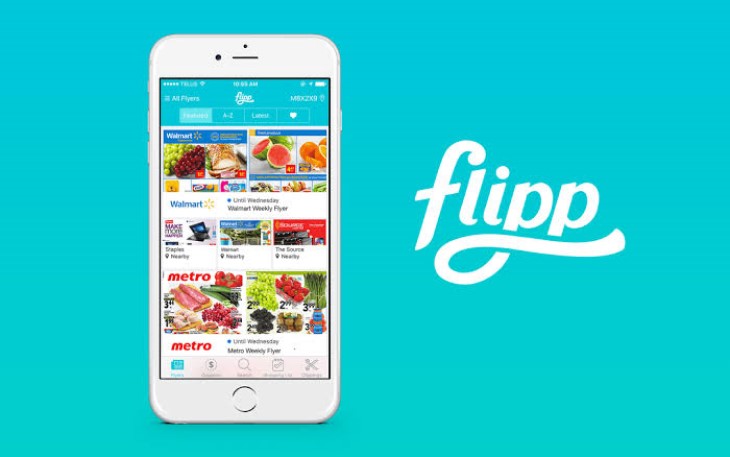
The exact same grocery cart can cost a completely different amount at different supermarket chains. Flipp is an app that digitizes weekly ads and circulars from thousands of US retailers—including Walmart, Kroger, Target, and local pharmacies—allowing you to easily compare prices and find deals.
What you can do with it:
Tip: There's no need to run between five different stores. Just check the app for the staple items you buy weekly, find out which local chain has the best overall deals that week, and do your big shopping trip there. Over a year, the savings can add up to a significant amount.
Download: Android (Google Play) | iPhone (App Store)
A family Thanksgiving dinner where everyone is talking at once, and your granddaughter says something from across the table. Or a visit to a doctor who speaks quickly and softly. Anyone experiencing hearing loss knows that moment when you feel too awkward to say, "Can you repeat that again?"
Live Transcribe is a free app by Google that turns speech into text in real-time. You place the phone on the table, and whatever is being said appears on the screen like movie subtitles. It works exceptionally well in English, and you can enlarge the text so it's easy to read.
Another useful feature: The app can also detect important household sounds, like a doorbell ringing, a dog barking, or a smoke alarm, and alert you by vibrating the phone or flashing the screen.
Good to know: The app is only available for Android phones. It works best in a conversation of two or three people when the phone is close to the speaker, and slightly less well when everyone is talking over each other. It doesn't replace a hearing aid or an audiologist visit, but it is an excellent interim aid.
Download: Android (Google Play) (Not available for iPhone)

Sleepless nights, worries spinning in your head, or just a busy day that's hard to disconnect from. Guided meditation is one of the simplest ways to relax, and you don't need any prior experience. Just sit comfortably, put on headphones, and listen.
Insight Timer is an incredibly popular meditation app that offers a massive library of over 100,000 free guided meditations, calming music tracks, and talks led by top mindfulness experts.
What you'll find inside:
Important to know before signing up: Unlike many wellness apps that lock you out after a few days, Insight Timer’s core library is completely free forever. They do offer a premium subscription (Member Plus) which unlocks offline listening and advanced courses, but you can easily ignore the upgrade prompts and stick to the vast free offerings.
Tip: Start with a short meditation of just five or ten minutes, at the same time every day. A small, consistent habit works much better than a long meditation once a week.
Download: Android (Google Play) | iPhone (App Store)
On an iPhone: Open the App Store, the blue icon with the letter A. Tap on "Search" at the bottom of the screen, type the name of the app, and tap "Get." You may be asked to confirm with Face ID, Touch ID, or your Apple account password.
On Android: Open Google Play, the icon with the colorful triangle. Tap the search bar at the top of the screen, type the name of the app, and tap "Install."
Watch out for fake apps: Before tapping install, check the developer name listed right under the app's name. For example, Live Transcribe should say it is from "Research at Google." If there are several apps with a similar name, choose the one with the highest number of downloads, and if you don't recognize the developer's name, it's better to skip it.
Is the text too small? You can enlarge the text across your entire phone at once. On an iPhone, go to Settings > Display & Brightness > Text Size. On Android, go to Settings > Display > Display size and text. Most apps will automatically adjust to your new preferred size.
You don't need to install them all in one day. Start with the one that seems most useful to you, give yourself a week to get used to it, and only then add the next one. You'll be surprised by how quickly it becomes a natural part of your day.