
I’ve always wondered whether my computer could make it possible for me to view what’s going on at home when I’m not there. I assumed that having that ability would entail installing a fancy and expensive CCTV system, but I realized that wasn’t necessary when I came across these three incredibly simple ways of harnessing the capabilities of computer and laptop in combination. Here they are:
What you need
1. Use Skype
- If you don’t have the video chat and voice calling application, Skype, installed on your computer, make sure you install it. If you have Windows 8 or newer as an operating system installed on your computer, then you will not need to install it.
- Log in to your primary Skype account. If you don’t have one, follow the simple steps to register.
- Press "Windows key- C," click "Settings" and then "Options." Select "Calls."
- Under the Calls option, you will see two sliders. These sliders are for instructing Skype to answer calls automatically and to turn on video automatically.
- Next, you’ll need a secondary Skype account. If you don’t have one, try creating one in your spouse’s name and using their email address.
- Add your spouse’s account as a Skype contact to your own account.
- Get your spouse to log in to his or her account from a remote smartphone or computer. Click the video camera icon to call your computer. It will respond automatically and begin to send you a video feed from your home.
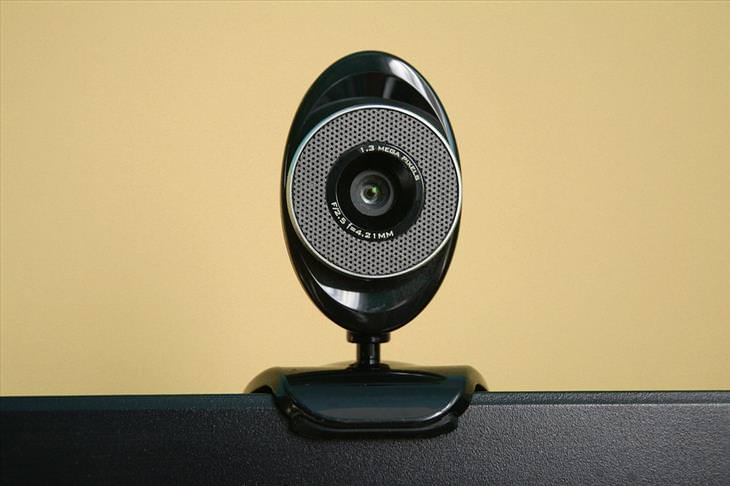
2. Use My Webcam Monitor
- My Webcam Monitor is a free piece of software that you can get here.
- Install it on your computer, open the software and click Register. Type in a username, password and email address and click Register once again.
- Next, click OK, followed by Sign In.
- Click Next and then enter the name you want to call your webcam broadcast.
- Click Next.
- Select your computer’s webcam from the drop-down menu, and click Next.
- Click Finish.
- Next, install My Webcam Monitor on the computer, smartphone or tablet you’re going to be using.
- Sign in to the remote computer, smartphone or tablet with your username and password to see your webcam. Select it and begin viewing a live stream.

3. Use Google Chrome Remote Desktop App
- Open Google Chrome on your home computer.
- Navigate to the Chrome Remote Desktop App by clicking on Resources, then Free.
- After you’ve installed the app, click on Launch App. Sign in to your Google Mail account when prompted. Click Continue, followed by Accept.
- Click Get Started under My Computers.
- Click Enable Remote Connections.
- Enter your security PIN, then click OK.
- Install the app on the remote computer you will be using. Sign in with your Google username and password, just like you did at home.
- Click on the listing that represents your home computer, then enter your PIN to access Google Chrome on your home computer.
- Go to www.webcamtoy.com. Start your home computer’s webcam through the site, and choose to view a live stream to begin seeing what’s going on at home.
Tip
You can adjust the settings for My Webcam Monitor in the program to add a password, which will make it more secure.
Content Source: Our Everyday Life

8:12
The Transistor: The Invention that Changed EVERYTHING.

We use transistors every day, all day. But how much do you know about this incredibly important invention?
Did You Know Computers Can Now Do These Human-Like Things?
Computers are amazing, and improving so quickly it is hard to keep up. Here are 9 surprising things that have already been achieved by computers.
8:12
The Transistor: The Invention that Changed EVERYTHING....
We use transistors every day, all day. But how much do you know about this incredibly important invention?
WARNING! Facebook Is Selling Your Privacy Away...
Facebook has been supplying your own private data to companies for many years, and here are 5 of its worst abuses to date.
Did You Know the Difference Between Router and Modem?
Learn the difference between a router and a modem.
17:01
This is How Tech Giants Try to Get YOUR Attention...
This TED Talk explains how the world's giant tech companies are locked in a ferocious battle - for our time and attention. Watch it to find out what's happening
Four Great Tips for Hosting Guests With Food Allergies
The holiday season is a time for friends, family, and loved ones to come together under one roof and share meals. With so many gatherings during this festive period, there's a good chance you'll be hosting someone with food allergies at your table.
You Should Bookmark These Incredibly Useful Sites
Make sure that you bookmark these handy websites!
Guide: How to Sign a PDF Without Printing it First
This guide will teach you how to sign PDF files digitally without having to print them.
What Causes Laptop Batteries to Bulge Over Time?
These early warning signs can save your laptop's battery and prevent potentially dangerous situations.
43:39
AI News: What's Going On With AI This Week?
This week's AI news covers major releases and impressive demos.
It’s Almost a Crime Not to Use These Free Nifty Websites
Check out 15 really useful websites. They are completely free to use!
Is DeepSeek Worth the Hype? A Closer Look at Its Features
DeepSeek is the new AI chatbot in town. But is worth the hype?
Looking for an Instagram Alternative? Try These Platforms
If you’re ready to explore beyond Instagram, here are eight great alternatives.
The 7 Backup Mistakes That Leave Your Files Vulnerable
Here’s what most people get wrong about backups.
The Most Amazing Websites for Learning Languages for Free
Learn any language for free with these amazing websites!
2:09
Guide: Download Netflix Videos on Any Laptop & PC
Want to watch your favorite Netflix content offline? This easy guide has you covered.
5 DIY Solutions to Better Organize Your Cords and Cables
Computer cables have an annoying tendency to tangle and create an unseemly mess. Here are some easy ways to prevent that.
5 Awesome Google Chrome Settings You Aren’t Using
Google Chrome’s advanced settings have many useful features that will make your browsing experience so much better.
This One Computer Key Is Used for a Myriad of Shortcuts!
The 'Win' key is usally thought to only bring up the start menu. It actually does a whole lot more. Get a load of these dozens of shortcuts!
7:31
How to Edit Your Photos Using 3 Different AI Services
If you shoot weddings, portraits, or anything high-volume, and you’ve wondered if AI can really speed things up without cutting corners, this is the no-nonsense breakdown you need.
17:20
Discover a Feature of Windows That's Super Helpful
Learn how to use some advanced new features of Windows 10 that you probably weren't aware of.
5:23
Phone Security– The Fastest Way to Secure a Hacked Phone
This guide helps you in checking for hackers on your phone, removing them, and locking down your phone.
Secure Your Data: 5 Must-Have Privacy Apps
A look at five apps that help you take back control of your digital footprint, including their strengths, trade-offs, and where to download them safely.
There's a keyboard Shortcut for Nearly Everything Here!
These shortcuts will cut down the time you waste fiddling about on the computer, and make you into something of an expert.
15:16
Get Smarter: How Do Hard Drives Work?
How do hard drives built and how do they work? All is explained in this video.
12 USEFUL Chrome Extensions That Save Time
Improve your browsing experience with these free Google Chrome extensions.
14 Tips for Using the Computer More Easily
It’s very likely that in the following computer tips list you’ll find information that will surprise you!
Privacy Settings You Should Change in Chrome Right Now
These Chrome settings should always be disabled.
5 Things to Never Store on Your Smartphone
Stop using your smartphone as a master repository for saving all kinds of information. It may be dangerous...
Watch Classic Cinema for Free with These Sites!
Here's where you can watch hundreds of classic movies online for free.
This Free Website Will Let You Play the Most Fun Mazes!
Do you love mazes and navigation challenges? Look no further than this fun site!
9 Useful Blogs Created Specifically For Senior Citizens
Here’s a wonderful collection of blogs that seniors will find particularly helpful.
Do This to Your Router to Increase Internet Speed
Want a faster and safer internet connection? Then do this to your router...
Is Your Browser Slowing Down? Fix It With These 10 Tips
Get Chrome running smoothly with these seven easy fixes.
Did You Know These Cell Phone Facts Are All Totally False?
People just love to give you advice about smart phones, but it turns out that a lot of this information is false. Never believe these 9 smart phone myths.
11:12
The Windows Recycle Bin Isn’t Just for Trash—Here’s Why
Did you know about these cool features of the Windows Recycle Bin?
5 Best Antiviruses in 2025 for Both PC and Mac
Below, we highlight five popular antivirus solutions for Windows PCs and five for Macs, featuring a mix of free and paid options.
Best ChatGPT Prompts for 2024
Let's explore some great prompts you can start with on your AI adventure, either for fun or for productivity or knowledge.
1:55
Never Lose Your WhatsApp Chats Again with These Hacks!
Protect your WhatsApp chats with these tips.
Simplify Finances With These Budget Apps for Families
Try these money mangement tools to simplify your finances in 2025
Overpaying for Streaming? Here’s How to Fix That!
Save big on your streaming bills with these simple tips.
Do You Know How to Act in a Medical Emergency?
Don't feel powerless in a medical emergency, learn what actions to take in these 10 serious medical emergencies and how to save lives
Who Traces Your Emails? Learn How to Detect Email-Tracking
40% of emails are being tracked by somebody without people's consent or notification, which means you'd better learn how to protect your privacy...
7:38
Most People Don’t Know About These Google Maps Features
Google Maps has a ton of new features that most people don’t know about.
How to Spot Fake Online Reviews: A Shopper’s Guide
Here are practical tips to help you spot fake Amazon reviews.
0:48
WhatsApp Hack: Read Messages Without Showing Blue Ticks
Learn how to read WhatsApp messages without showing blue ticks in this video.
What Do Those 12 'F' Keys on Your Keyboard Do?
Find out what those 12 curious F keys on your keyboard mean.
To enable your Ad-Free Subscription, please fill the fields below
Your subscription was successful, now you can enjoy an ad-free experience!! Note: To make sure you get no ads, please make sure to log in to your account. If you are logged in already, then refresh the page. The subscription can be cancelled at any time.