
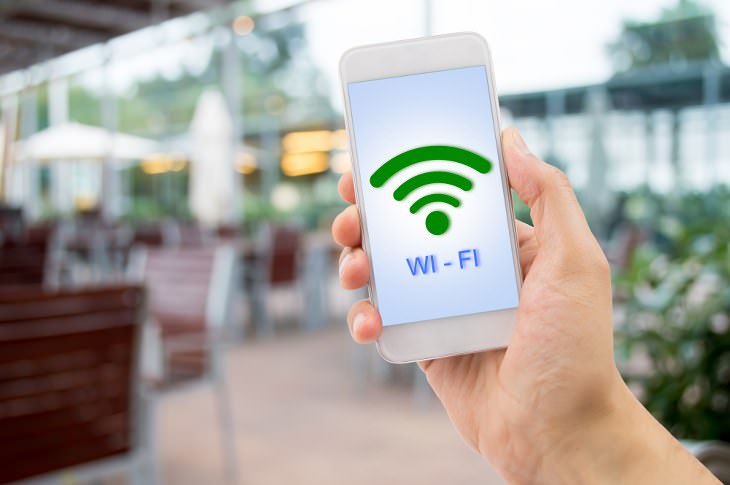
If you've ever dreamt of sharing your smartphone's cellular connection with other Wi-Fi-only devices, such as a tablet or a laptop, then you're in luck! Both Apple and Android phones are able to function as a portable Wi-Fi hotspot, which will allow their web connections to be opened up to anyone nearby who knows the password. This is an extremely useful feature since you won't need to worry about finding a place that offers free Wi-Fi any longer, as your cellphone will always have you covered. A word of warning though, if you're on a data plan you'll be using up a lot more data with this method, which may be a little costly if used for prolonged periods of time, or if anyone decides to download large files or stream videos.
In the guide below, we'll show you how to do this for both Android and Apple smartphones. While the steps might vary a bit depending on your device, the overall procedure remains practically the same.
Setting the hotspot up on your smartphone:
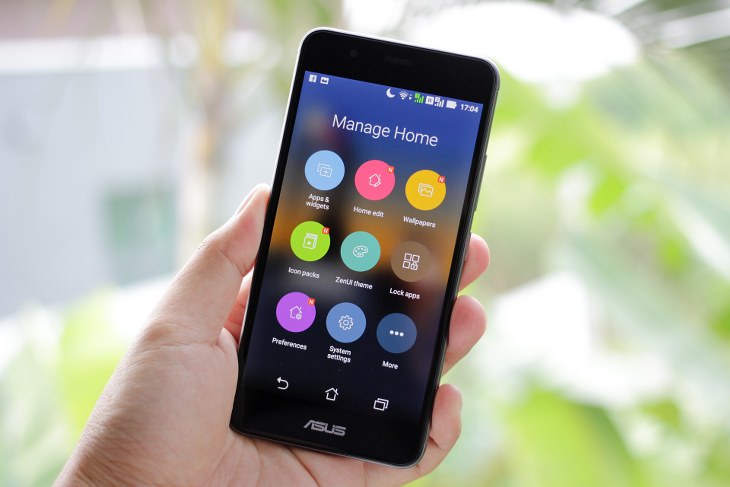
1. From your device's home screen, press the menu button, and then go to 'Settings.'
2. From 'Settings,' scroll down until you find a 'Wireless & Networks' button.
3. You should now be able to see an option called 'Portable Wi-Fi Hotspot.' To turn on the hotspot, simply click the check mark next to it. Some phones will even notify you when it has been activated.
4. If you need to check or adjust the hotspot's settings, click on 'Portable Wi-Fi Hotspot Settings.' From here, you'll be able to change the password, router name (SSID), security settings, and even manage any users who might be wirelessly connected to your hotspot.
Connecting to the hotspot from other devices:
1. For each device you want to connect to the hotspot, you'll first have to actually find the Wi-Fi signal. Many devices will find it automatically, but you can also do it manually by going to: Settings > Wireless & Networks > Wi-Fi Settings (Android) or Settings > Wi-Fi > Wi-Fi Hotspot (Apple).
2. Once you've located the Wi-Fi signal, all you have to do is enter the password and everything should be up and running as usual.
Setting the hotspot up on your iPhone:
1. Tap on your 'Settings' app, and then choose 'Mobile Data' or 'Mobile,' depending on your model.
2. Tap on 'Personal Hotspot' and tap the slider on the side so that it turns green.
3. If your Bluetooth or Wi-Fi are turned off, your phone will prompt you to switch them on, which is advice that you should follow. If you don't get this prompt, then simply move on to the next step.
4. Next, tap on 'Wi-Fi Password' and enter a secure password.
5. To check what name your hotspot has been given, simply go to 'Connect Using Wi-Fi.'
Connecting to the hotspot from other devices:
1. For each device you want to connect to the hotspot, you'll first have to actually find the Wi-Fi signal. Many devices will find it automatically, but you can also do it manually by going to: Settings > Wireless & Networks > Wi-Fi Settings (Android) or Settings > Wi-Fi > Wi-Fi Hotspot (Apple).
2. Once you've located the Wi-Fi signal, all you have to do is enter the password and everything should be up and running as usual.

1:22
Are Smartphones Making Us Stupid? This Will Surprise You!
If you use a smartphone you need to see this!
9:01
5 Android Tweaks You Should Know About Right Now
These 5 tips will help you tweak and personalize your android, for optimal user experience.
If You Do This, Then You Could Be Damaging Your Phone...
Many people end up damaging their phones without even realizing that they are doing so, and here are 9 of the most common ways this happens.
The Best Music Streaming Services Out There
In this article, we'll skim through the best music streaming services, for those who'd like to skip Apple and Spotify.
10 of the Best Home Security Apps for Android and IOS
Home security apps are very important when it comes down to home monitoring. Here are the best ones available for Android and IOS.
7:18
23 Smartphone Sale Strategies You Didnโt Know
Why are sellers more interested in selling you a cell phone at the end of the month than in the beginning? Here, sellers reveal some of their hidden sales strategies.
5 DIY Solutions to Better Organize Your Cords and Cables
Computer cables have an annoying tendency to tangle and create an unseemly mess. Here are some easy ways to prevent that.
5:02
How to Transfer Data From Your Old iPhone to The New One
Got a new iPhone? Here's how you can move all your data from your old iPhone to the new one.
7:09
Struggling with Slow iPhone Internet? Try These Tips
iPhone running slow again? Hereโs how you boost your speedโฆ
These Websites ONLY Share Positivity and Good Stories!
Say goodbye to negativity with these positive news platforms.
Secure Your Data: 5 Must-Have Privacy Apps
A look at five apps that help you take back control of your digital footprint, including their strengths, trade-offs, and where to download them safely.
Smishing 101: How to Recognize Scam Text Messages
This is how you recognize and handle fraudulent or scam text messages, also known as smashing.
8 Smart Safari Customizations Every Mac User Should Know
Here are some of the most effective ways to fine-tune Safari on your Mac.
Watch Classic Cinema for Free with These Sites!
Here's where you can watch hundreds of classic movies online for free.
3:28
Easy Tips for Connecting Your Laptop to an External Screen
Watch this helpful tutorial to learn how to connect your laptop to a monitor.
7:31
How to Edit Your Photos Using 3 Different AI Services
If you shoot weddings, portraits, or anything high-volume, and youโve wondered if AI can really speed things up without cutting corners, this is the no-nonsense breakdown you need.
5:23
Phone Securityโ The Fastest Way to Secure a Hacked Phone
This guide helps you in checking for hackers on your phone, removing them, and locking down your phone.
These 10 Keyboard Shortcuts Will Make Life Easy!
These keyboard shortcuts will help you learn the easiest ways to use your computer when your mouse is being less than cooperative!
You Didnโt Realize it, But AI Is Making Your Life Better!
Here are thirteen unique ways AI can simplify daily life.
3:32
The Easy Way to Clean Your Computer's Keyboard
Cleaning a dirty keyboard is quite a straightforward task, as you're about to find out.
Boost Your Brain With These 8 Brainy Mobile Games!
Weโve gathered 8 recommended games to keep your brain active, challenge your logical thinking, and help you pass the time enjoyably.
The Most Reliable Cloud Storage Services for 2025
Hereโs a closer look at some of the best cloud storage services to consider in 2025.
Who Traces Your Emails? Learn How to Detect Email-Tracking
40% of emails are being tracked by somebody without people's consent or notification, which means you'd better learn how to protect your privacy...
4:28
Update Now or Wait? Comparing iOS 17.7 and iOS 18
If you are wary of updating to iOS 18, watch this video.
9:43
Tired of Google Photos Storage Limits? Try These Solutions
Get more space in your Google Photos account with these useful hacks.
7:38
Most People Donโt Know About These Google Maps Features
Google Maps has a ton of new features that most people donโt know about.
The 7 Backup Mistakes That Leave Your Files Vulnerable
Hereโs what most people get wrong about backups.
Forget ChromeโZen Browser Is the Upgrade You Need
If youโre tired of slow load times, constant battery drain, or a cluttered interface, Zen might be the browser youโve been waiting for.
This One Computer Key Is Used for a Myriad of Shortcuts!
The 'Win' key is usally thought to only bring up the start menu. It actually does a whole lot more. Get a load of these dozens of shortcuts!
PowerToys: The Best Free Microsoft App for Windows Users
In this article, we'll introduce you to this toolbox and show you which 23 useful tools are waiting for you there.
Overpaying for Streaming? Hereโs How to Fix That!
Save big on your streaming bills with these simple tips.
Computer Guide: How to Clear Space on Your Google Account
How to easily free up storage space on your Google Drive without paying for more storage.
11 Free AI Tools That Actually Help You Get Stuff Done
Have you tried any of these useful free AI apps?
Not Sure What to Watch Next? Try These 8 Helpful Sites
Not sure what to watch next? Try these helpful sites.
7 Reasons Why Your Computer is Running Abnormally Slow
There are many things that could be slowing your computer down and you'll find 7 of them in this article. Take a look!
3:35
Want to Increase Your iPad Keyboard Size? Watch This Guide
Want to increase the size of your iPad? Watch this tutorial nowโฆ
Laptop Won't Power Up? Try These 11 Effective Solutions
Laptop not starting? Try these essential steps to troubleshoot it.
Make Google Maps Better with These Handy Tools
These add-ons make Google Maps so much better!
Gboard Secrets: 7 Handy Features You're Not Using Yet
Make the most out of Gboard with these awesome tips and tricls.
Skype Is Shutting Down โ Try These Alternatives Now
With Skype officially retiring, here are some handy alternatives you should try.
Surround Yourself With the Forest Sounds of the World
Ready to be surrounded by the music of the worldโs forests and experience the restorative properties of being in nature?
4:08
Guide: Download All Google Photos in a Few Clicks!
Want to download all your Google your photos and videos in a few clicks? Watch thisโฆ
Do This to Your Router to Increase Internet Speed
Want a faster and safer internet connection? Then do this to your router...
What Do Those 12 'F' Keys on Your Keyboard Do?
Find out what those 12 curious F keys on your keyboard mean.
Hereโs Where You Can Watch Classic Movies for Free!
Want to watch free classic movies? Check out these sites and apps.
2:09
Guide: Download Netflix Videos on Any Laptop & PC
Want to watch your favorite Netflix content offline? This easy guide has you covered.
Privacy Settings You Should Change in Chrome Right Now
These Chrome settings should always be disabled.
To enable your Ad-Free Subscription, please fill the fields below
Your subscription was successful, now you can enjoy an ad-free experience!! Note: To make sure you get no ads, please make sure to log in to your account. If you are logged in already, then refresh the page. The subscription can be cancelled at any time.