
There may be no household object on earth that has caused more grumbling than the humble printer. It sits there quietly for weeks, and then, the moment you urgently need to print a boarding pass or a doctor's form, it decides to go on strike. No error message. No explanation. Just silence, or worse, a cryptic blinking light.
Here's the comforting truth: printers aren't actually cursed. They fail in a handful of very predictable ways, and almost all of them can be fixed at home in a few minutes, no technician required. Let's go through the most common printer problems one by one, why they happen, and the fixes that actually work.
Before Anything Else: The Famous Off-and-On Trick (It Really Works)
It sounds like a joke, but it's genuinely the most effective printer repair in existence. Turn the printer off, unplug it from the wall, wait a full 30 seconds, then plug it back in and turn it on. This clears the printer's internal memory, which frequently gets confused or stuck. While you're at it, restart your computer too; sometimes the problem was never the printer at all. This one ritual solves a remarkable share of all printer mysteries.
Problem 1: You Click Print... and Nothing Happens
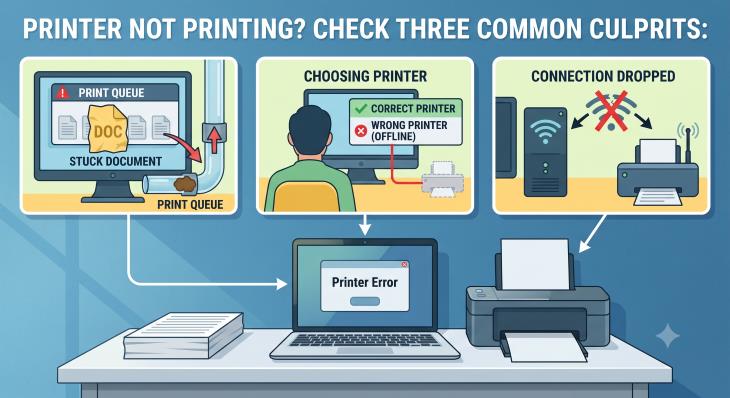
Why it happens: Usually one of three culprits: a stuck document is clogging the print queue (the waiting line of documents inside your computer), your computer is sending the job to the wrong printer, or the connection between computer and printer has quietly dropped.
The fix: First, clear the traffic jam. On a Windows computer, go to Settings, then Bluetooth & Devices, then Printers & Scanners, click your printer, and open the print queue. You'll likely find a pile of old documents waiting there; cancel them all, then try printing again. On a Mac, open System Settings, then Printers & Scanners, and click your printer to see and clear its queue.
Second, make sure your computer is talking to the right printer. In that same menu, check that your printer is set as the default. Computers sometimes decide to send documents to a printer you owned years ago, or to a mysterious "Save as PDF" option, and wait politely forever.
Problem 2: The Printer Says It's "Offline"
Why it happens: "Offline" simply means your computer can't reach the printer. With Wi-Fi printers this is extremely common: the router restarted, the printer fell asleep and forgot to reconnect, or the printer and computer ended up on different networks.
The fix: Restart the printer, and if that doesn't help, restart your Wi-Fi router too (unplug it, wait 30 seconds, plug it back in). Make sure the printer isn't too far from the router; walls and distance weaken the signal. On Windows, also open the print queue and make sure "Use Printer Offline" isn't accidentally checked; unchecking it often brings the printer instantly back to life. If all else fails, run the printer's Wi-Fi setup again from its menu screen to reconnect it to your network.
Problem 3: Paper Jams (and How to Clear Them Without Making Things Worse)
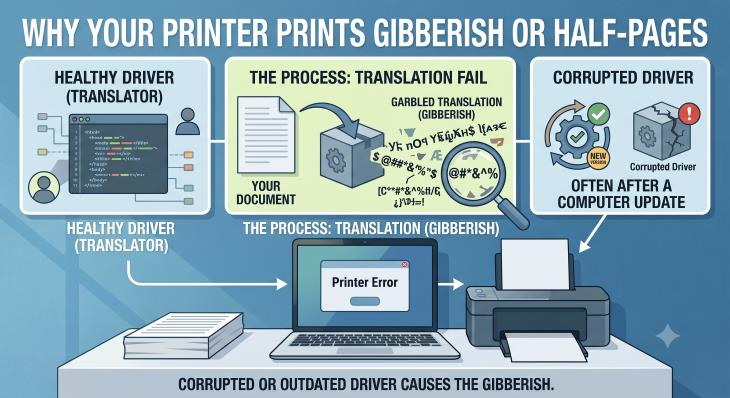
Why it happens: Overfilled paper trays, wrinkled or damp paper, sheets sticking together, or dusty rollers inside the machine that can no longer grip the paper properly.
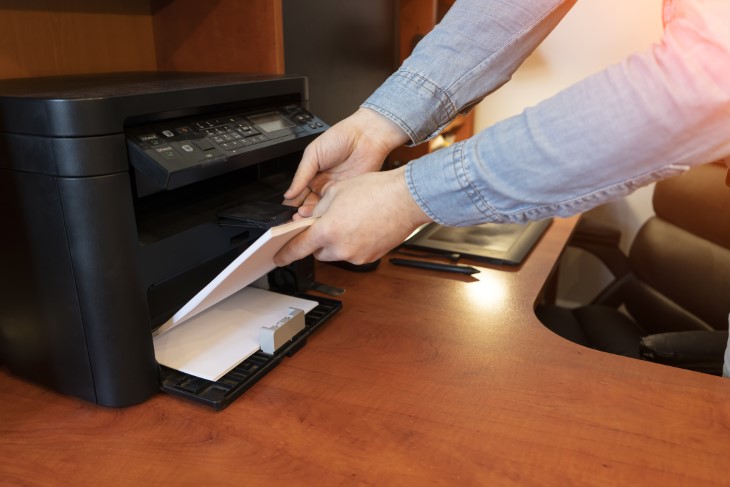
The fix: Turn the printer off first. Then open every door and tray, and pull the stuck paper out slowly, with both hands, in the direction the paper normally travels. Never yank; if the paper tears, every little scrap left inside will cause the next jam. Use a flashlight to check for leftover pieces.
Prevention is even better: Before loading paper, fan the stack so the sheets separate, don't overfill the tray, and slide the paper guides snugly (but not tightly) against the stack. If jams keep happening, gently wipe the rubber rollers with a slightly damp lint-free cloth; dusty rollers are the hidden cause of most repeat offenders.
Problem 4: Streaky, Faded, or Blank Pages
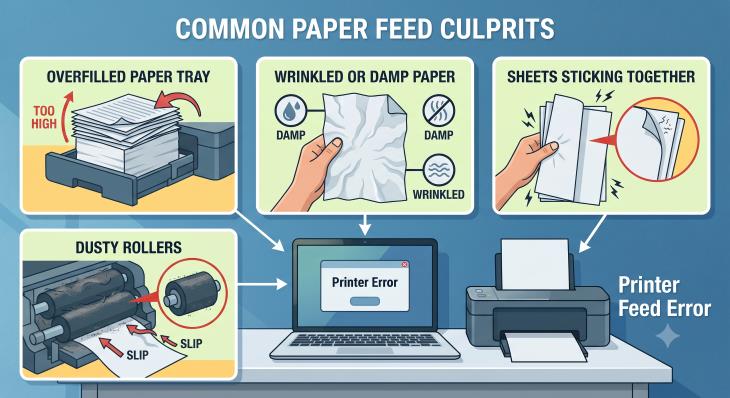
Why it happens: If your prints look pale, streaked, or come out completely blank, the problem is almost always ink-related. Inkjet printers that sit unused for weeks develop dried ink that clogs the microscopic nozzles in the printhead, like a pen that's been left uncapped.
The fix: First check the ink or toner levels on the printer's screen or in its app. If there's ink, run the built-in cleaning cycle: look for "Clean Printhead" or "Print Quality Tools" in the printer's menu or its companion app on your computer. You may need to run it two or three times. For laser printers with faded prints, remove the toner cartridge and gently rock it side to side a few times; this redistributes the powder and can buy you weeks of extra printing.
And a tip for new cartridges: If you just installed a cartridge and get blank pages, check whether you removed the small protective tape or plastic strip. It's the single most common "defective cartridge" that was never defective at all.
Problem 5: The Printer Prints Gibberish or Half a Page
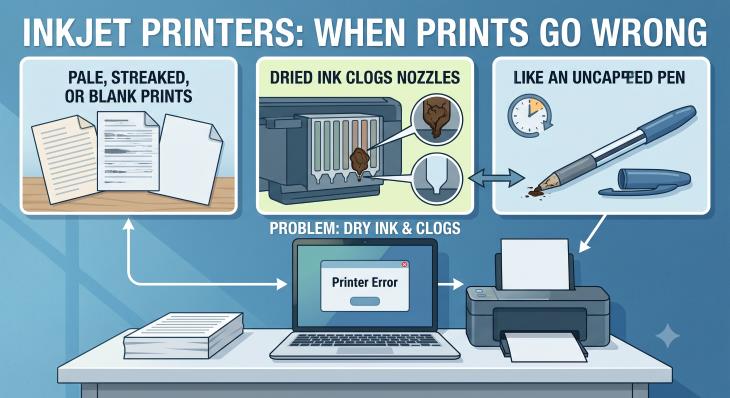
Why it happens: This is usually a driver problem. The driver is the translator program that converts your document into the printer's language, and when it's outdated or corrupted, the translation comes out garbled. This often appears out of nowhere after a computer update.
The fix: Visit the printer manufacturer's website (HP, Canon, Epson, or Brother), find the support section, type in your printer's model number, and download the latest driver for your computer. Installing it on top of the old one usually cures the gibberish. HP owners have an even easier option: a free tool called HP Print and Scan Doctor that finds and fixes most problems automatically.
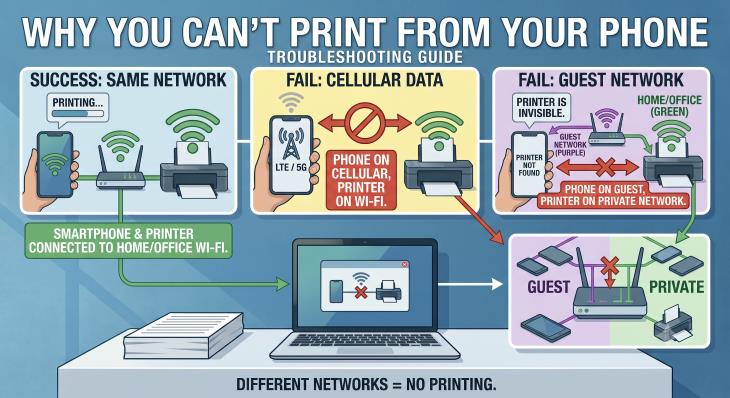
Problem 6: You Can't Print From Your Phone
Why it happens: Your phone and printer must be on the same Wi-Fi network to see each other. If your phone is using its cellular data, or connected to a guest network, the printer is invisible to it.
The fix: Check that Wi-Fi is on and both devices show the same network name. Then simply use the Share button (iPhone) or the menu's Print option (Android) from whatever you want to print. Modern printers work with iPhones and Androids right out of the box; if yours doesn't appear, installing the manufacturer's free app (like HP Smart or Canon PRINT) almost always solves it.
When It's Time to Say Goodbye
A word of honest advice: if your printer is more than eight years old, jams daily, and needs a rain dance before every print job, repair may cost more than replacement. Basic reliable printers now cost less than a family dinner out. And when shopping, look at the price of the ink, not just the printer; some inexpensive printers are sold cheap precisely because the cartridges cost a fortune. Ink tank printers cost a bit more upfront but can slash your ink spending for years.
Until then, remember the golden rule of printer peace: restart first, panic later. Nine times out of ten, that grumpy machine just needed a nap.