
We've all seen it: that dreaded "Storage Almost Full" message that pops up right as you're about to snap a photo of your grandchild blowing out birthday candles. And the panic sets in. Do I have to delete my pictures? Which memories do I sacrifice?
Here's the wonderful truth: you almost never need to delete a single photo. The real space hogs on your phone are usually hiding elsewhere, in places most people never think to look. With a few simple steps, you can reclaim gigabytes of space while keeping every precious memory exactly where it belongs. Let's walk through it together, with instructions for both iPhone and Android.
First, Find Out What's Actually Eating Your Space
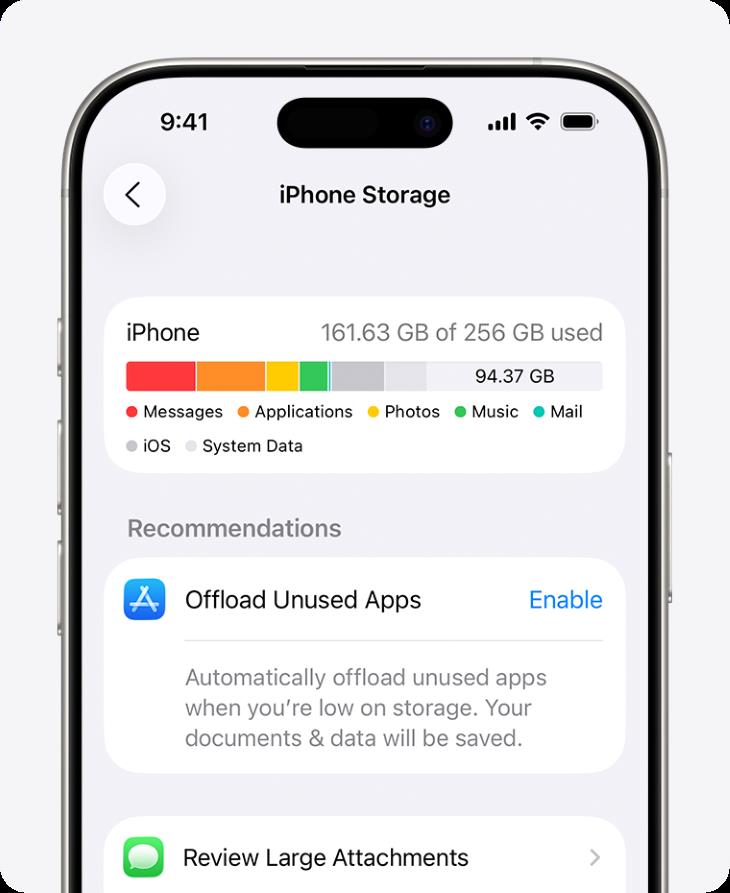
Before cleaning, it helps to know where the mess is. Your phone will show you a helpful color-coded chart of exactly what's taking up room.
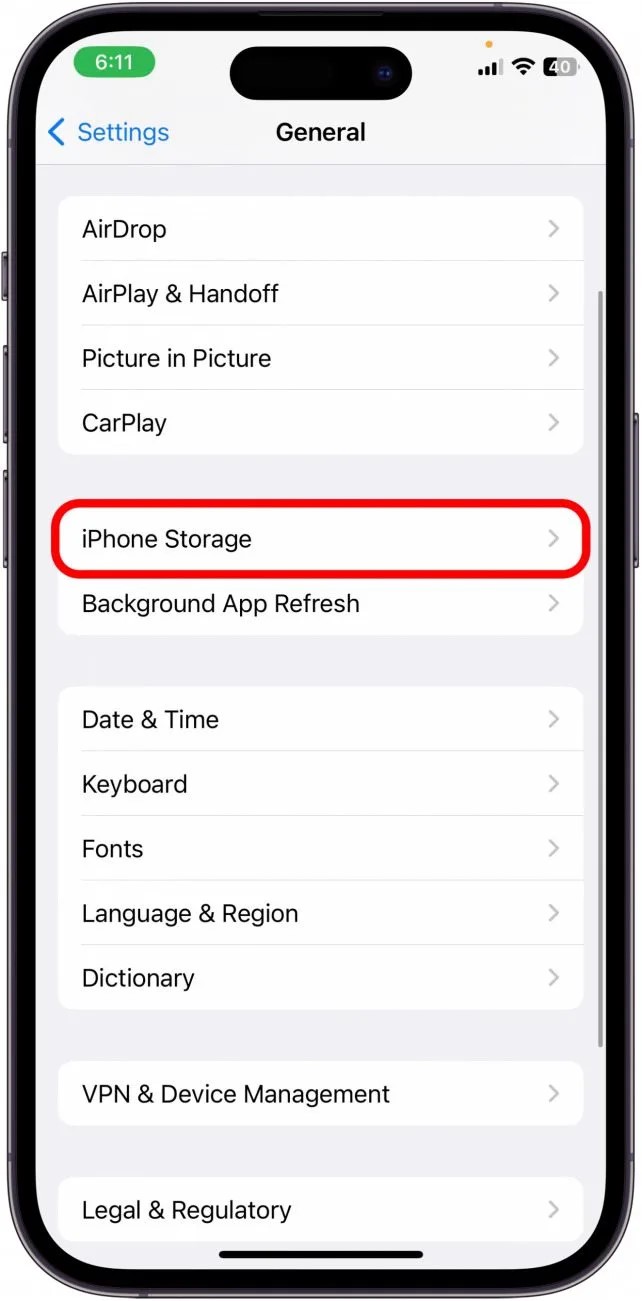
On iPhone: Open Settings, tap General, then tap iPhone Storage. Wait a moment for the chart to load.
On Android: Open Settings and look for Storage (on Samsung phones, it may be under Device Care or Battery and Device Care).
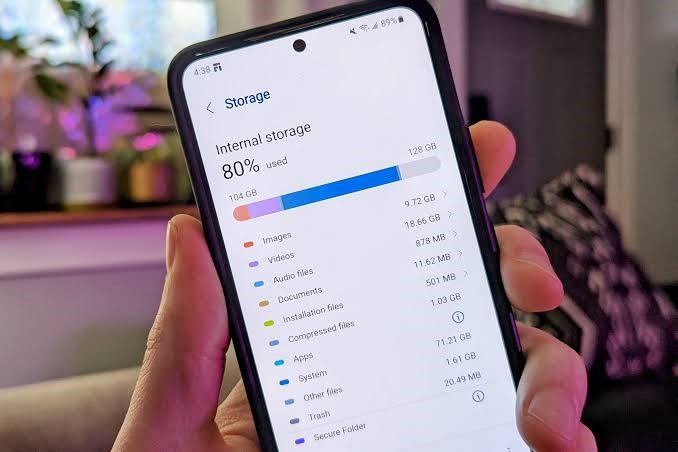
You might be surprised. Very often it's not your photos at all, but apps, videos, and mysterious "cached" files doing most of the damage.
The Magic Trick: Store Photos in the Cloud, Keep Them on Your Screen
This is the single most powerful step, and it feels like magic. Both iPhone and Android can store your full-quality photos safely in the cloud while keeping smaller preview versions on your phone. You still see and browse every single photo exactly as before. They still look sharp and beautiful on your screen. But instead of taking up gigabytes, they take up a fraction of the space. When you want to print, share, or zoom into one, the full version downloads in seconds.
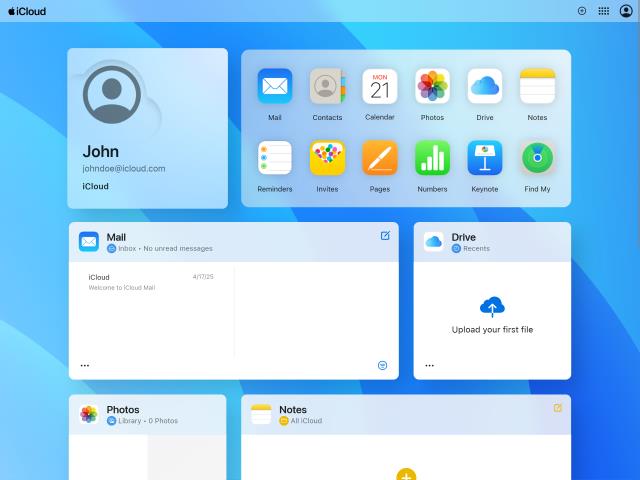
On iPhone: Open Settings, tap your name at the top, tap iCloud, then Photos. Make sure syncing is turned on, then select "Optimize iPhone Storage." That's it. Leave your phone plugged in and connected to Wi-Fi, and over the next hours it will quietly free up space.
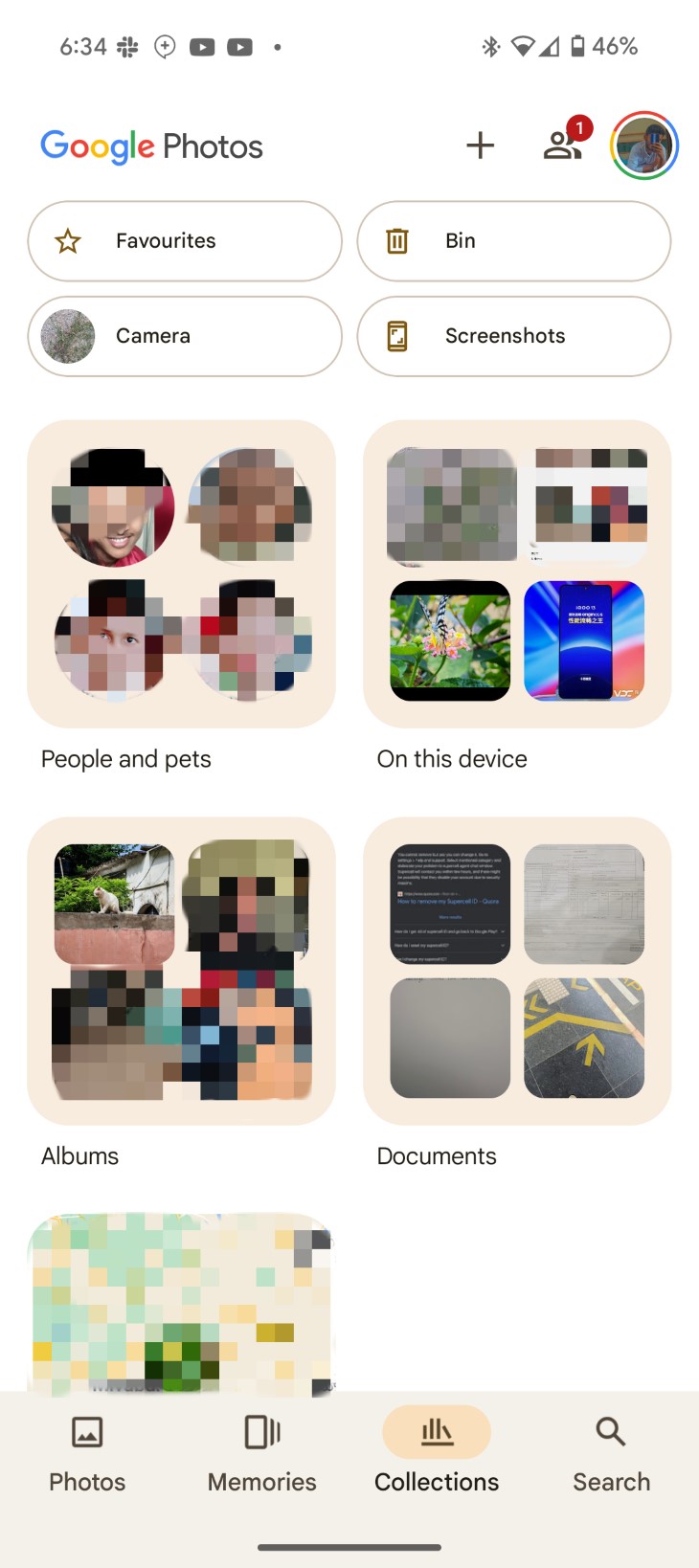
On Android: Open the Google Photos app and make sure backup is turned on (tap your profile picture in the top right corner and look for "Backup"). Once your photos are safely backed up, tap your profile picture again and choose "Free up space on this device." Google will remove the local copies of photos that are already safe in the cloud, often recovering many gigabytes in one tap.
One important note: Apple gives you 5 GB of free iCloud storage, and Google gives you 15 GB. If you have decades of photos, you may eventually need a small monthly plan (a couple of dollars per month for far more space than most people ever use). Think of it as the world's cheapest insurance policy for your memories.
Offload Apps You Rarely Use (Without Losing Anything)
That airline app from your trip two years ago? The game your grandson installed and forgot about? Apps can quietly consume enormous amounts of space. The clever part is that you don't need to fully delete them.
On iPhone: In Settings, go to General, then iPhone Storage, and tap any app in the list. Choose "Offload App." This removes the app itself but keeps all your data and settings. The icon stays on your home screen with a little cloud symbol, and one tap reinstalls it, right where you left off.
On Android: Open the Play Store app, tap your profile picture, then Manage apps and device. Newer Android phones offer an "Archive" feature that works just like offloading: the app shrinks dramatically but your data stays put.
Clear Out the Hidden Junk: Caches
Apps like Facebook, Instagram, YouTube, and your web browser constantly save temporary files called caches so things load faster. Over months and years, these invisible files can swell to several gigabytes. Clearing them deletes nothing you care about; the apps simply rebuild what they need.
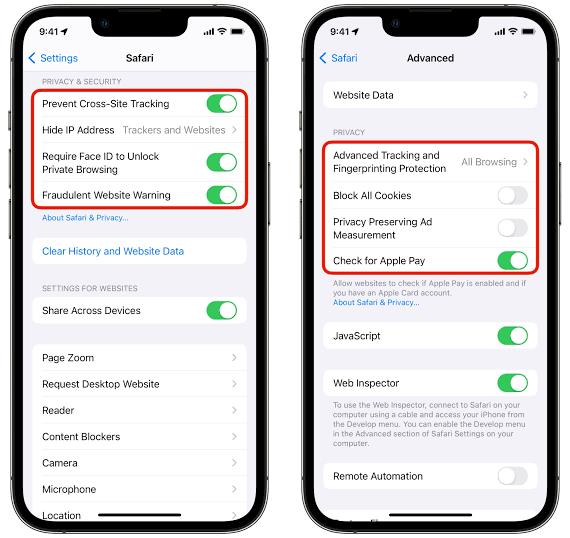
On iPhone: For Safari, go to Settings, find Safari, and tap "Clear History and Website Data." For other apps, offloading and reinstalling them (as described above) wipes their cache clean.
On Android: Android makes this easier. Go to Settings, then Apps, tap any app, choose Storage, and tap "Clear Cache." Start with your biggest social media and video apps; the results can be dramatic.
Check Your Messages: The Sneakiest Space Thief
Every photo and video anyone has ever texted you is probably still sitting on your phone. Years of "good morning" pictures, funny videos, and holiday greetings from WhatsApp and text messages can add up to a shocking amount of space.
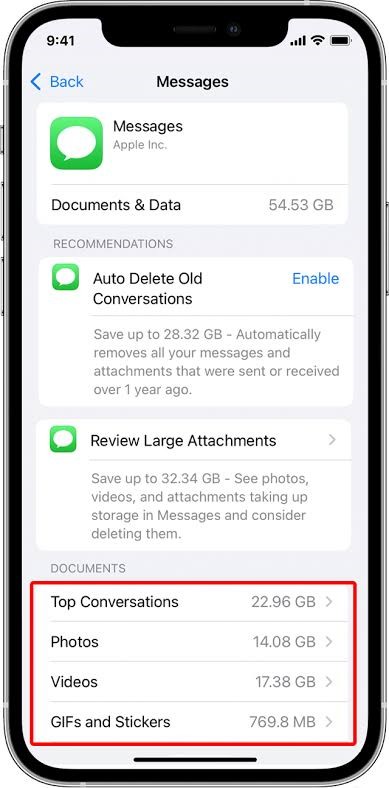
On iPhone: Go to Settings, General, iPhone Storage, and tap Messages. You'll see categories like Photos, Videos, and GIFs. Open each one and delete the large items you don't need. Don't worry, this only removes them from your phone; the sender still has their copy.
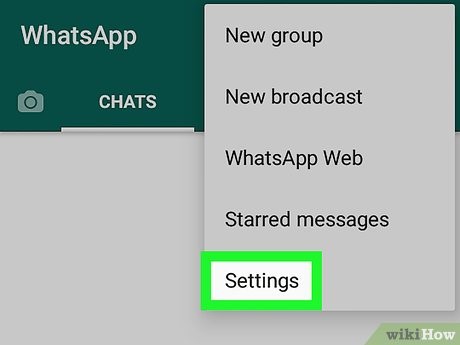
On WhatsApp (iPhone and Android): Open WhatsApp Settings, tap Storage and Data, then Manage Storage. WhatsApp will show you the largest files and the chats taking up the most room, and let you clear them out in a few taps. You can also stop the flood at its source: in the same menu, turn off automatic photo and video downloads.
Delete Old Downloads and Watched Videos
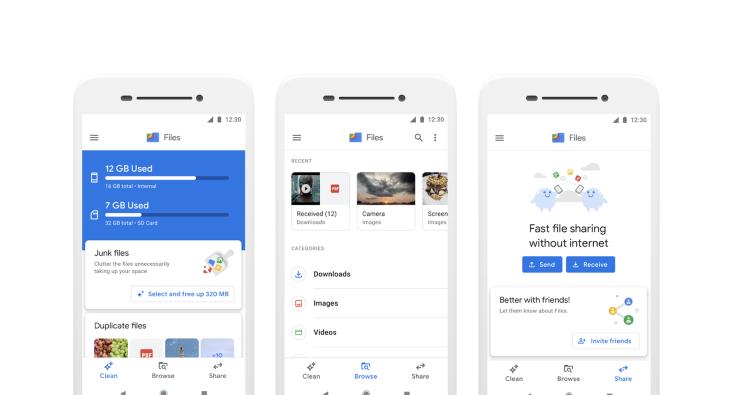
Downloaded movies and shows from Netflix or other streaming apps are wonderful for a flight, and total space-wasters afterward. Open your streaming apps and check their Downloads section for anything you've already watched. The same goes for podcasts, which can quietly download new episodes forever, and for your Downloads folder, where old PDFs, boarding passes, and files pile up. On Android, look for the Files app; on iPhone, check the Files app under "On My iPhone."
One Last Sweep: Duplicates and Screenshots
While we promised no precious photos would be harmed, there are a few items even the most sentimental among us won't miss: exact duplicates, blurry accidental shots, and old screenshots of things like store hours and parking spots.
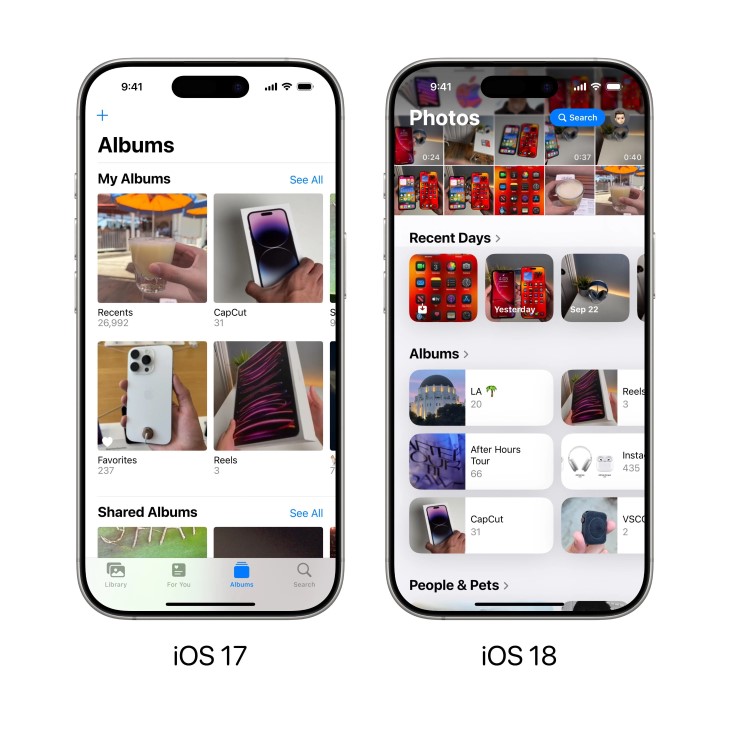
On iPhone: Open the Photos app, scroll to Utilities, and tap Duplicates. Your phone finds identical photos and merges them with one tap.
On Android: Open the Files by Google app and look under Clean, where it will suggest duplicates, blurry photos, and old screenshots to remove.