
I’ve always wondered whether my computer could make it possible for me to view what’s going on at home when I’m not there. I assumed that having that ability would entail installing a fancy and expensive CCTV system, but I realized that wasn’t necessary when I came across these three incredibly simple ways of harnessing the capabilities of computer and laptop in combination. Here they are:
What you need
1. Use Skype
- If you don’t have the video chat and voice calling application, Skype, installed on your computer, make sure you install it. If you have Windows 8 or newer as an operating system installed on your computer, then you will not need to install it.
- Log in to your primary Skype account. If you don’t have one, follow the simple steps to register.
- Press "Windows key- C," click "Settings" and then "Options." Select "Calls."
- Under the Calls option, you will see two sliders. These sliders are for instructing Skype to answer calls automatically and to turn on video automatically.
- Next, you’ll need a secondary Skype account. If you don’t have one, try creating one in your spouse’s name and using their email address.
- Add your spouse’s account as a Skype contact to your own account.
- Get your spouse to log in to his or her account from a remote smartphone or computer. Click the video camera icon to call your computer. It will respond automatically and begin to send you a video feed from your home.
2. Use My Webcam Monitor
- My Webcam Monitor is a free piece of software that you can get here.
- Install it on your computer, open the software and click Register. Type in a username, password and email address and click Register once again.
- Next, click OK, followed by Sign In.
- Click Next and then enter the name you want to call your webcam broadcast.
- Click Next.
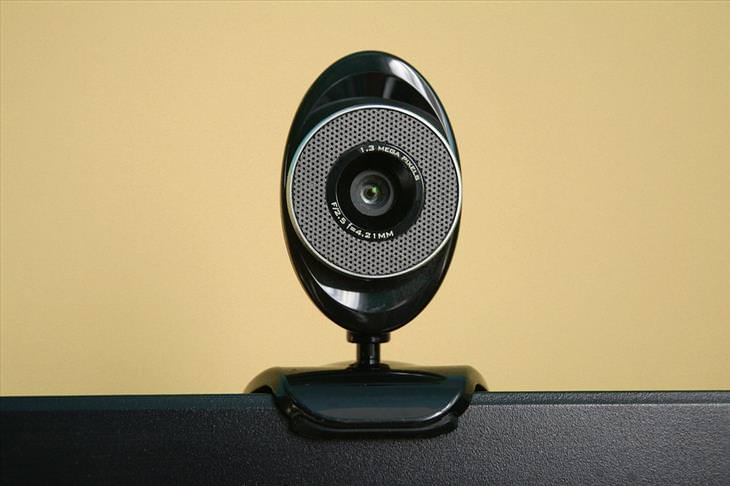
- Select your computer’s webcam from the drop-down menu, and click Next.
- Click Finish.
- Next, install My Webcam Monitor on the computer, smartphone or tablet you’re going to be using.
- Sign in to the remote computer, smartphone or tablet with your username and password to see your webcam. Select it and begin viewing a live stream.
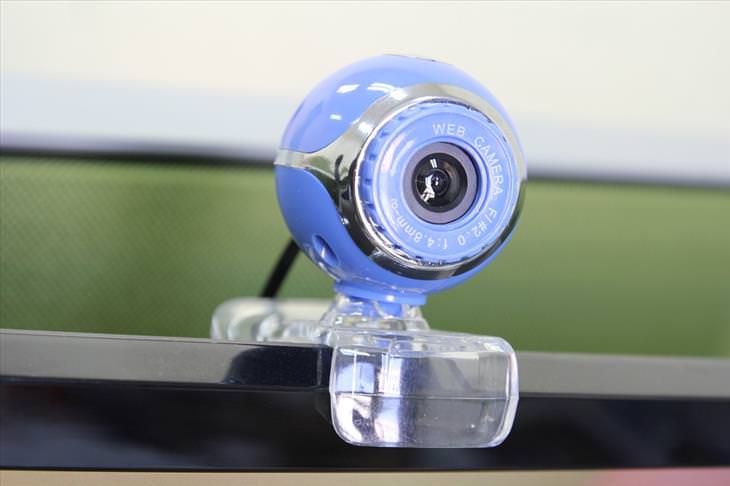
3. Use Google Chrome Remote Desktop App
- Open Google Chrome on your home computer.
- Navigate to the Chrome Remote Desktop App by clicking on Resources, then Free.
- After you’ve installed the app, click on Launch App. Sign in to your Google Mail account when prompted. Click Continue, followed by Accept.
- Click Get Started under My Computers.
- Click Enable Remote Connections.
- Enter your security PIN, then click OK.
- Install the app on the remote computer you will be using. Sign in with your Google username and password, just like you did at home.
- Click on the listing that represents your home computer, then enter your PIN to access Google Chrome on your home computer.
- Go to www.webcamtoy.com. Start your home computer’s webcam through the site, and choose to view a live stream to begin seeing what’s going on at home.
Tip
You can adjust the settings for My Webcam Monitor in the program to add a password, which will make it more secure.
Content Source: Our Everyday Life

This 81-Year-Old Japanese Woman Has Developed Her Own App
Masako Wakamiya's story is remarkable. This self-taught programmer first picked up a computer at age 60. Now aged 81, she has just released her own iPhone app.
1:12
The Next Tech Revolution - Meet The Leap!
Leap represents an entirely new way to interact with your computers and soon - with your TV!
17:01
This is How Tech Giants Try to Get YOUR Attention...
This TED Talk explains how the world's giant tech companies are locked in a ferocious battle - for our time and attention. Watch it to find out what's happening
3:27
22 Reasons Why We're Already Living in the Future!
These 22 pieces of amazing technology prove that we're already living in the future.
7:17
What on Earth Is Quantum Computing? Find Out Here
This short video below explains everything you need to know about quantum computers.
Find Out More About China's Scary New Social System
The new social credit system that's about to be rolled out in China will leave you wondering whether something similar could come to your own country...
5 Things to Never Store on Your Smartphone
Stop using your smartphone as a master repository for saving all kinds of information. It may be dangerous...
Master AliExpress Shopping with These Expert Tips
Here’s how to shop smart and save on AliExpress.
How to Identify an Online Scam Email
Phishing emails are a common way of stealing information, but you can avoid them if you follow these tips that'll help you identify them
Stop Paying For Software: 8 Free Productivity Options
Here are eight free open-source alternatives that can take the place of paid productivity apps without sacrificing quality or functionality.
Do You Eat Out Often? These 7 Apps Will Save You Money!
If you’re struggling to keep up with your monthly food budget, you’re not alone. Here are 7 dinning apps that will save you money every time you eat.
These 10 Keyboard Shortcuts Will Make Life Easy!

These keyboard shortcuts will help you learn the easiest ways to use your computer when your mouse is being less than cooperative!
Looking for an Instagram Alternative? Try These Platforms
If you’re ready to explore beyond Instagram, here are eight great alternatives.
The Most Amazing Websites for Learning Languages for Free
Learn any language for free with these amazing websites!
These 5 Free Tools Can Help You Save Money Today!
These free apps and sites make saving money a breeze.
11:12
The Windows Recycle Bin Isn’t Just for Trash—Here’s Why
Did you know about these cool features of the Windows Recycle Bin?
14 Tips for Using the Computer More Easily
It’s very likely that in the following computer tips list you’ll find information that will surprise you!
5 Best Antiviruses in 2025 for Both PC and Mac
Below, we highlight five popular antivirus solutions for Windows PCs and five for Macs, featuring a mix of free and paid options.
There's a keyboard Shortcut for Nearly Everything Here!
These shortcuts will cut down the time you waste fiddling about on the computer, and make you into something of an expert.
Watch Classic Cinema for Free with These Sites!
Here's where you can watch hundreds of classic movies online for free.
8 Smart Safari Customizations Every Mac User Should Know
Here are some of the most effective ways to fine-tune Safari on your Mac.
Make Google Maps Better with These Handy Tools
These add-ons make Google Maps so much better!
Busting 12 Password Myths to Safeguard Your Online Life

Don’t fall for these common password myths.
Computer Guide: How to Keep Your Computer Up-to-Date!
Follow this simple guide to update drives and resolve common issues on your Windows computer.
These Websites ONLY Share Positivity and Good Stories!
Say goodbye to negativity with these positive news platforms.
7 Safe Ways to Watch Movies & TV Shows Online Free in 2024
Free movie and TV show sites you need to know about in 2024.
Firefox Just Got Better: 10 Handy Extensions You’ll Love
With the right add-ons, Firefox can become an indispensable browser that you'll rely on every day.
5:23
Phone Security– The Fastest Way to Secure a Hacked Phone
This guide helps you in checking for hackers on your phone, removing them, and locking down your phone.
Do You Know How to Act in a Medical Emergency?
Don't feel powerless in a medical emergency, learn what actions to take in these 10 serious medical emergencies and how to save lives
Don't Charge Your Phone Over 80%, Here's Why
There is truth to the no-overnight-charging rule, and there is also some science to back it up.
Guide: How to Unlock Your Phone Without a Passcode
Forgot your phone passcode? Don't panic.Just follow these steps.
How to Download Free Windows Software Securely – 7 Tools
Here’s how you can download free Windows software safely and securely.
9 Warning Signs You're Dealing with a Social Media Scam
Don’t fall for these common social media scam ads.
3:32
The Easy Way to Clean Your Computer's Keyboard
Cleaning a dirty keyboard is quite a straightforward task, as you're about to find out.
This One Computer Key Is Used for a Myriad of Shortcuts!
The 'Win' key is usally thought to only bring up the start menu. It actually does a whole lot more. Get a load of these dozens of shortcuts!
10 Practical Smartphone Tips and Features Few People Know
These practical tips and clever uses of smartphones will help you start using your phone at its full potential!
2025's Online Threats Will Be More Sophisticated Than Ever
A look at the cyber scams that you need to be wary of this year.
8 Mistakes That Shorten the Life of Your Electronics

Your gadgets and household electronics won’t last long if you keep repeating these common mistakes.

Computer Tips: All You Can Do With the CTRL/Control Key!
The control key has more uses than just copying and pasting. These are the 20 more useful keyboard shortcuts you can do with the control key.
7:38
Most People Don’t Know About These Google Maps Features
Google Maps has a ton of new features that most people don’t know about.
9:43
Tired of Google Photos Storage Limits? Try These Solutions
Get more space in your Google Photos account with these useful hacks.
Top 5 Apps for Checking on Your Pet’s Health
These apps were selected based on their functionality, user reviews, and relevance to health monitoring, as highlighted by pet care and technology sources.
Your Computer Mouse Can Do Much More Than You Think...
Knowing how to use your mouse can make computing so much easier than you ever realized. Here are some great tips on how to maximize the use of your mouse, which will increase your overall productivity on the computer.
2:35
6 Simple Tips for Taking Screenshots on Windows
Taking screenshots on Windows is now super easy. Just note these tips.
How to Tell If a Virus Warning Is Real or Fake - 12 Tips
If you see a barrage of security alerts popping up on your computer, then it might be sign of a virus attack.
10 Warning Signs You’re About to Fall for a Fake Ad
Thse are 10 red flags that should make you pause before clicking on a social media ad.
Gboard Secrets: 7 Handy Features You're Not Using Yet
Make the most out of Gboard with these awesome tips and tricls.
To enable your Ad-Free Subscription, please fill the fields below
Your subscription was successful, now you can enjoy an ad-free experience!! Note: To make sure you get no ads, please make sure to log in to your account. If you are logged in already, then refresh the page. The subscription can be cancelled at any time.