
Have you heard people talking about AI-generated videos and images but felt it was too complicated for you? Don't worry! OpenAI has created tools that anyone can use to make videos and photos, even if you're not a computer expert. Let me walk you through them step by step.
OpenAI has two main creative tools:
Think of them like having an artist friend who can instantly draw or film anything you describe to them!
Sora is OpenAI's video generator that can create realistic videos with motion and sound based on what you type. It can make videos in different styles like cinematic, animated, or photorealistic. The latest version, Sora 2, released in September 2025, creates videos with accurate physics and even adds music, sound effects, and dialogue automatically.
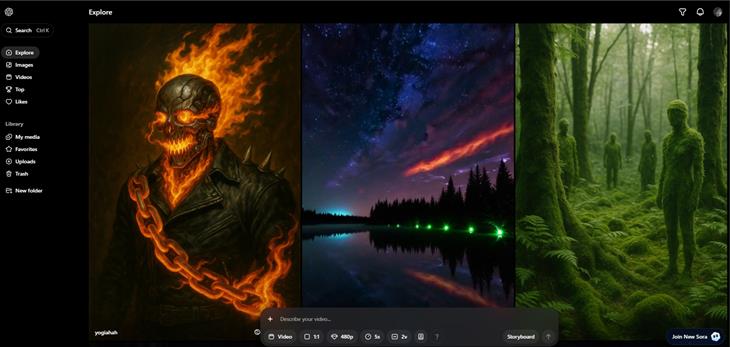
How to Access Sora:
Here's what you need to know about getting access:
Subscription Requirements: To use Sora, you need one of these ChatGPT subscriptions:
- ChatGPT Plus ($20/month) - Gives you access to Sora with monthly usage limits.
- ChatGPT Pro ($200/month) - Offers more videos per month and higher quality options.
Unfortunately, Sora is not available with the free ChatGPT plan. You'll need to upgrade to a paid subscription.
How to Get to Sora
Once you have a ChatGPT Plus or Pro subscription, follow these steps:
1. Go to ChatGPT: Open your web browser and go to chatgpt.com (or open the ChatGPT mobile app)
2. Log In: Sign in with your ChatGPT account
3. Find Sora: Look for the Sora option in your interface. You can access it by:
- Clicking on the model selector (usually at the top of the page) - Looking for "Sora" in the list of available tools - Or typing a request like "Create a video of..." and ChatGPT will prompt you to use Sora
4. Start Creating: Once you've selected Sora, you can start typing your video descriptions!
What's Included with Your Subscription - ChatGPT Plus users can generate: - Up to 50 videos per month at lower resolution (480p), OR - Fewer videos if you choose higher quality (720p uses more of your monthly allowance).
ChatGPT Pro users get: - More videos per month - Access to higher resolution options - Faster generation times during busy periods

1. Start with Clear Descriptions
When you want to make a video, describe what you want to see as if you're telling a story to a friend. Be specific! Instead of writing "a dog," try "a golden retriever puppy playing in a sunny park."
2. Keep Your First Videos Short
You can make videos up to 20 seconds long. Start with shorter clips (5-10 seconds) as you learn. Think of it like learning to cook - you wouldn't start with a five-course meal!
3. Describe the Setting
Help Sora understand where your video takes place. Mention details like:
Example: Instead of "a cat," write "a fluffy orange cat sitting on a windowsill on a rainy afternoon, watching raindrops on the glass."
4. Choose Your Video Style
You can tell Sora what style you want:
5. Use the Remix Feature
If you create a video but want to change something, you can use the "Remix" feature to describe changes and create new videos based on your original. This is like having an "undo" button with creative options!
6. The Storyboard Tool
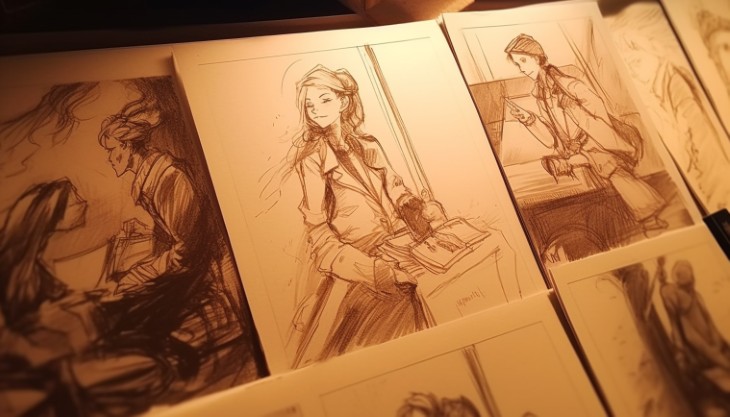
For more control, use the Storyboard feature, which lets you create videos by selecting individual scenes at different timestamps. You can upload images or use text to describe what happens at specific times. Think of it like creating a comic strip that comes to life!
7. Start Simple
Begin with straightforward ideas:
As you get comfortable, try more complex scenes!
DALL-E is an AI system that creates realistic images and art from written descriptions. The latest version works inside ChatGPT and is incredibly easy to use.
1. Be Descriptive but Simple
Just like with Sora, describe what you want to see. DALL-E understands everyday language, so write naturally.
Good example: "A cozy cottage with a red roof in a snowy forest, smoke coming from the chimney"
2. Mention Colors and Details
Colors, textures, and specific details help DALL-E create exactly what you're imagining:
3. Specify the Style
Tell DALL-E what art style you want:
4. Ask for Different Versions
If the first image isn't quite right, you can ask DALL-E to try again. Simply say "Make another version" or "Try again with a different angle."
The DALL-E editor has a "Select" button that lets you highlight specific parts of an image you want to change. Then you can type instructions in natural language to describe what changes you want.
Here's How to Edit:
Helpful Tip: OpenAI recommends selecting a large space around the area you want to edit for better results.
These tools are designed to be safe:
Do I need to be good with computers? No! If you can type a text message, you can use these tools.
How much does it cost? Basic access comes with ChatGPT Plus, and you get a certain number of creations each month. The Pro plan offers more usage and higher quality.
What if I don't like what it creates? Just try again with a different description! There's no limit to experimenting.
Can I use the images and videos I create? Yes! The images you create are yours to use, and you don't need special permission to use them.
Remember, there's no "wrong" way to use these tools. They're designed to help bring your imagination to life, whether you want to create a special birthday video, make unique greeting cards, or just have fun exploring what's possible with AI.
Happy creating!