
|
In this day and age, almost all of our information is saved either in our computer or on an external drive, allowing us to access and transfer many photos instantly. However, despite the improved availability and speed of access to our files, deleting them by mistake can also be easy.

Imagine sending your computer to get repaired, and when you get it back, it’s without your precious photos from your kid’s wedding. All of those precious memories gone in an instant. Luckily for you, not all is lost – you can restore most (if not all) of your lost data by using a simple, free program called Recuva. |
![]() |
| Source |
|
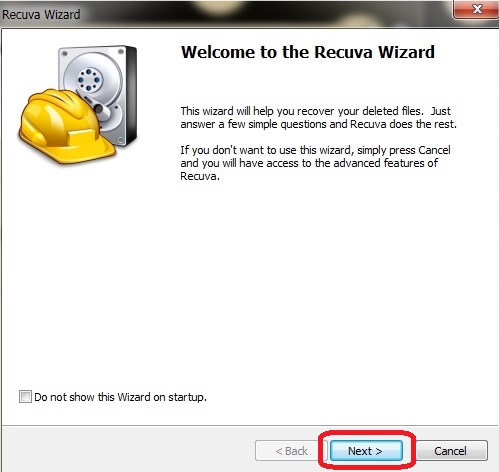
How does this work? When a file on your computer is deleted, only the link to it has been removed, making the file invisible. What that means is that the data is still on your hard drive or external drive, and programs like Recuva can search and recover the data (unless it has been overwritten – then you need to take it to a lab). If you recently deleted a file by accident, Recuva will be able to find it and restore it. How do I use it? First, download the program HERE and install it. After the installation, the Recuva window will open, displaying the “Recuva Wizard”, meant to simplify your use of the program. Click on “Next” when you’re ready. |
![]() |
|
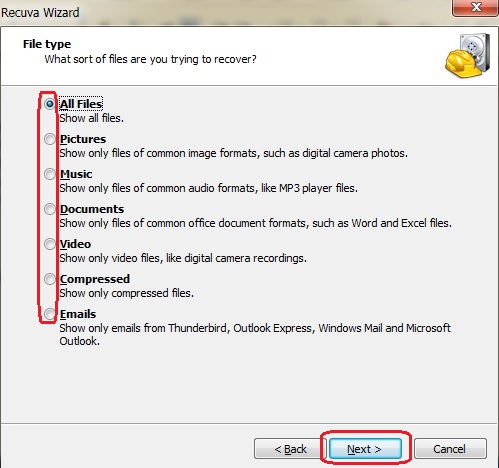
The next window will ask you what type of file(s) you’re looking for, so select the appropriate kind. If you’re unsure, select “All Files” instead and hit “Next”. |
![]() |
|
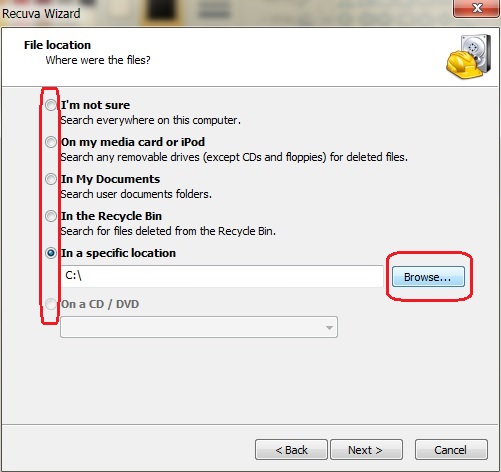
In the next window, you’ll be asked where the missing file was. If you don’t know, select “I’m not sure”, prompting the program to search the entire computer. If you know exactly where it is, click on “Browse” to find the directory it is in and then on “Next” to proceed. |
![]() |
|
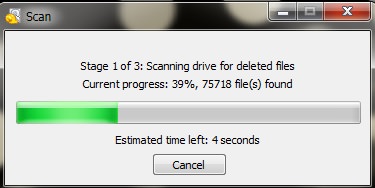
In the next window, click on “Start” – this will begin a scan of your computer for any recoverable files. |

![]() |
![]() |
| Scan window |
|
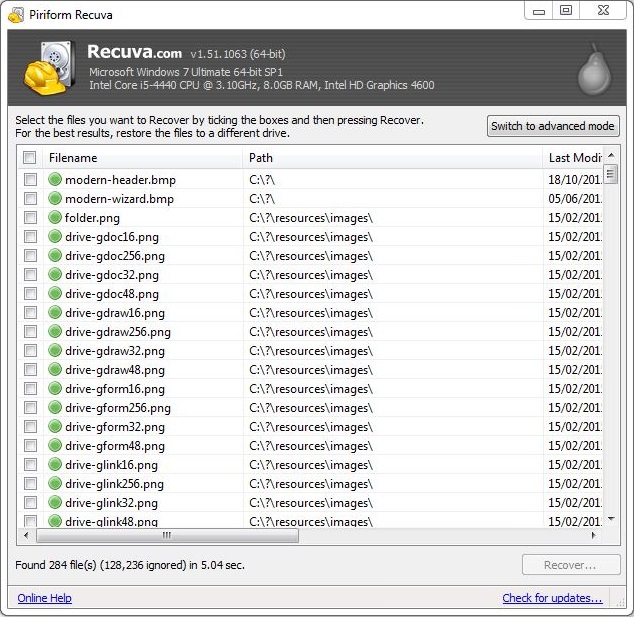
At the end of the scan, a new window will open up with a list of all the recoverable files that the program found. The files will have a circle on the left-hand side in either green, yellow or red. Green indicates that the file can be recovered, yellow indicates that the file may or may not be recoverable, and red indicates unrecoverable files. |
![]() |
|
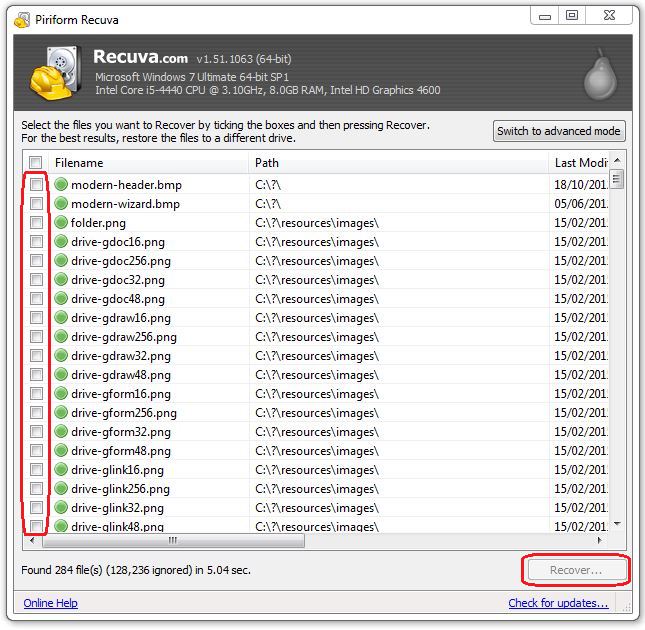
Locate the files you want to recover and check the box next to it. When you’re done, click on the “Recover” button at the bottom right of the window. |
![]() |
|
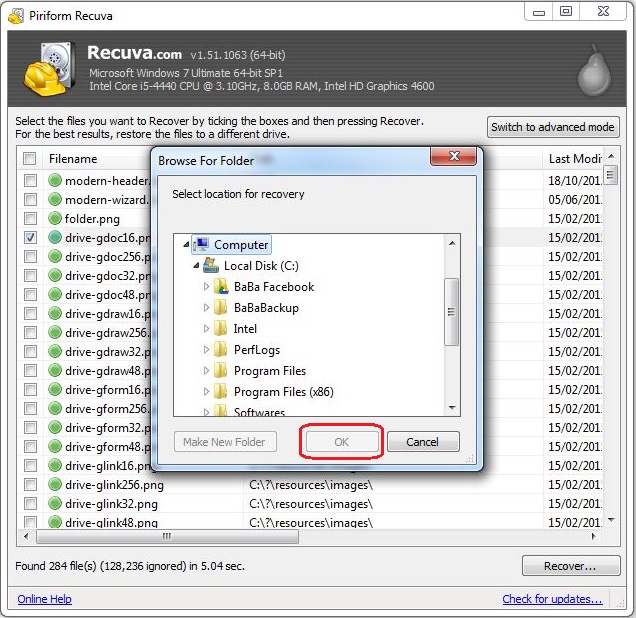
After clicking “Recover”, a new window will prompt you to select a folder you would like to recover the files into, and once selected, click “OK” to restore the file to that folder. |
![]() |
|
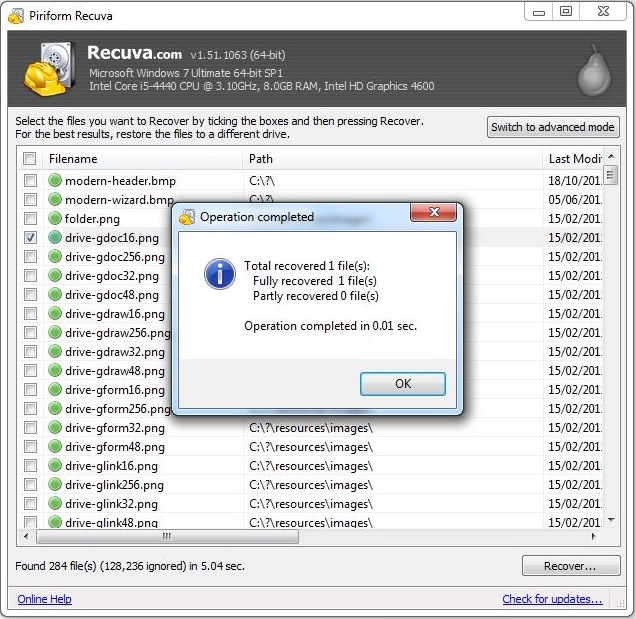
Once the process is complete, you will see this notification, containing information on all the files that were successfully (or unsuccessfully) recovered. |
![]() |
|
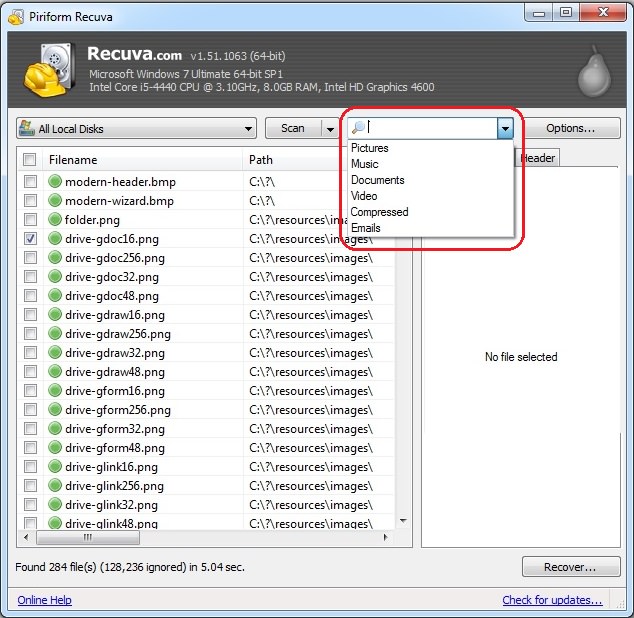
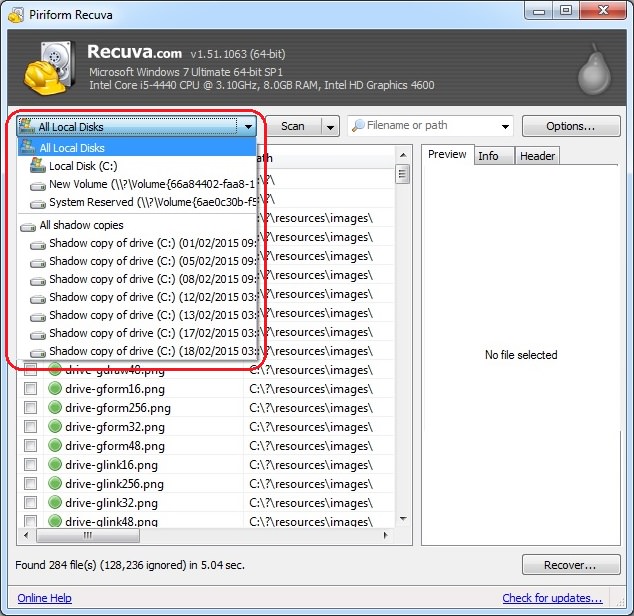
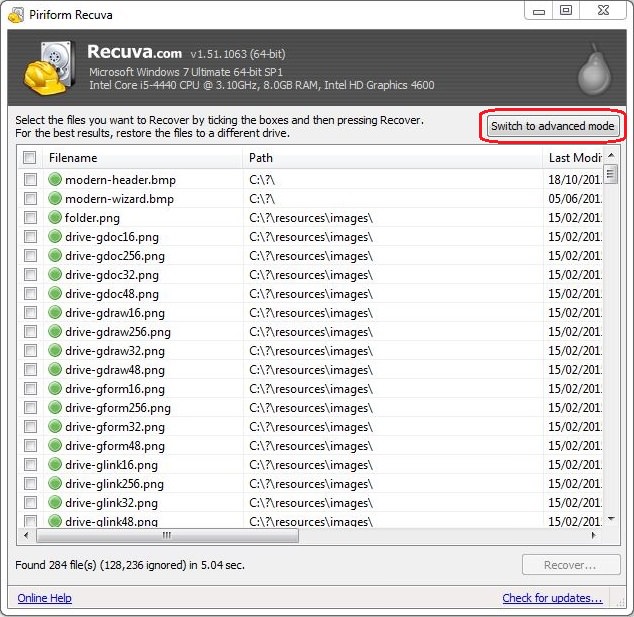
If you feel confident, you can use the advanced mode, which will allow you to search for specific file types, file name, or location. |
![]() |
![]() |
| Search by file name or type |
![]() |
| Search by location |
|
Please note – as time passes and with regular use, the quality of deleted files deteriorates, eventually making them unrecoverable. The sooner you perform the scan – the more likely it will be that the file will be salvageable. |

The Ultimate Computer Guide Collection
A comprehensive collection of computer tips for beginners and intermediates.
Become a Windows Computer Wiz by Using These 11 Tricks
These simple tips and tricks for using a Windows PC will help you use your computer and turn you into a Windows PC master!
If Your Windows PC Is Slowing Down, You Should Read This
NO - a slowing Windows PC isn't a fact of life. You simply need to know a few tips and tricks that you can apply to yours in order to speed it up! Read on...
Read Our Comprehensive Guide to Using Google Translate
Of the many Google tricks out there, Google translate is by far one of the most useful. Read this free guide to learn exactly how to make use of it.
16 Things You Didn't Know Google Can Do For You
We bet you didn't know about this brilliant Google tricks which will make your searches quicker and more accurate!
FYI: 7 Simple Ways to Avoid Hacking and Identity Theft
The internet is an amazing tool and a fun opportunity to add toย your knowledge, it's important to remember to have fun while keeping yourself secure and safe from identity theft. These are the basic habits you need to have to keep your online identit
How to Spot Fake Online Reviews: A Shopperโs Guide
Here are practical tips to help you spot fake Amazon reviews.
If You Do This, Then You Could Be Damaging Your Phone...
Many people end up damaging their phones without even realizing that they are doing so, and here are 9 of the most common ways this happens.
Looking for an Instagram Alternative? Try These Platforms
If youโre ready to explore beyond Instagram, here are eight great alternatives.
Simplify Finances With These Budget Apps for Families
Try these money mangement tools to simplify your finances in 2025
Laptop Won't Power Up? Try These 11 Effective Solutions
Laptop not starting? Try these essential steps to troubleshoot it.
7:31
How to Edit Your Photos Using 3 Different AI Services
If you shoot weddings, portraits, or anything high-volume, and youโve wondered if AI can really speed things up without cutting corners, this is the no-nonsense breakdown you need.
5 Things to Never Store on Your Smartphone
Stop using your smartphone as a master repository for saving all kinds of information. It may be dangerous...
PowerToys: The Best Free Microsoft App for Windows Users
In this article, we'll introduce you to this toolbox and show you which 23 useful tools are waiting for you there.
The Most Reliable Cloud Storage Services for 2025
Hereโs a closer look at some of the best cloud storage services to consider in 2025.
Guide: How to Unlock Your Phone Without a Passcode
Forgot your phone passcode? Don't panic.Just follow these steps.
Gboard Secrets: 7 Handy Features You're Not Using Yet
Make the most out of Gboard with these awesome tips and tricls.
Exploring the Web Beyond Google: 7 Handy Alternatives
Try some of these non-conventional search engines that you didn't know existed.
You Should Bookmark These Incredibly Useful Sites
Make sure that you bookmark these handy websites!
Boost Your Brain With These 8 Brainy Mobile Games!
Weโve gathered 8 recommended games to keep your brain active, challenge your logical thinking, and help you pass the time enjoyably.
Secure Your Data: 5 Must-Have Privacy Apps
A look at five apps that help you take back control of your digital footprint, including their strengths, trade-offs, and where to download them safely.
5:02
How to Transfer Data From Your Old iPhone to The New One
Got a new iPhone? Here's how you can move all your data from your old iPhone to the new one.
9 Lesser Known Free Websites for Learning in 2025
A list of 9 great free learning websites that cover a variety of subjects, from coding and science to business and language learning.
43:39
AI News: What's Going On With AI This Week?
This week's AI news covers major releases and impressive demos.
12 Amazing Internet Radio Stations to Spice Up Your Day!
Check out these 12 fantastic internet radio stations.
7 Clear Indicators Your Home Router Needs to Be Changed
Is your router in need of an upgrade? Watch out for these signs.
7 Tips to Follow When a Computer Hangs or Freezes
Take note of these steps that will help you unfreeze a computer that freezes or hangs regularly.
The 7 Backup Mistakes That Leave Your Files Vulnerable
Hereโs what most people get wrong about backups.
Why Fake Info is Best for These 6 Types of Sites
Always avoid giving your real information on these kinds of websites.
Guide: How to Sign a PDF Without Printing it First
This guide will teach you how to sign PDF files digitally without having to print them.
15:24
15 Tech Hacks That Will Make Your Life Way Easier
These practical tips are designed to improve your daily tech experience.
How to Solve Windows 11's Most Annoying Errors
In this article, weโll explain the frequent problems people run into on Windows 11 and walk through easy, no-fuss fixes.
4:28
Update Now or Wait? Comparing iOS 17.7 and iOS 18
If you are wary of updating to iOS 18, watch this video.
What Causes Laptop Batteries to Bulge Over Time?
These early warning signs can save your laptop's battery and prevent potentially dangerous situations.
Forget ChromeโZen Browser Is the Upgrade You Need
If youโre tired of slow load times, constant battery drain, or a cluttered interface, Zen might be the browser youโve been waiting for.
5 Best Antiviruses in 2025 for Both PC and Mac
Below, we highlight five popular antivirus solutions for Windows PCs and five for Macs, featuring a mix of free and paid options.
Itโs Almost a Crime Not to Use These Free Nifty Websites
Check out 15 really useful websites. They are completely free to use!
2:27
Tutorial: How to Uninstall Apps on Your Windows 11 PC
How to uninstall apps on your windows PC.
I Bet You Didn't Know You Could Do THIS on Google Maps
Here are all of the things you can do on Google Maps that you never knew you could.
Computer Guide: Comparing Skype and Microsoft Teams
This article will explain why Skype is going away, how Teams fills its shoes, and guide you through using Teams for your personal video calls, screen shares, and chats.
This One Computer Key Is Used for a Myriad of Shortcuts!
The 'Win' key is usally thought to only bring up the start menu. It actually does a whole lot more. Get a load of these dozens of shortcuts!
How to Tell If a Virus Warning Is Real or Fake - 12 Tips
If you see a barrage of security alerts popping up on your computer, then it might be sign of a virus attack.
17:20
Discover a Feature of Windows That's Super Helpful
Learn how to use some advanced new features of Windows 10 that you probably weren't aware of.
17:41
TikTok: Tips and Tricks for Beginners
Whether you are a total beginner or just looking to streamline your process to get more views, this tutorial covers everything you need to know to go from recording to posting.
15:16
Get Smarter: How Do Hard Drives Work?
How do hard drives built and how do they work? All is explained in this video.
7 UNDISCOVERED Apps That are NOT on the Google Play Store!
I canโt believe I never knew about these handy Android apps.
Learn Any New Language with These Awesome Apps!
Learn new languages faster with these AI-powered apps.
To enable your Ad-Free Subscription, please fill the fields below
Your subscription was successful, now you can enjoy an ad-free experience!! Note: To make sure you get no ads, please make sure to log in to your account. If you are logged in already, then refresh the page. The subscription can be cancelled at any time.