
Smartphones have revolutionized the world in so many different respects, from the ease of communication they provide to the applications we can download, which have turned our phones into multi-functional tools. And this technology is continuously improving too! So, although smartphones facilitate your needs extensively, there are probably some extremely useful things you don't know much about, such as taking a screenshot with your phone, having text displayed larger, and even read out to you.
The following tips come with instructions on how to use them on both Android phones and iPhones:
Trying to tap the exact letter to fix a typo can be incredibly frustrating. Both operating systems have a hidden feature that turns your entire keyboard into a precision trackpad, allowing you to glide the cursor exactly where it needs to go.
iPhone instructions: Press and hold the Spacebar until the letters on the keyboard disappear. Keep your finger pressed down and slide it around the screen to move the cursor through your text fluidly.
Android instructions: On the default Google Keyboard (Gboard), simply place your finger on the Spacebar and swipe it left or right to slide the cursor along the text line.

If you're getting bothersome phone calls or texts, your smartphone gives you the possibility to block them from reaching your phone. This is done through a simple setting you can change whenever you like.
For Phone Calls:
iPhone instructions: Go to Settings > Phone. Scroll down, tap Silence Unknown Callers, and toggle it on. Calls from numbers not in your contacts will go straight to voicemail.
Android instructions: Open the Phone app, tap the three-dot menu in the top right, and select Settings. Tap Caller ID & spam and turn on Filter spam calls.
For WhatsApp Messages:
Silence Unknown Callers, and toggle on Settings > Privacy > Calls You can also silence unknown callers directly in WhatsApp. Open WhatsApp, go to Bonus Tip for WhatsApp Calls:
Blocking Existing Contacts (iPhone & Android): Open the chat with the person you want to block. Tap their name or number at the very top of the screen to open their profile. Scroll all the way to the bottom and tap Block [Name/Number].
Blocking Unknown Senders (iPhone & Android): When you receive a message from a number not in your contacts, WhatsApp automatically displays a prompt right below the message giving you the option to Block or Report the sender. Tapping Report will block them and notify WhatsApp of the spam.
The default way of unlocking a phone from the lock screen is by using a 4-digit PIN. As long as it is not super easy and obvious, this is a pretty safe system. But to make it even more secure, you can change this to a set string of characters of your choice, making it more like a password.
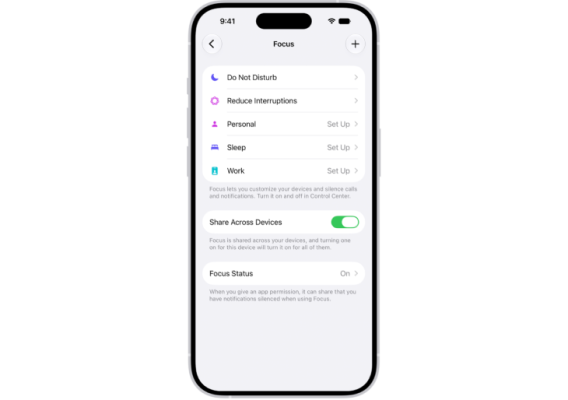
iPhone instructions: Go to Settings > Focus. Here you can set up profiles like Work, Personal, or Sleep. For each mode, you can whitelist specific people (like family members) and specific apps (like Slack or Teams) that are allowed to ping you, while everything else is silently pushed to your notification center.
Android instructions: Go to Settings > Digital Wellbeing & parental controls > Focus mode. From here, you can select specific distracting apps you want to temporarily pause (like social media or games) so they can't send notifications or be opened. You can also set a schedule for when Focus mode should automatically turn on and off during your workday.
Modern cameras are smart enough to read the physical world. You can point your phone at a Wi-Fi password, a printed document, or a recipe book, and copy the text directly into your device as if it were a digital document.
iPhone instructions (Live Text): Open the Camera app and point it at any physical text. A yellow icon resembling text lines will appear in the bottom right corner of the viewfinder. Tap it to freeze the text on your screen, then drag your finger over the words you want and select Copy.
Android instructions (Google Lens): Open the Camera app and tap the Google Lens icon (it looks like a small camera outline with a dot inside). Point your phone at the text, swipe over to the Text tab at the bottom of the screen, and tap the highlighted words to copy them.

Did you know your smartphone is also able to read things out to you? When you don't feel like reading, you are not in a position to do so, or perhaps have sight problems, this feature might come in handy to you.
iPhone instructions: Go to Settings > Accessibility > Spoken Content. Turn on Speak Screen. Now, whenever you want an article or email read to you, simply swipe down from the top edge of the screen with two fingers, and a small audio player will appear.
Android instructions: Use Google Assistant. When you have an article open on your screen, simply trigger your assistant and say, "Read this page." A custom audio player will pop up, reading the text aloud and highlighting words as it goes.
You can also enable another setting to have your phone tell you who is calling or messaging you, at the moment a call or message is received. To activate it, go to Settings and turn on Hands-free mode.
You no longer have to squint at the back of a router or spell out complex passwords when guests come over. You can share your network instantly using built-in proximity tools or QR codes.
iPhone instructions: Ensure both iPhones have Wi-Fi and Bluetooth turned on and that you have each other saved in your Contacts. When your guest tries to connect to your Wi-Fi network, a prompt will automatically appear on your unlocked screen asking, "Do you want to share the Wi-Fi password?" Tap Share, and they are instantly connected.
Android instructions: Go to Settings > Network & internet > Wi-Fi (or Connections > Wi-Fi). Tap the gear icon next to your current network and select Share. Your phone will generate a QR code on the screen that your guest can simply scan with their camera to instantly connect.

Instead of using vibrate, your smartphone gives you the option to set the camera's LED light to flash every time a notification comes in. This way, in quiet places, you can be notified of your phone calls, messages, and app notifications efficiently without a sound.
iPhone instructions: Go to Settings > Accessibility > Audio & Visual. Scroll to the bottom and turn on LED Flash for Alerts.
Android instructions: Go to Settings > Accessibility. Look for Flash notifications (sometimes under Advanced Settings) and toggle on Camera flash notification.
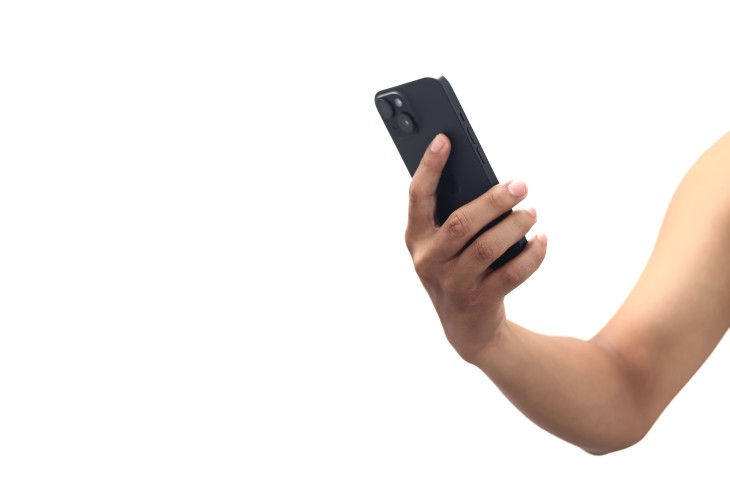
Your phone’s back panel can be used as a secret, customizable button. You can configure it so that a quick double-tap on the back of the device instantly takes a screenshot, turns on the flashlight, or opens a specific app.
iPhone instructions (Back Tap): Go to Settings > Accessibility > Touch. Scroll to the very bottom and select Back Tap. You can assign different actions to a "Double Tap" and a "Triple Tap."
Android instructions (Quick Tap): Go to Settings > System > Gestures (or Advanced Features depending on the manufacturer). Look for Quick Tap or Back Tap and toggle it on to assign your preferred shortcut. (Note: This is widely available on Google Pixel and select Motorola/Samsung models).
9. Take multiple photos at once (Burst photos)

When you're taking photos of moving objects, such as kids, animals, cars, etc., you might find this feature to be useful. You can now take several photos at one go, to make sure you have a selection of photos to choose the best from.
iPhone instructions: Open the Camera app. Tap the shutter button and immediately swipe it to the left (and hold it there). The phone will fire off rapid photos as long as you hold it. Release to stop.
Android instructions: Open the Camera app. Tap the shutter button and swipe it down toward the bottom of the screen (or to the edge) and hold it. The photos will be grouped together in your Gallery so you can pick the best frame.

Some of us use our phone's music to accompany our working on a task, or even in bed before going to sleep. The problem is, your phone's battery is bound to be drained quickly while playing, especially if it ends up unnecessarily playing for the rest of the night if you fall asleep. Avoid this from happening by setting a timer for your music player.
Spotify (iPhone & Android): On the "Now Playing" screen, tap the three dots in the top right corner. Scroll down and tap Sleep timer, then select how long you want the music to play.
Apple Music: On the "Now Playing" screen, tap the three dots, select Sleep Timer, and choose your duration.