
|
In the past, I’ve shown you how to maximize the use of the “Windows” key, some other great shortcuts to help you breeze through your daily use and more. Now I’ll show you a few tricks that will help you make the most of browsing the internet, like searching for images, using your browser’s tabs and more! |
|
1. When you type an address in your browser’s address bar, you can save time and just write the main address, then hold Ctrl and press Enter. This will complete the address with ‘www’ at the start, and ‘.com’ at the end. |
+ ![]() |
|
2. Did you know your web browser can have several web sites open at the same time? All you need to do is open up a new tab in your browser window. There are 2 ways to do that: You can hold Ctrl and press ‘T’ in the keyboard or you can use the new tab button. |
+ ![]() |
![]() |
|
|
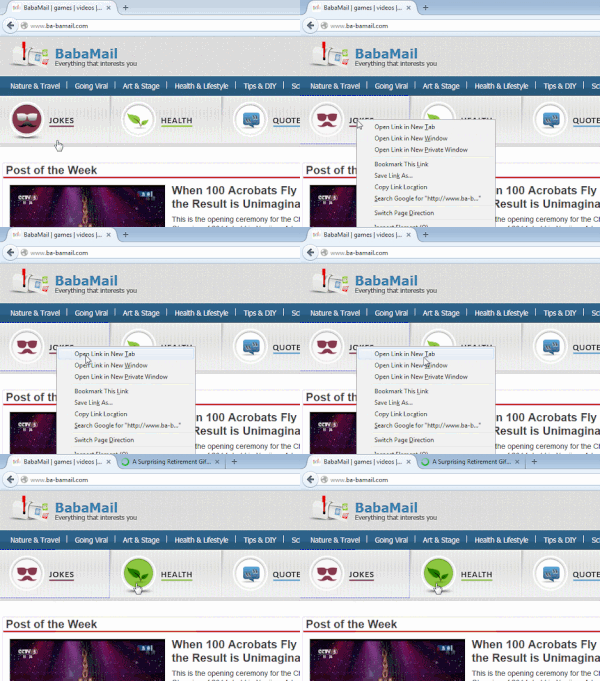
3. Now that you know about tabs, you might want to open a link in a new tab. To do that, you can hover your mouse cursor over the link, right click and select “Open in new tab”. Another way is to hold Ctrl and click the link. The last way to do this is possible if your mouse has a middle button – simply hover over the link and click the middle button once. |
+ OR ![]() |

![]() |
|
|
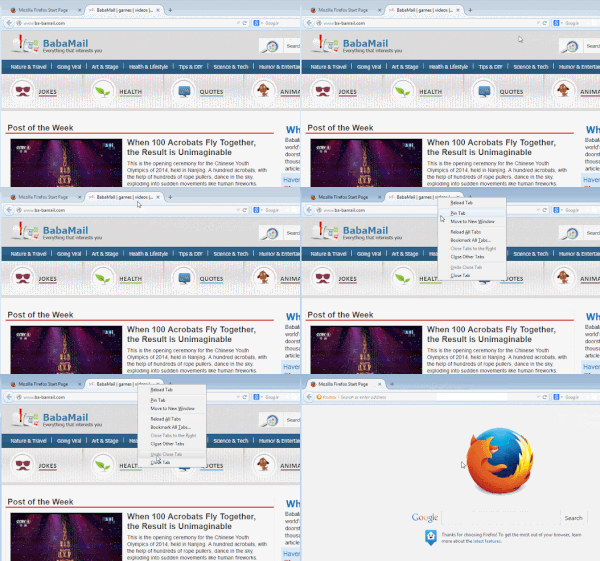
4. Closing tabs is also a breeze – you can right-click the tab and select “close”. You can hover over the tab and click the [ |
|
![]() |
|
|
5. Did you accidentally close a tab you didn’t mean to? No problem! You hold Ctrl and Shift and press 'T' or hover the mouse over any other tab and right-click it, then choose the “reopen closed tab” or “Undo closed tab” option in the drop-down menu. (This works with all tabs you closed during the session) |
|

![]() |
|
|
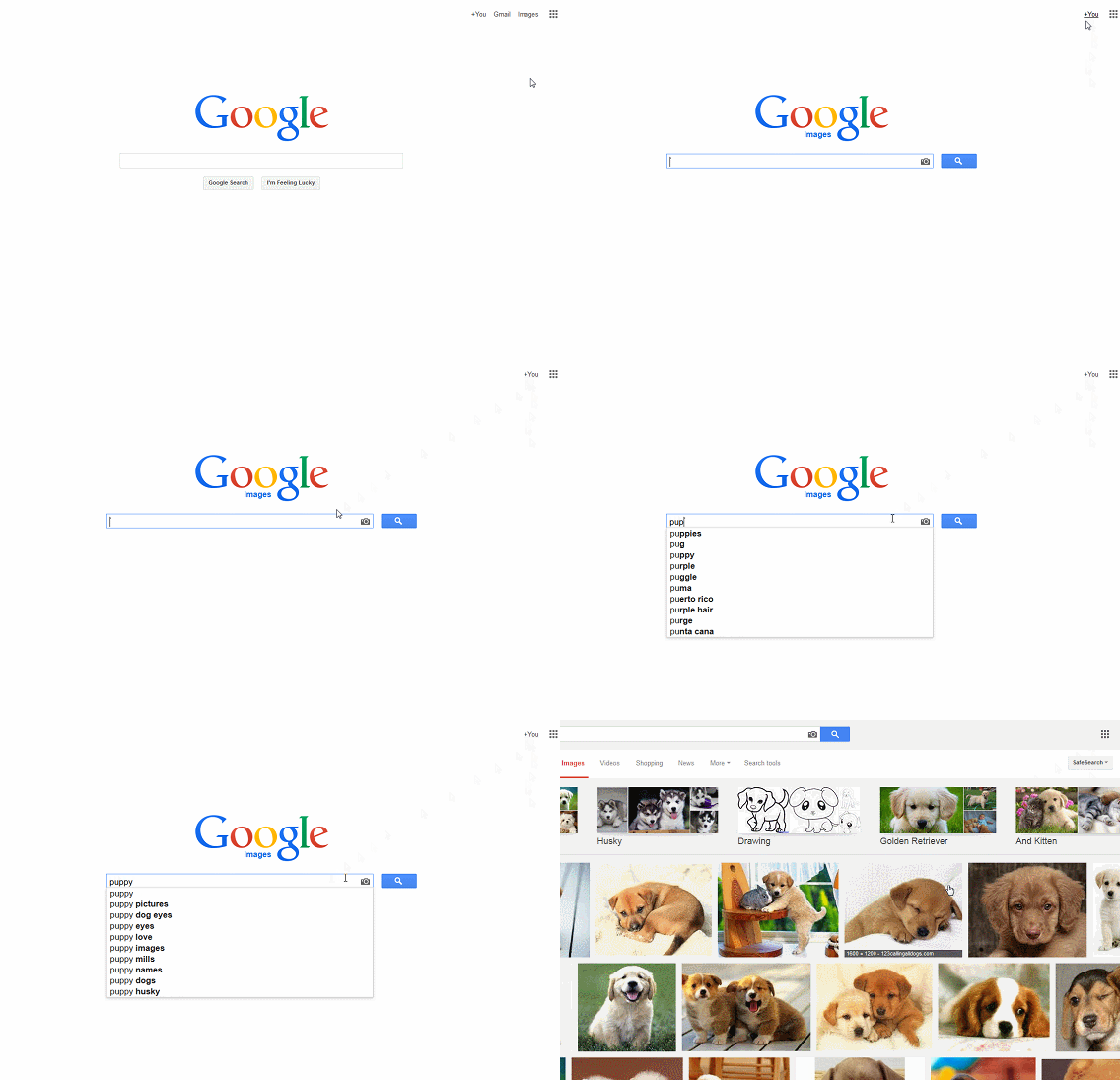
6. Now that we’re done with tabs, let’s learn how to use Google to search for images! When you search on Google, you have the option to look for images of the word or phrase you just looked for. Simply search something, then click the ‘images’ link. |
|
![]() |
|
|
|
|
|
7. If you found an image you like but want to search for similar images on Google, simply hold the ‘S’ key, and right click the image – this will open up a new tab with a Google-image search for that particular picture. |
+ ![]() |
|
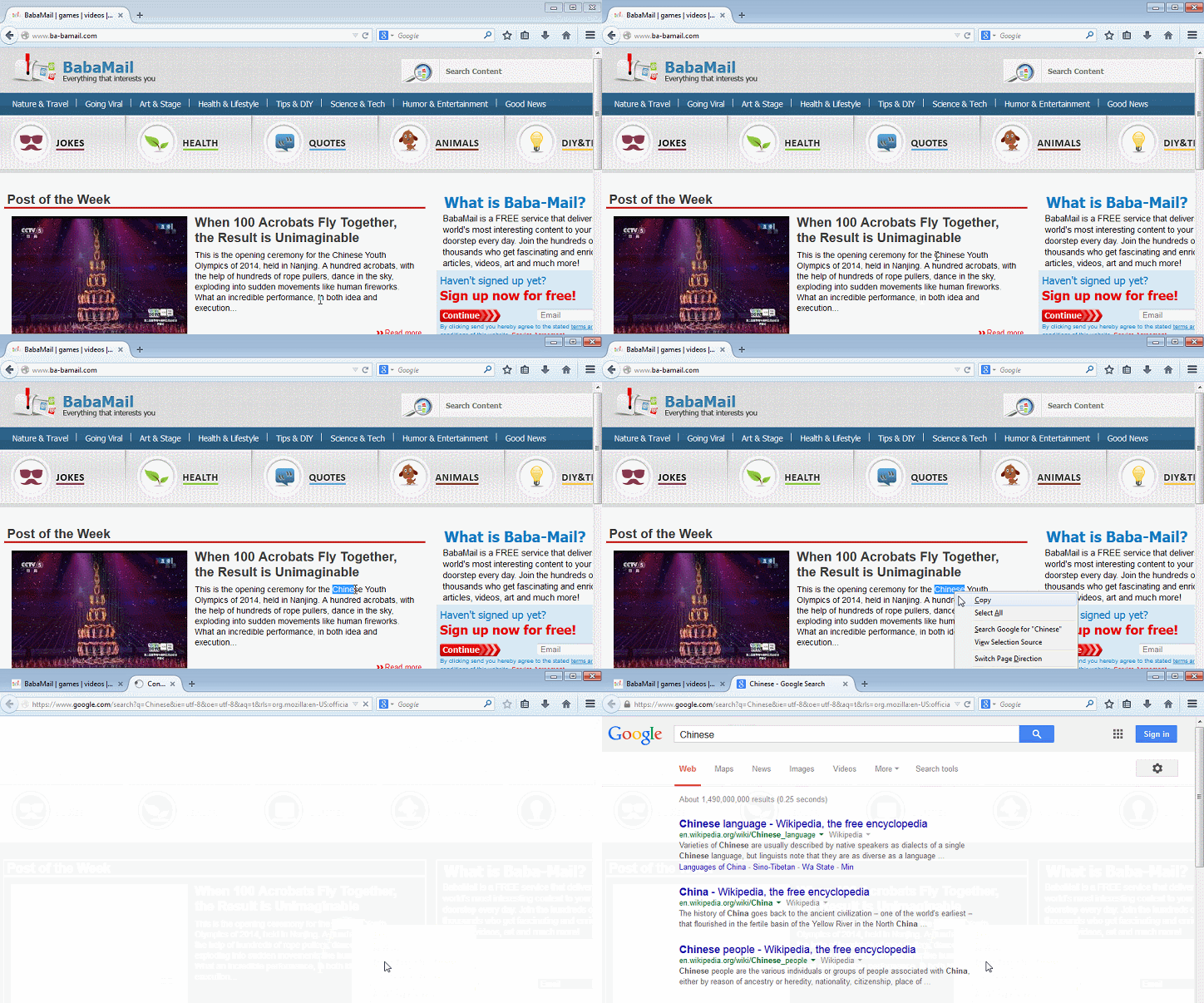
8. You can highlight a word, then search for it on Google: hover the mouse cursor over the first letter in a word or phrase, left-click and hold the left button, then drag the cursor until the word/phrase is highlighted. Now leave the left mouse button and hover over the highlighted area. Now, right-click on it and choose “Search Google for”. |
|
![]() |
|
Read Our Comprehensive Guide to Using Google Translate
Of the many Google tricks out there, Google translate is by far one of the most useful. Read this free guide to learn exactly how to make use of it.
These Apps Are All You Need on Your Next Vacation
Having these handy apps on your phone will see you taking your next trip abroad to the next level. Learn about these 6 essential travel apps.
You Can Use Google for a Lot More Than Just Searchingโฆ
Google is an extremely popular search engine that most of us use in order to find information and sites around the internet. I learned some really fun and useful things you can do with Google that I would like to share with you.
This Two-Minute Exercise Will Extend Your Life
All it takes is this two-minute trick 15 times a day to live a longer life.
How to Grow the World's Most Expensive Spice at Home
Saffron doesn't have to be that expensive. It is a natural resource that should be available for everyone - use this guide to grow your own!
Become a Windows Computer Wiz by Using These 11 Tricks
These simple tips and tricks for using a Windows PC will help you use your computer and turn you into a Windows PC master!
Secure Your Data: 5 Must-Have Privacy Apps
A look at five apps that help you take back control of your digital footprint, including their strengths, trade-offs, and where to download them safely.
15:24
15 Tech Hacks That Will Make Your Life Way Easier
These practical tips are designed to improve your daily tech experience.
8 Smart Safari Customizations Every Mac User Should Know
Here are some of the most effective ways to fine-tune Safari on your Mac.
23:04
ChatGPT: 30 Tips to Using and Working with the AI
In this video, weโre breaking down 30 practical tips to help you use ChatGPT more effectively
If You Arenโt Doing these Things, Your PC WILL Wear Out...
All the basics of computer maintenance.
Laptop Won't Power Up? Try These 11 Effective Solutions
Laptop not starting? Try these essential steps to troubleshoot it.
4:08
Guide: Download All Google Photos in a Few Clicks!
Want to download all your Google your photos and videos in a few clicks? Watch thisโฆ
3:35
Want to Increase Your iPad Keyboard Size? Watch This Guide
Want to increase the size of your iPad? Watch this tutorial nowโฆ
7 Tips to Follow When a Computer Hangs or Freezes
Take note of these steps that will help you unfreeze a computer that freezes or hangs regularly.
How to Spot Fake Online Reviews: A Shopperโs Guide
Here are practical tips to help you spot fake Amazon reviews.
12 Amazing Internet Radio Stations to Spice Up Your Day!
Check out these 12 fantastic internet radio stations.
This One Computer Key Is Used for a Myriad of Shortcuts!
The 'Win' key is usally thought to only bring up the start menu. It actually does a whole lot more. Get a load of these dozens of shortcuts!
15:16
Get Smarter: How Do Hard Drives Work?
How do hard drives built and how do they work? All is explained in this video.
What Causes Laptop Batteries to Bulge Over Time?
These early warning signs can save your laptop's battery and prevent potentially dangerous situations.
Don't Charge Your Phone Over 80%, Here's Why
There is truth to the no-overnight-charging rule, and there is also some science to back it up.
Firefox Just Got Better: 10 Handy Extensions Youโll Love
With the right add-ons, Firefox can become an indispensable browser that you'll rely on every day.
How to Download Free Windows Software Securely โ 7 Tools
Hereโs how you can download free Windows software safely and securely.
5 DIY Solutions to Better Organize Your Cords and Cables
Computer cables have an annoying tendency to tangle and create an unseemly mess. Here are some easy ways to prevent that.
9 Useful Blogs Created Specifically For Senior Citizens
Hereโs a wonderful collection of blogs that seniors will find particularly helpful.
Overpaying for Streaming? Hereโs How to Fix That!
Save big on your streaming bills with these simple tips.
Busting 12 Password Myths to Safeguard Your Online Life
Donโt fall for these common password myths.
Making These Email Mistakes Comes Off As Rude or Annoying
When sending an email, the last thing you want is to come off as impolite or annoying. Here are 5 common email mistakes to avoid.
This Free Website Will Let You Play the Most Fun Mazes!
Do you love mazes and navigation challenges? Look no further than this fun site!
Who Traces Your Emails? Learn How to Detect Email-Tracking
40% of emails are being tracked by somebody without people's consent or notification, which means you'd better learn how to protect your privacy...
Selling Used Stuff? Try These Amazing Apps
You can now sell your used household clothes and other items through some amazing apps.
Itโs Almost a Crime Not to Use These Free Nifty Websites
Check out 15 really useful websites. They are completely free to use!
Do This to Your Router to Increase Internet Speed
Want a faster and safer internet connection? Then do this to your router...
Make Google Maps Better with These Handy Tools
These add-ons make Google Maps so much better!
9:43
Tired of Google Photos Storage Limits? Try These Solutions
Get more space in your Google Photos account with these useful hacks.
3:32
The Easy Way to Clean Your Computer's Keyboard
Cleaning a dirty keyboard is quite a straightforward task, as you're about to find out.
Turn Off These 9 Android Settings. They Pose a Risk
Here are some Android settings that you should consider turning off to enhance your deviceโs performance.
8:31
20 Terrifically Helpful Chrome Keyboard Shortcuts
Welcome to the ultimate guide to mastering 20 essential keyboard shortcuts for the Google Chrome browser!
10 Warning Signs Youโre About to Fall for a Fake Ad
Thse are 10 red flags that should make you pause before clicking on a social media ad.
Computer Guide: How to Clear Space on Your Google Account
How to easily free up storage space on your Google Drive without paying for more storage.
Surround Yourself With the Forest Sounds of the World
Ready to be surrounded by the music of the worldโs forests and experience the restorative properties of being in nature?
12 USEFUL Chrome Extensions That Save Time
Improve your browsing experience with these free Google Chrome extensions.
21:27
It's Finally Here! iOS 18's Game-Changing New Features
Here's what's new and exciting in iOS 18!
These 5 Free Tools Can Help You Save Money Today!
These free apps and sites make saving money a breeze.
0:48
WhatsApp Hack: Read Messages Without Showing Blue Ticks
Learn how to read WhatsApp messages without showing blue ticks in this video.
Fed Up With Spotify? Try These Alternatives for Free Music
Here are eight of the best platforms where you can listen to music online without spending a dime.
3:28
Easy Tips for Connecting Your Laptop to an External Screen
Watch this helpful tutorial to learn how to connect your laptop to a monitor.
To enable your Ad-Free Subscription, please fill the fields below
Your subscription was successful, now you can enjoy an ad-free experience!! Note: To make sure you get no ads, please make sure to log in to your account. If you are logged in already, then refresh the page. The subscription can be cancelled at any time.


OR 

]. You hold Ctrl and press 'W'. You can also use the middle mouse button on the tab and it will be closed.

OR