
|
In this day and age, almost all of our information is saved either in our computer or on an external drive, allowing us to access and transfer many photos instantly. However, despite the improved availability and speed of access to our files, deleting them by mistake can also be easy.

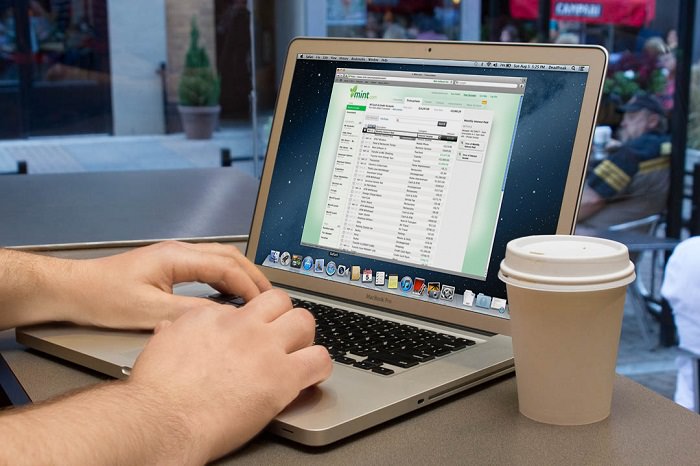
Imagine sending your computer to get repaired, and when you get it back, it’s without your precious photos from your kid’s wedding. All of those precious memories gone in an instant. Luckily for you, not all is lost – you can restore most (if not all) of your lost data by using a simple, free program called Recuva. |
![]() |
| Source |
|
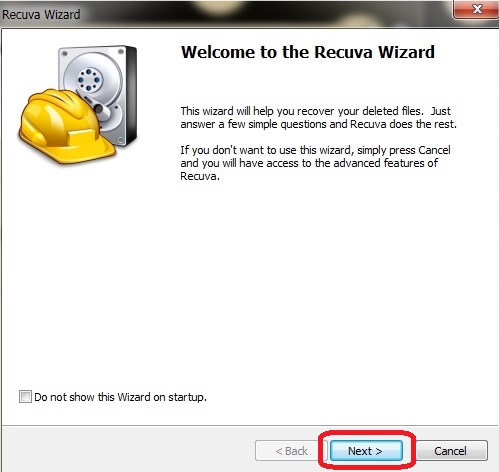
How does this work? When a file on your computer is deleted, only the link to it has been removed, making the file invisible. What that means is that the data is still on your hard drive or external drive, and programs like Recuva can search and recover the data (unless it has been overwritten – then you need to take it to a lab). If you recently deleted a file by accident, Recuva will be able to find it and restore it. How do I use it? First, download the program HERE and install it. After the installation, the Recuva window will open, displaying the “Recuva Wizard”, meant to simplify your use of the program. Click on “Next” when you’re ready. |
![]() |
|
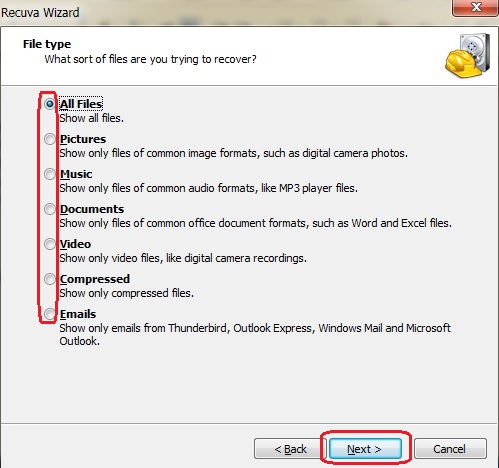
The next window will ask you what type of file(s) you’re looking for, so select the appropriate kind. If you’re unsure, select “All Files” instead and hit “Next”. |
![]() |
|
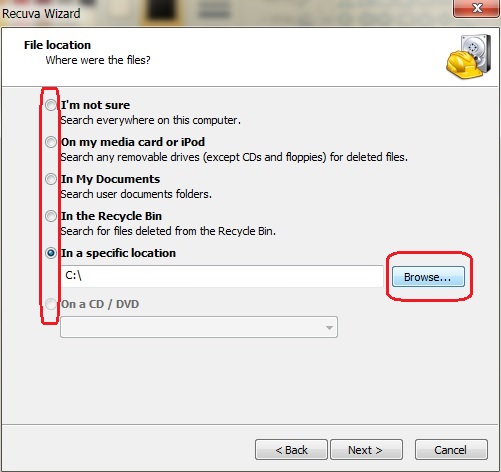
In the next window, you’ll be asked where the missing file was. If you don’t know, select “I’m not sure”, prompting the program to search the entire computer. If you know exactly where it is, click on “Browse” to find the directory it is in and then on “Next” to proceed. |
![]() |
|
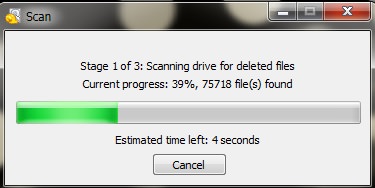
In the next window, click on “Start” – this will begin a scan of your computer for any recoverable files. |

![]() |
![]() |
| Scan window |
|
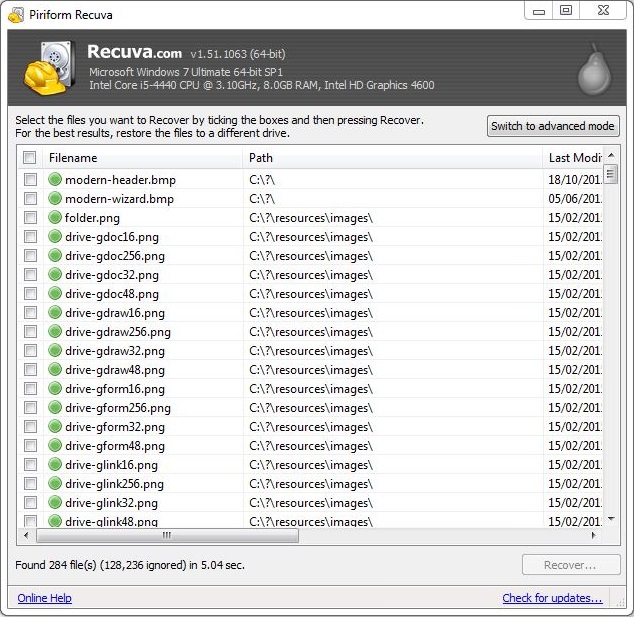
At the end of the scan, a new window will open up with a list of all the recoverable files that the program found. The files will have a circle on the left-hand side in either green, yellow or red. Green indicates that the file can be recovered, yellow indicates that the file may or may not be recoverable, and red indicates unrecoverable files. |
![]() |
|
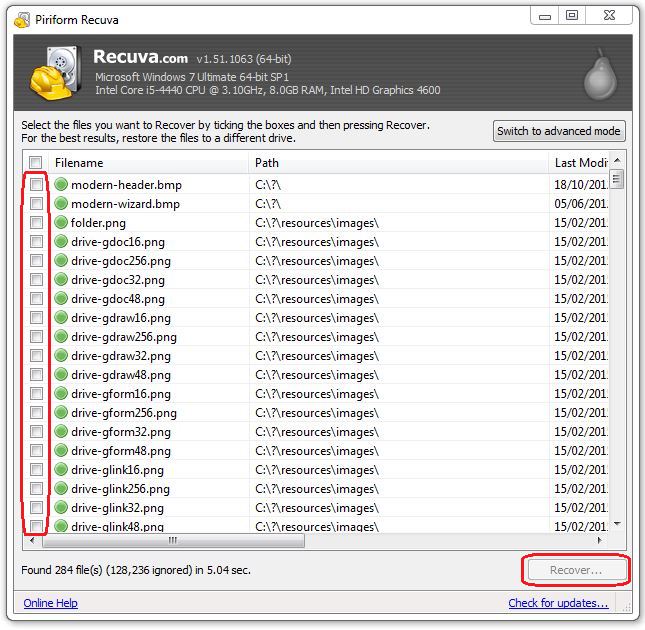
Locate the files you want to recover and check the box next to it. When you’re done, click on the “Recover” button at the bottom right of the window. |
![]() |
|
After clicking “Recover”, a new window will prompt you to select a folder you would like to recover the files into, and once selected, click “OK” to restore the file to that folder. |
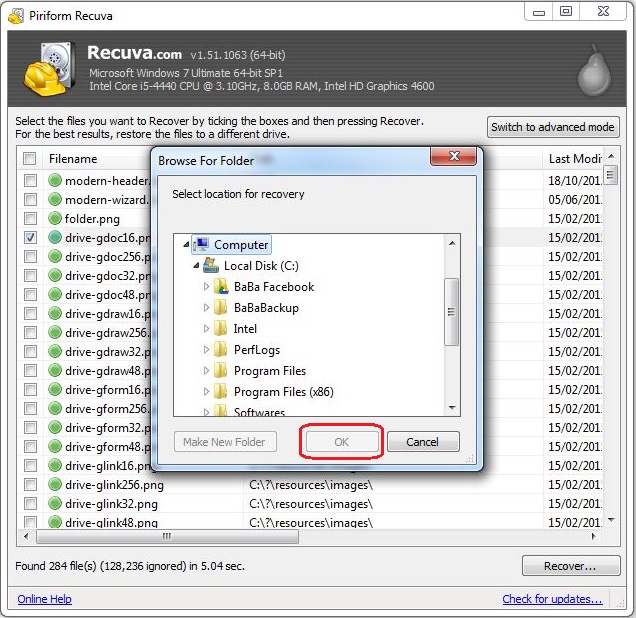
![]() |
|
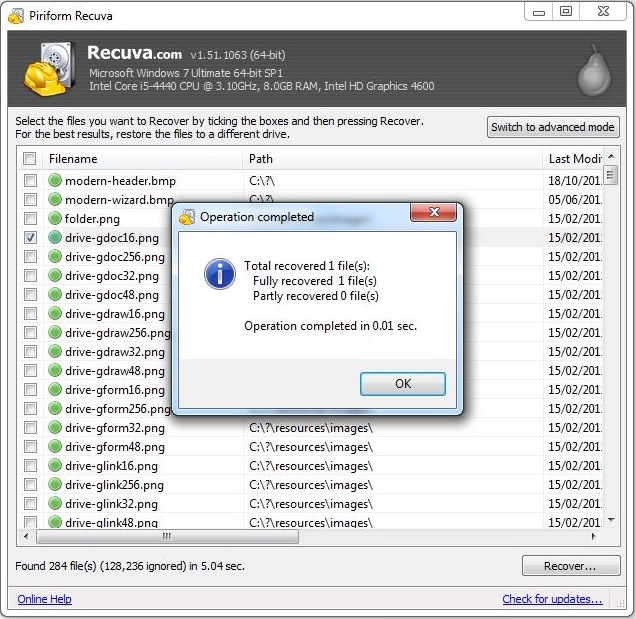
Once the process is complete, you will see this notification, containing information on all the files that were successfully (or unsuccessfully) recovered. |
![]() |
|
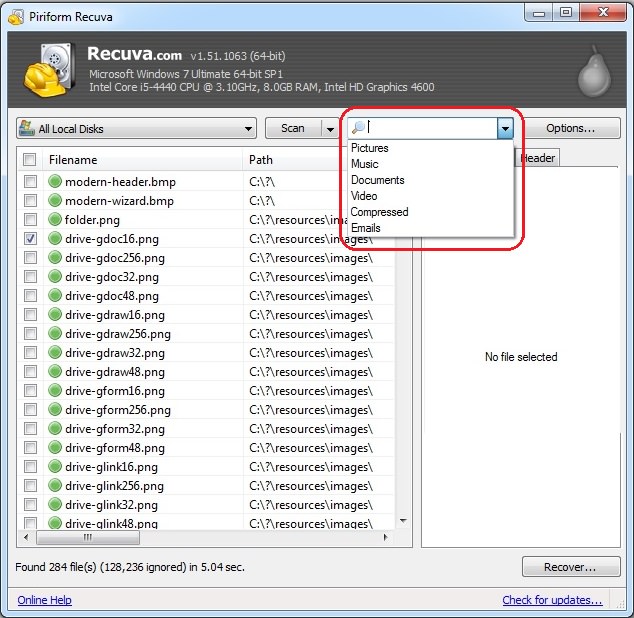
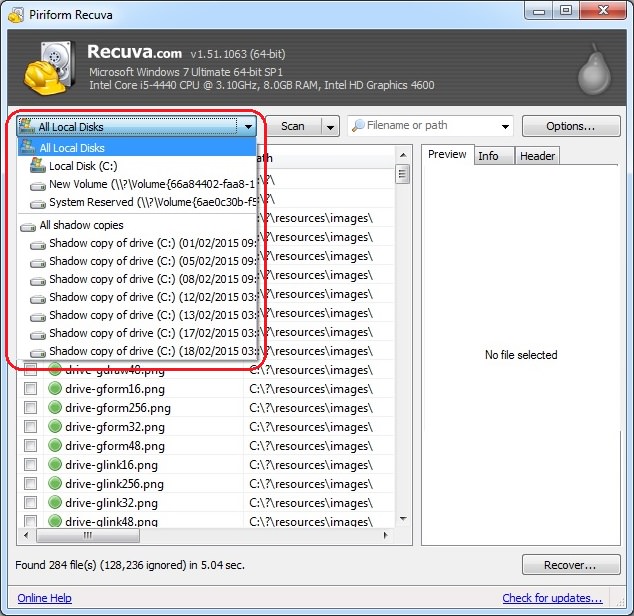
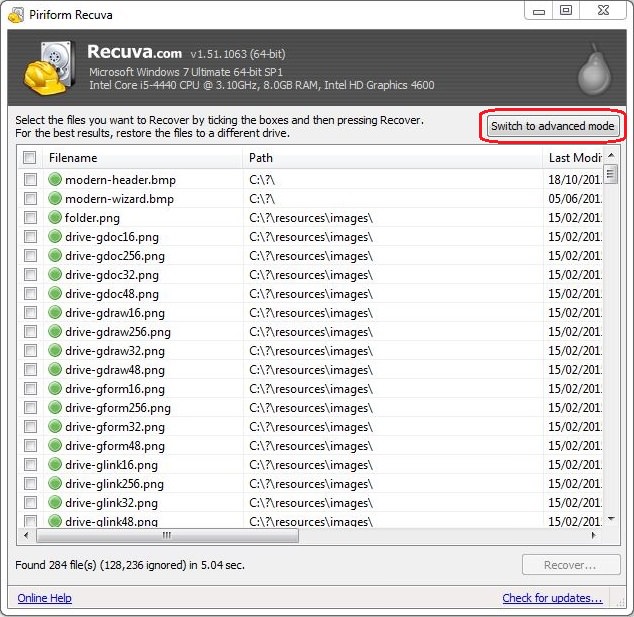
If you feel confident, you can use the advanced mode, which will allow you to search for specific file types, file name, or location. |
![]() |
![]() |
| Search by file name or type |
![]() |
| Search by location |
|
Please note – as time passes and with regular use, the quality of deleted files deteriorates, eventually making them unrecoverable. The sooner you perform the scan – the more likely it will be that the file will be salvageable. |

3:29
Former NSA Hacker Reveals How to Keep Yourself Safe Online
If you want to keep yourself safe online, then make sure that you heed these tips from a former hacker.
WI-FI GUIDE: Stop People Hacking Your Wi-Fi Password
This is how you set up a password for your wireless Wi-Fi account, to stop people using your connection for free.
Read Our Beginner's Guide to Microsoft Word Here
Get the most out of the most widely-used word-processing application in the world, with our simple beginner's guide to Microsoft Word.
What To Do When Windows Will NOT Boot
There's nothing more frustrating than your computer refusing to boot. Here is what you can do to fix it when the system won't even initialize.
Read Our Comprehensive Guide to Using Google Translate
Of the many Google tricks out there, Google translate is by far one of the most useful. Read this free guide to learn exactly how to make use of it.
Make Everyday Computer Use Easier with These 7 Tools
Windows have many built-in tools that make everyday tasks a lot easier. However, they are difficult to find and use. This guide reveals 7 of them.
Do This to Your Router to Increase Internet Speed
Want a faster and safer internet connection? Then do this to your router...
15:16
Get Smarter: How Do Hard Drives Work?
How do hard drives built and how do they work? All is explained in this video.
Computer Guide: How to Clear Space on Your Google Account
How to easily free up storage space on your Google Drive without paying for more storage.
Selling Used Stuff? Try These Amazing Apps
You can now sell your used household clothes and other items through some amazing apps.
5 Things to Never Store on Your Smartphone
Stop using your smartphone as a master repository for saving all kinds of information. It may be dangerous...
9 Lesser Known Free Websites for Learning in 2025
A list of 9 great free learning websites that cover a variety of subjects, from coding and science to business and language learning.
14 Tips for Using the Computer More Easily
Itโs very likely that in the following computer tips list youโll find information that will surprise you!
7:31
How to Edit Your Photos Using 3 Different AI Services
If you shoot weddings, portraits, or anything high-volume, and youโve wondered if AI can really speed things up without cutting corners, this is the no-nonsense breakdown you need.
3:35
Want to Increase Your iPad Keyboard Size? Watch This Guide
Want to increase the size of your iPad? Watch this tutorial nowโฆ
Do You Know How to Act in a Medical Emergency?
Don't feel powerless in a medical emergency, learn what actions to take in these 10 serious medical emergencies and how to save lives
All You Need to Know About Your Computer
It's that age of computers, and we should all educate ourselves so we all save ourselves time and anxiety when using a computer, a tablet or a phone. This collection of posts will give you insight into many computer-related issues.
10 Practical Smartphone Tips and Features Few People Know
These practical tips and clever uses of smartphones will help you start using your phone at its full potential!
Simplify Finances With These Budget Apps for Families
Try these money mangement tools to simplify your finances in 2025
Laptop Won't Power Up? Try These 11 Effective Solutions
Laptop not starting? Try these essential steps to troubleshoot it.
Your Computer Mouse Can Do Much More Than You Think...
Knowing how to use your mouse can make computing so much easier than you ever realized. Here are some great tips on how to maximize the use of your mouse, which will increase your overall productivity on the computer.
The 7 Backup Mistakes That Leave Your Files Vulnerable
Hereโs what most people get wrong about backups.
12 Amazing Internet Radio Stations to Spice Up Your Day!
Check out these 12 fantastic internet radio stations.
11 Free AI Tools That Actually Help You Get Stuff Done
Have you tried any of these useful free AI apps?
PowerToys: The Best Free Microsoft App for Windows Users
In this article, we'll introduce you to this toolbox and show you which 23 useful tools are waiting for you there.
These Apps Make Every Photo Look Amazing!
No satisfied with your smartphone photos? Try these super apps today!
Fed Up With Spotify? Try These Alternatives for Free Music
Here are eight of the best platforms where you can listen to music online without spending a dime.
Is DeepSeek Worth the Hype? A Closer Look at Its Features
DeepSeek is the new AI chatbot in town. But is worth the hype?
17:20
Discover a Feature of Windows That's Super Helpful
Learn how to use some advanced new features of Windows 10 that you probably weren't aware of.
43:39
AI News: What's Going On With AI This Week?
This week's AI news covers major releases and impressive demos.
10 Popular Tech Myths You Need To Stop Believing Now
Here we bust some popular and common myths about everyday tech that people still believe in.
0:48
WhatsApp Hack: Read Messages Without Showing Blue Ticks
Learn how to read WhatsApp messages without showing blue ticks in this video.
Make Google Maps Better with These Handy Tools
These add-ons make Google Maps so much better!
Itโs Almost a Crime Not to Use These Free Nifty Websites
Check out 15 really useful websites. They are completely free to use!
7 Safe Ways to Watch Movies & TV Shows Online Free in 2024
Free movie and TV show sites you need to know about in 2024.
Stop Paying For Software: 8 Free Productivity Options
Here are eight free open-source alternatives that can take the place of paid productivity apps without sacrificing quality or functionality.
5 Hidden Google Chrome Games (And a Bonus)
Tired of Backgammon online? Try Google Chrome's online in-browser collection of games for an easy-to-reach entertainment break. Tic-tac-toe, snake, and more!
Computer Guide: How to Keep Your Computer Up-to-Date!
Follow this simple guide to update drives and resolve common issues on your Windows computer.
7:09
Struggling with Slow iPhone Internet? Try These Tips
iPhone running slow again? Hereโs how you boost your speedโฆ
4:28
Update Now or Wait? Comparing iOS 17.7 and iOS 18
If you are wary of updating to iOS 18, watch this video.
You Can Now Speak With ChatGPT on Your Whatsapp!
etโs explore what 1-800-ChatGPT offers, how to use it effectively, and why this innovation makes interacting with AI more seamless.
How to Spot Fake Online Reviews: A Shopperโs Guide
Here are practical tips to help you spot fake Amazon reviews.
Computer Guide: Comparing Skype and Microsoft Teams
This article will explain why Skype is going away, how Teams fills its shoes, and guide you through using Teams for your personal video calls, screen shares, and chats.
I Bet You Didn't Know You Could Do THIS on Google Maps
Here are all of the things you can do on Google Maps that you never knew you could.
Best ChatGPT Prompts for 2024
Let's explore some great prompts you can start with on your AI adventure, either for fun or for productivity or knowledge.
Overpaying for Streaming? Hereโs How to Fix That!
Save big on your streaming bills with these simple tips.
We Found These Awesome Sites for Reading Short Stories!
These are the best places to read short stories online.
To enable your Ad-Free Subscription, please fill the fields below
Your subscription was successful, now you can enjoy an ad-free experience!! Note: To make sure you get no ads, please make sure to log in to your account. If you are logged in already, then refresh the page. The subscription can be cancelled at any time.